meta data for this page
  •  
Translations of this page:
  • en
Index Key Link
action Click to view
add Click to view
affiliation Click to view
align Click to view
alignment Click to view
alpha Click to view
analog clock Click to view
animated image Click to view
app drawer Click to view
app group Click to view
application Click to view
audio Click to view
background Click to view
backup Click to view
beginner Click to view
behavior Click to view
blur Click to view
calendar Click to view
card Click to view
checklist Click to view
circle indicator Click to view
clean slate Click to view
clock Click to view
code block Click to view
code of conduct Click to view
color picker Click to view
communities Click to view
compass Click to view
compatibility Click to view
complementary color Click to view
conceptual learning Click to view
configure Click to view
contact Click to view
contrast Click to view
contribute Click to view
date Click to view
date / time Click to view
default launcher Click to view
delete Click to view
desktop Click to view
developer Click to view
discussion guideline Click to view
distribution Click to view
drawer Click to view
drawer handle Click to view
dual-screen Click to view
dynamic color Click to view
dynamic image Click to view
dynamic text Click to view
edit Click to view
editing Click to view
edit mode Click to view
export Click to view
feature Click to view
file naming Click to view
flip-style Click to view
foldable Click to view
folder Click to view
font Click to view
full screen Click to view
gaussian Click to view
gesture Click to view
getting started Click to view
gradient Click to view
group Click to view
heading Click to view
help Click to view
hide Click to view
html Click to view
hue Click to view
icon Click to view
import Click to view
install Click to view
installation Click to view
instructable Click to view
intellectual property Click to view
issue Click to view
key Click to view
keys & gestures Click to view
label Click to view
landscape mode Click to view
launcher action Click to view
layout Click to view
liability Click to view
lifetime purchase Click to view
light source Click to view
link Click to view
list Click to view
luminance Click to view
macro Click to view
macrodroid Click to view
margin Click to view
mask Click to view
media controller Click to view
mobile Click to view
month/year/day Click to view
move Click to view
multi-screen Click to view
namespace Click to view
navigation Click to view
object Click to view
object design menu Click to view
official Click to view
official blog Click to view
offset Click to view
option Click to view
ordinal Click to view
page Click to view
page indicator Click to view
paste Click to view
performance Click to view
permission Click to view
pin Click to view
png Click to view
quoting Click to view
radius Click to view
registration Click to view
reminder Click to view
remove Click to view
resource Click to view
rotate Click to view
rss Click to view
save Click to view
scroll Click to view
search Click to view
select Click to view
shadow Click to view
shape Click to view
share Click to view
sidebar Click to view
slider Click to view
sliding drawer Click to view
spacing Click to view
stretch Click to view
syntax Click to view
system setting Click to view
system ui Click to view
table Click to view
table of content Click to view
tasker Click to view
taxonomy Click to view
temperature Click to view
termination Click to view
terms of use Click to view
text Click to view
theme Click to view
toby Click to view
trademark Click to view
transform Click to view
transparency Click to view
transparent Click to view
troubleshooting Click to view
typeface Click to view
ui Click to view
user conduct Click to view
user interface demo Click to view
variable Click to view
wallpaper Click to view
warranties Click to view
weather Click to view
webp Click to view
website Click to view
welcome Click to view
widget Click to view
wiki Click to view
wiki editing Click to view
window Click to view

This is an old revision of the document!


Option - Action Selection

Dialog selections discussed below the image. For navigation to an item make a selection in the Option - Action Selection image.
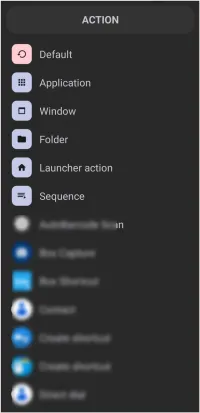
Action selections

Default Window Folder Launcher action Sequence Application

Action selection dialog elements are reviewed below. To navigate make a selection above.

  1. Default - This adds no action. It simply returns the user to the previous page (Action)
  2. Application - This causes the action result to be an application installed on the user's device as shown in the dialog opened in the next screen
  3. Window - This is best described as a pop-up floating page or container which can be customized similar to pages themselves. When using a window in TL, give it a meaningful name (as short as possible) to differentiate it from other windows. It's name will be remembered by TL when the user wants to call it with an action.
  4. Folder - Think of the everyday concept of a file folder organizing documents or other objects. In TL, folders are user created (see <Folder section>) and can hold applications, shortcuts, and other objects. This will open a dialog showing any user-created folder for selection to be the orgin object's action.
  5. Launcher action - This is the central location of TL's built-in actions … over 50 such actions. Selection here will display the complete listing in the dialog which the user can then attach to the origin object's action.
  6. Sequence - Sequences structure multiple actions to take place in a row (sequential), such as opening multiple windows, turning on wifi, and connecting to a website (URL) … even set a user-defined “wait” time within the sequence. This displays a dialog listing the user-created sequences for the desired action to use.
  7. Others - Blurred in this image are actions directly associated and available from any applications installed on the user's device. Use these as you would TL's built-in ones.

To navigate from this screen, the Android user would swipe. Here in this demo, look for the back button in the upper left corner of the screen

===== Hidden Index Anchors ===== ui-graphic-selection-image-selection ui-option-action_tap-selection-window ui-folder-options ui-option-action_tap-selection-launcher_action ui-option-action_tap-selection-sequence ui-option-action_tap-selection-application { } cfg

Discussion

Enter your comment. Wiki syntax is allowed:
Please solve the following equation to prove you're human. 96 -8 =