meta data for this page
Typefaces
Total Launcher uses Android's native text rendering engine to customize typography across app labels, widgets, and custom text objects. Understanding exactly which font technologies TL supports, how to manage them, and basic typographic principles is crucial for building cohesive themes.
Supported Formats
Total Launcher supports standard typography formats natively recognized by the Android OS.
- Supported Formats: -
.ttf(TrueType Font),.otf(OpenType Font) and.ttc(TrueTypeCollection Fonts) (see here for specific instructions on installing ttc files) - Unsupported Formats: - Web-specific fonts (
.woff,.woff2,.eot) or desktop-install files are not supported.
Variable Fonts vs. Static Fonts
Modern font downloads often include a single OpenType Variable file with an infinite range of weights and widths. Total Launcher does not support variable-font axis adjustments. If a variable font file is installed, TL will only render the default base instance.
The Workaround: When downloading a font family, look for a folder named “static” inside the .zip file. Instead of using the variable one, select the specific static file for the exact style needed.
Installing & Managing Fonts
Built-in vs. Imported Fonts
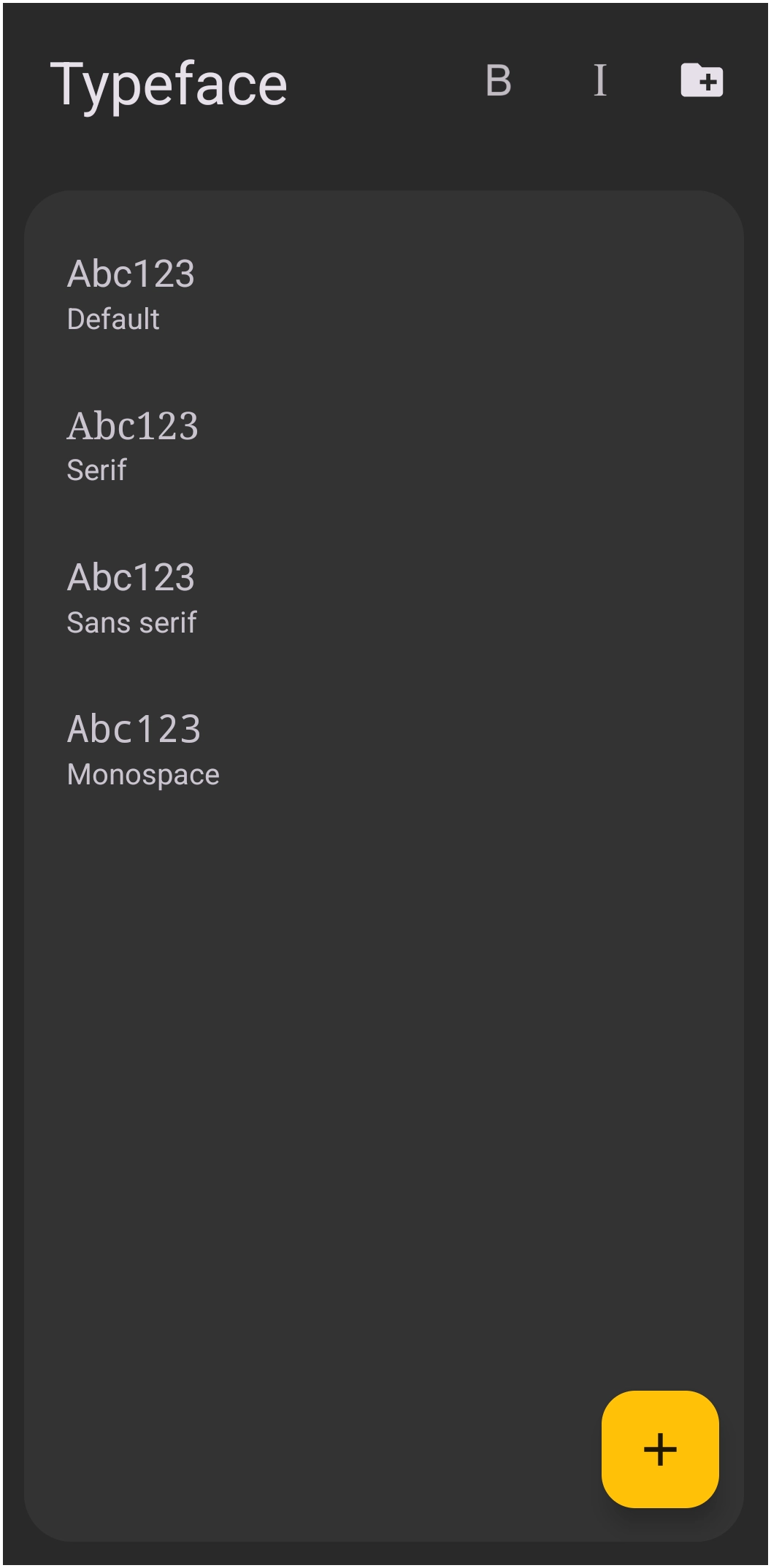
- Built-in System Fonts: - By default, Total Launcher uses the default font set by the Android device's system settings. The Roboto typeface is included in the serif, sans serif, and monospace fonts as shown here.
- Importing Custom Fonts: - TL does not require a specific system directory or root access for custom fonts. It will either import an entire folder of compatible typefaces using the folder icon
 or a single typeface file using the 'Add'
  . Simply download a font to the device's local storage and navigate to that file while in the 'Resource Typeface' manager. Note that if the file was downloaded in a 'zip' container, it will have to be extracted first.


Where to Find Fonts
When downloading fonts, always check the license.
- Google Fonts: - Best for clean, modern UI typography. All fonts are open-source and 100% free for commercial and personal use.
- DaFont: - Great for decorative or highly stylized fonts. Warning: Many fonts here are strictly “Free for Personal Use Only.” Using these in a paid theme violates copyright.
- Premium Fonts: - If purchasing premium fonts, ensure the download contains
.ttfor.otfmobile/desktop versions.
Weight, Style & Rendering
Regular vs. Bold
Because TL does not dynamically adjust font weights using variable axes, there are two styling options.
- True Typography: - Use specific font weight files such as importing
Roboto-Bold.ttffor bold text andRoboto-Light.ttffor thin text. - Synthetic Styling: - Total Launcher will provide text selection for native bold and italic fonts contained on the user device.
Color & Graphical Effects
TL allows extensive color rendering for typefaces.
- Solid: - Fonts can be colored using the Launcher's 'Color Picker' utility. This utility will not produce gradient fills for fonts.
- See the section on Resource -Color Picker Utility for more information.
- Shadows: - Drop shadows can be applied by defining the shadow color, blur radius, and X/Y offset in the text format menu.
- See the section on Resource - Shadow for more information.
Advanced Formatting: Spacing & Limitations
- Horizontal Scaling (Scale X): Total Launcher includes a Scale X (%) option in the text settings. This artificially stretches or condenses the text horizontally.
- Note: This is a graphical distortion, not true typographic kerning or letter-spacing (tracking). Use it sparingly to avoid distorting the font's intended design.
- How to adjust “Height”: There is no “Scale Y” for text. To make a font appear taller and narrower, increase the overall font Size, and then reduce the Scale X (%) to 70%.
- Line Height (Limitation): Total Launcher does not have a built-in line-spacing or line-height slider for multi-line text objects.
- Default Behavior: The vertical gap between lines of text is dictated entirely by the internal metrics of the imported
.ttfor.otffile. - Workaround: If a theme requires custom vertical spacing (tight, overlapping lines of text), use multiple single-line text objects. Create these separately, then manually arrange them using the Launcher's freeform layout grid.
Applying Fonts to Elements
Total Launcher allows granular control over typography without locking design into a single global font. However, the application is restricted by the Android OS and inherently defaults to the system's built-in font for native app icon labels and standard widget titles. Customizing typefaces requires specific object strategies.
- Grouping Method (Icons and Widgets): - To bypass OS restrictions on native labels, utilize a composite object strategy. Create a standalone Text Object with the custom font applied. Place the desired app icon or widget as a separate Image Object. Group the items together into a single, movable object.
- Text-Based Windows: - Windows constructed natively using Total Launcher Text Objects inherently support custom fonts assigned directly to the text within the object's options.
- Custom Text Objects: - Long-press any text object, tap the Option icon, and then select Font to override the system font with a custom
.ttfor.otffile. - Folder Labels: - To change the font for a specific folder, it must be done at the creation of the folder in its Option Edit dialog. This option is not available after a folder has been created.
- Widgets: - Standard Android widgets control their own fonts. However, custom widgets built using TL's internal tools can have custom fonts applied just like standard text objects.
Troubleshooting Font Display Issues
- Fallback Behavior (Missing Fonts): - If a shared theme's font file is deleted or fails to load, TL will automatically fall back to the device's default system font. The text will not disappear.
- Font Not Showing in Typeface Resources: - Ensure the file was fully unzipped. Total Launcher cannot read fonts while they are still inside a
.zipor.rararchive. - Storage Permissions: - If TL refuses to load a font from the downloads folder, ensure “Files and Media” storage permissions are granted to Total Launcher in the Android system settings.
Best Practices for Theme Design
- Combining Typefaces in a Layout:
- Less is more. Stick to one or two typeface families per theme. Use a highly readable Sans-Serif for app labels and small text. Use a stylized or decorative font only for large headers, clocks, or focal points.
- Readability Considerations:
- Beware of ultra-thin fonts on high-resolution displays since these may disappear against complex wallpapers.
- Always ensure high contrast between font color and background.
- Apply a subtle black drop shadow in the Text Options when using white text on a bright wallpaper.