meta data for this page
Automate Total Launcher: How to Configure Internal Launcher Actions
Launcher Actions function as the internal command center for Total Launcher, enabling users to perform system tasks, control the user interface, and navigate page structures without relying on external applications. Selecting a specific action executes targeted functions, from opening system panels to toggling hardware radios. When added as a graphic object, a text label automatically appears to describe the designated function. This visual text permits complete customization, or the command can be attached directly to a shortcut area or to an invisible area to establish hidden gesture controls across the layout.
How To Add A Launcher Action
- Enter Edit Mode
- Tap the ''Edit Off'' icon
- Tap the page > Tap/hold the desired object to select it
- In the Object Design menu (top) , select the Action icon

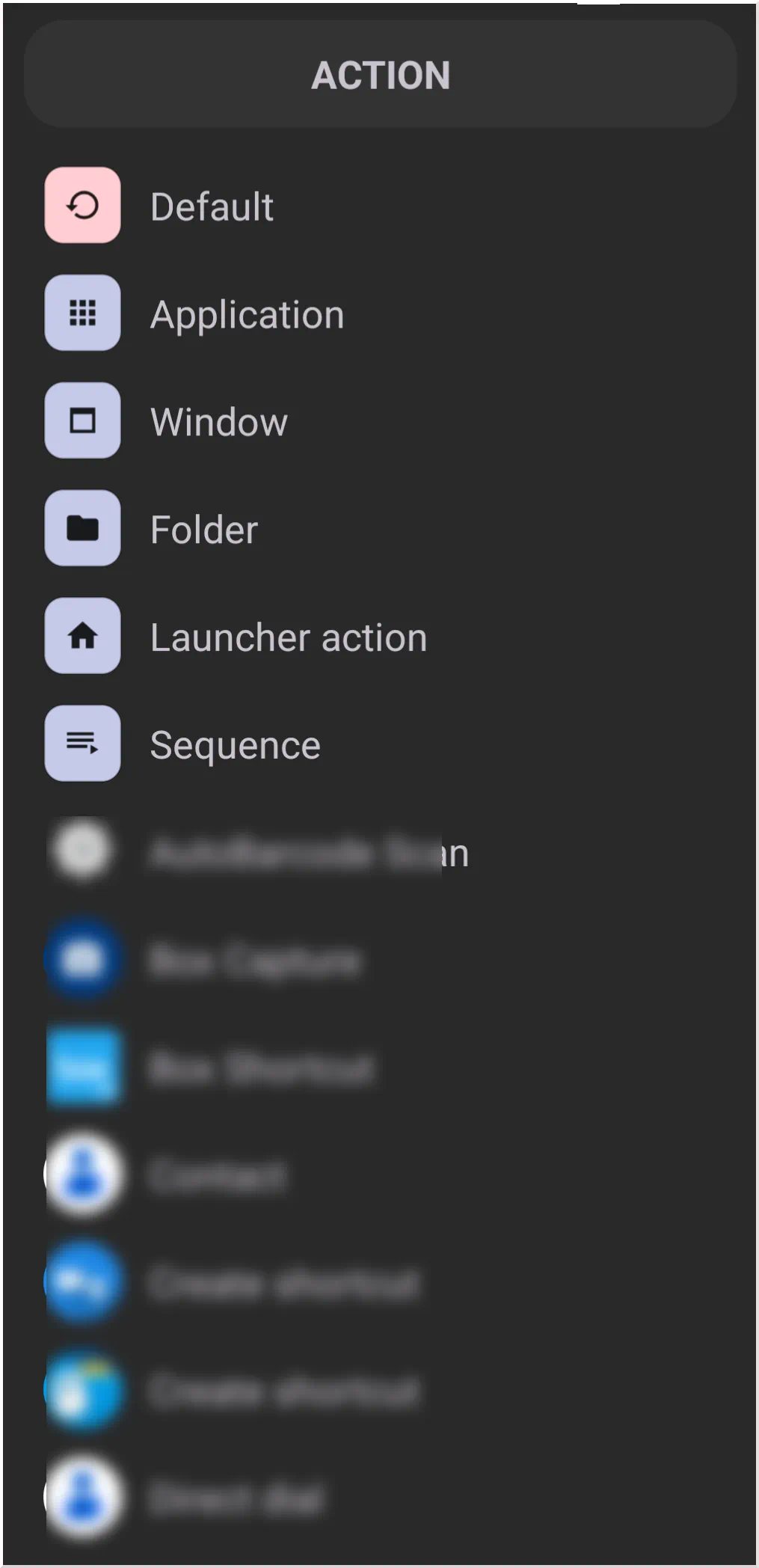
- From the Action dialog , select
Launcher action.



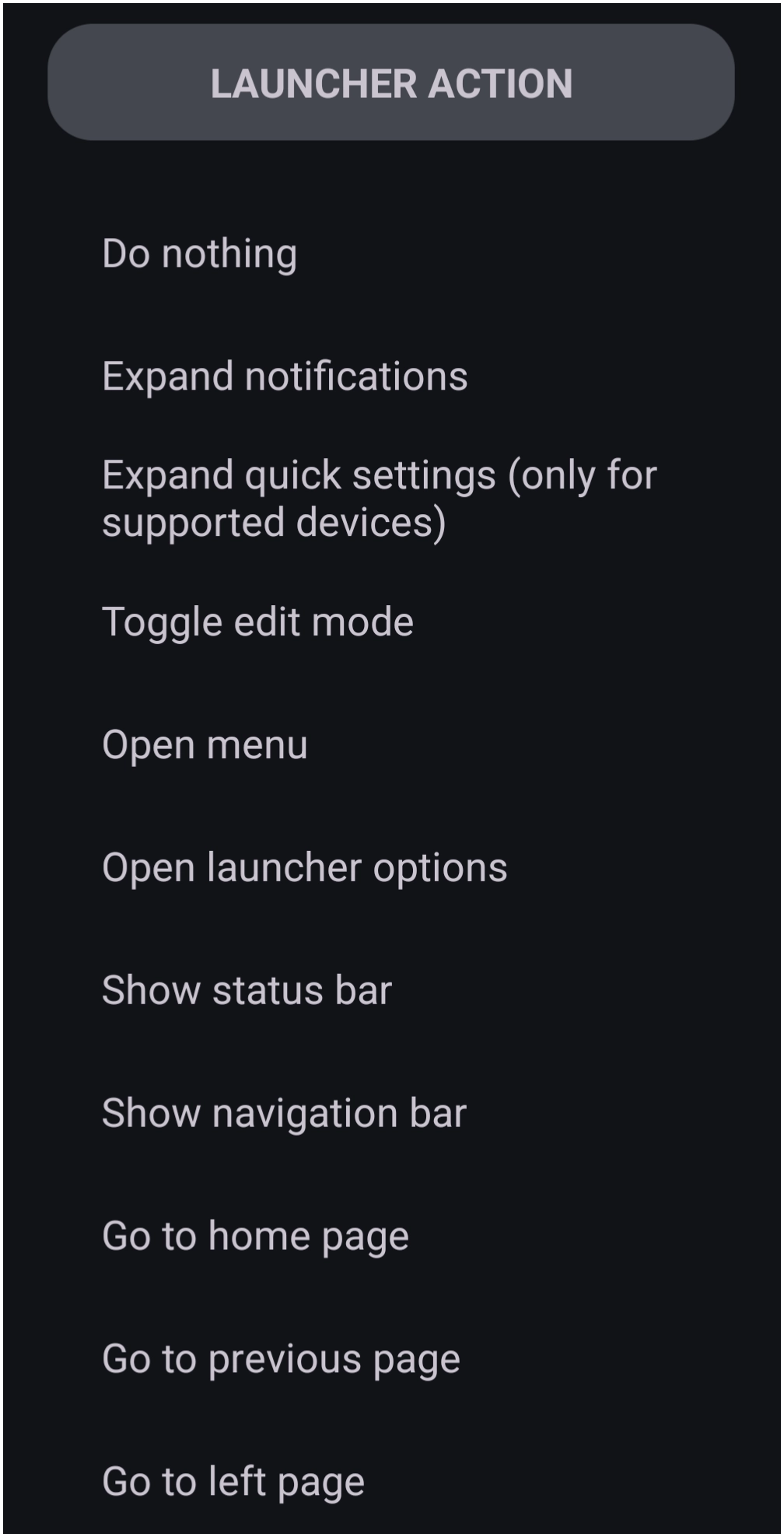
Interface Control
These actions manage the visibility of system bars and launcher panels.
- Expand notifications: - Opens the device's notification shade.
- Expand quick settings: - Opens the Quick Settings tiles (often a second swipe down on standard Android).
- Toggle edit mode: - Switches the launcher between
Edit modeandUse mode. - Open menu: - Opens the main Total Launcher menu.
- Open launcher options: - Directly accesses the internal configuration options (Behavior, UI & Animation, etc.).
- Show status bar: - Temporarily reveals the system status bar (time, battery, network) if it is set to be hidden in the launcher options.
- Show navigation bar: - Temporarily reveals the system navigation buttons (Back, Home, Recents) if they are set to be hidden.
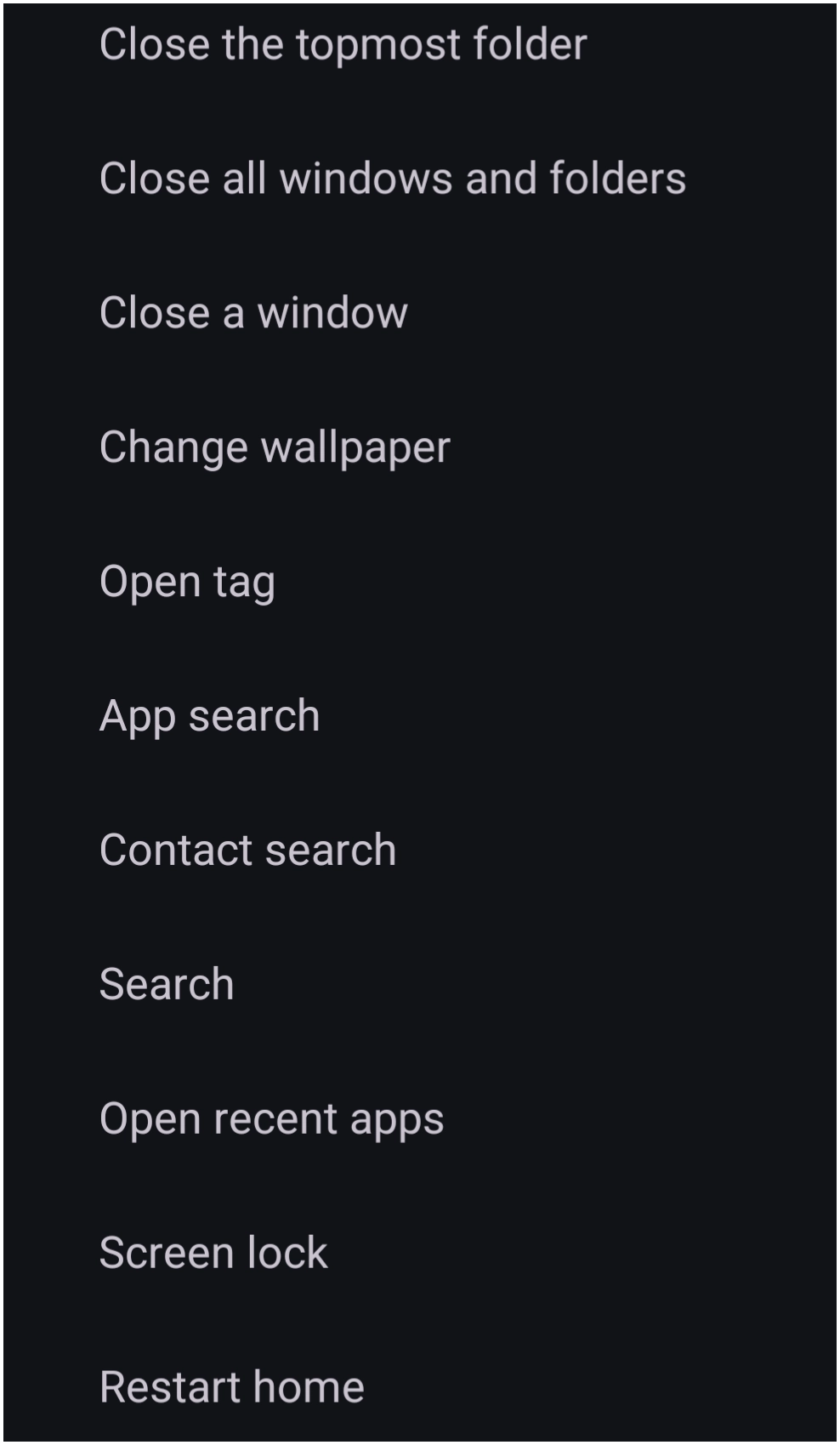
- Screen lock: - Engages the device's screen lock state. Requires accessibility permissions.
Page Navigation
These actions facilitate movement between the various pages of a setup.
- Go to home page: - Navigates directly to the designated home page.
- Go to previous page: - Returns to the page viewed immediately prior to the current one.
- Go to left/right page: - Navigates to the page strictly adjacent to the current page in the specified direction.
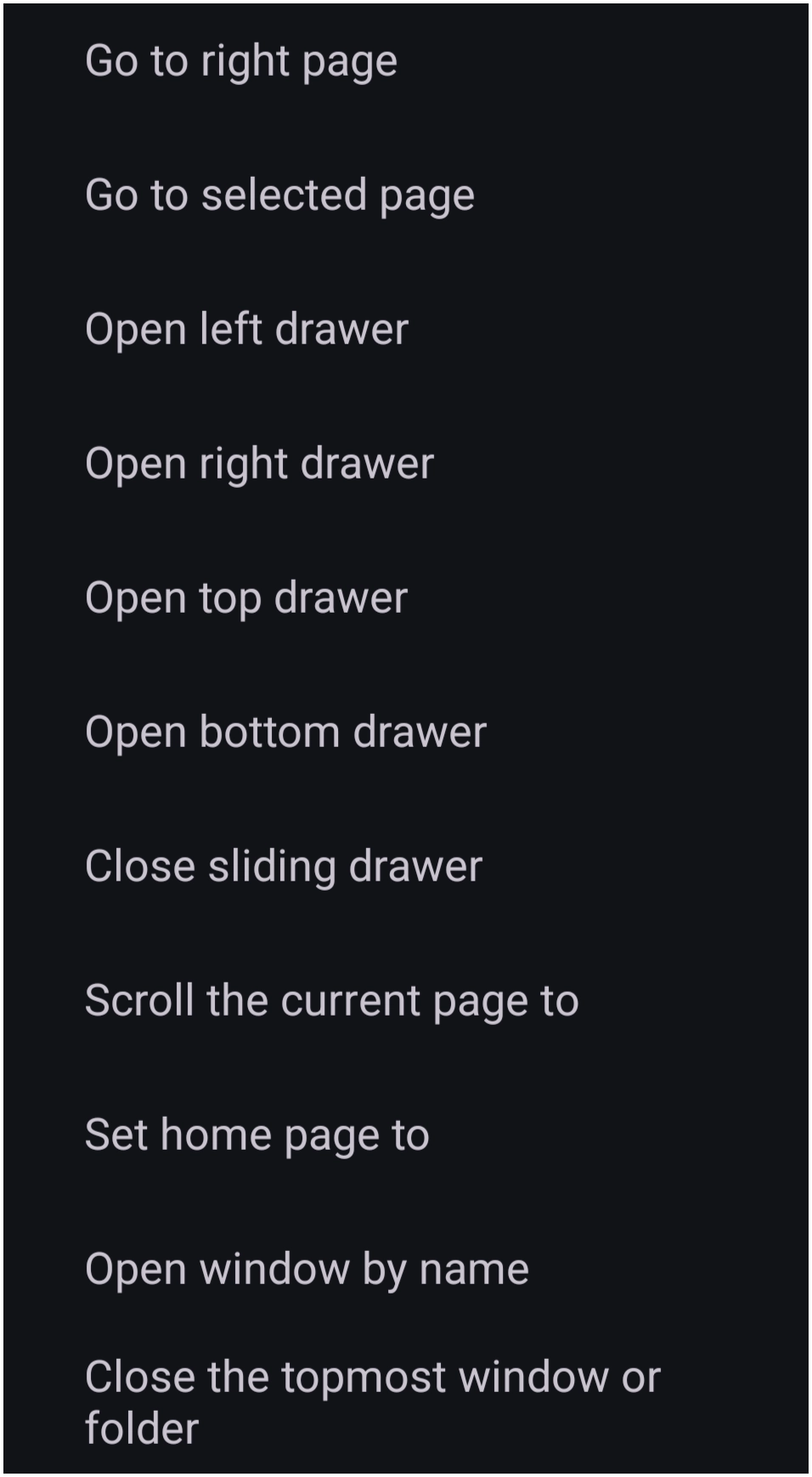
- Go to selected page: - Navigates to a specific page chosen from a list of existing page titles.
- Set home page to: - Designates the selected page as the primary home page for the setup.
- Scroll the current page to: - Scrolls a vertically-enabled page to a specific position defined by a value of 0 to 100.
0: Aligns the top of the page content with the top of the screen.50: Centers the page content.100: Aligns the bottom of the page content with the bottom of the screen.
Windows & Drawers
These commands manage the state of floating windows and sliding app drawers.
- Open [Left/Right/Top/Bottom] drawer: - Slides out the respective app drawer from the specified edge of the screen.
- Close sliding drawer: - Closes any currently open sliding drawer.
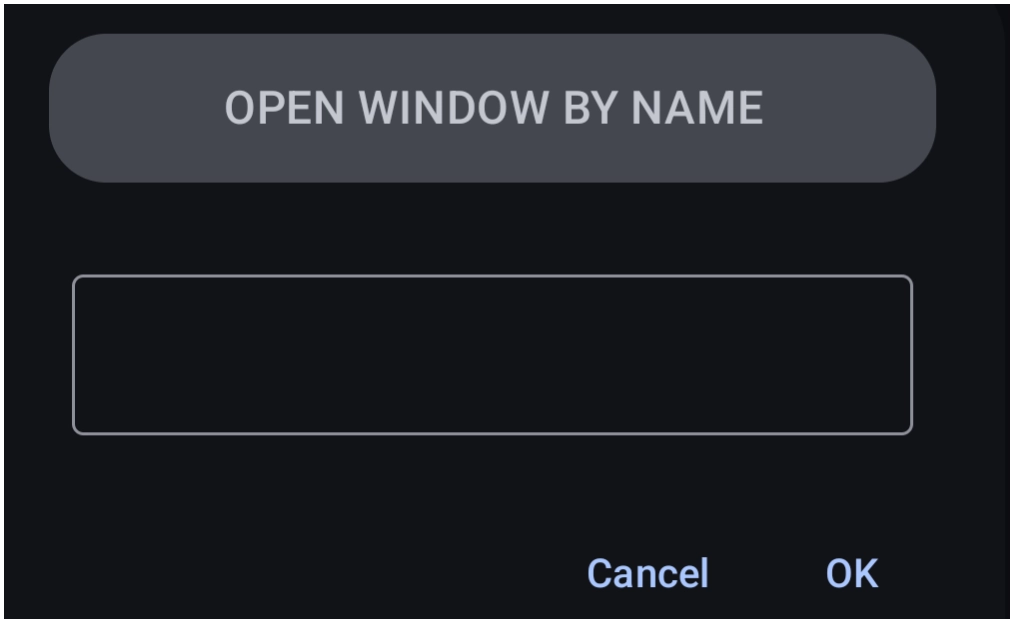
- Open window by name: - Opens a specific floating window identified by its exact title (case-sensitive) as specified in this user dialog
- Close a window: - Closes a specific window selected from a list.
- Close the topmost window or folder: - Closes the container currently at the highest Z-index (the one most recently interacted with).
- Close all windows and folders: - Closes every open window and folder overlay.
System Settings
These actions adjust device settings or toggle hardware states. Note that some actions function as discreet “setters” rather than toggles.
- Restart home: - Use to completely reload the launcher via a soft reboot and force a clean refresh of all widgets, memory, and visual states without needing to perform a restart of the device.
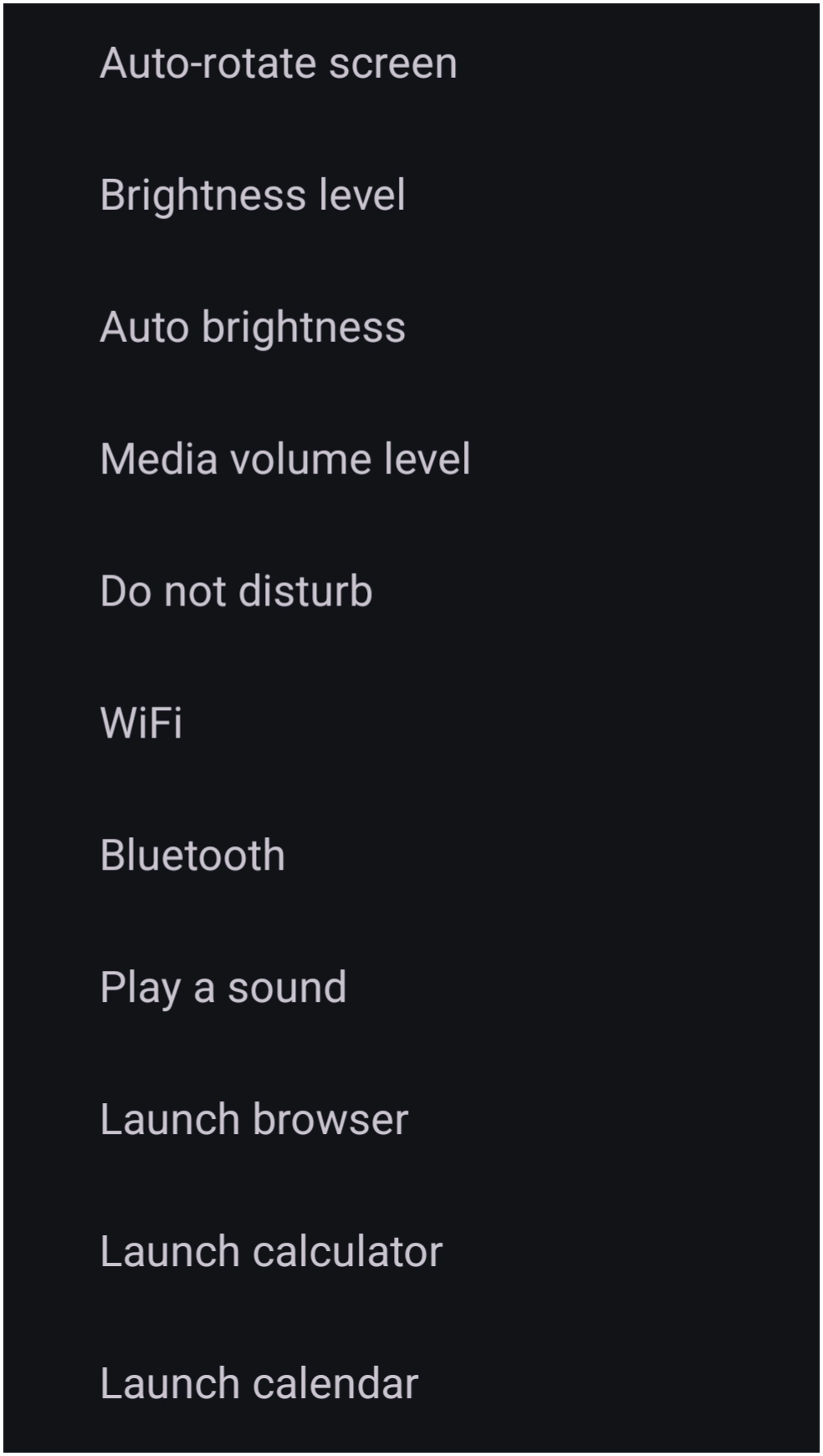
- Auto-rotate screen: - Sets the system screen rotation preference. Often requires separate objects for “On” and “Off” states.
- Brightness level: - Sets the screen brightness to a specific discrete value (0-100), as in this user dialog
- Auto brightness: - Acts as a switch to enable or disable the system's automatic brightness feature.
- Media volume level: - Sets the media volume to a specific discrete value (0-100).
- Do not disturb: - Sets the Android Do Not Disturb mode to On or Off.
- WiFi: - Toggles the WiFi radio. Requires the installation of the
TotalToolhelper utility available from the developer's blog - Bluetooth: - Toggles the Bluetooth radio. Changes typically require user confirmation via a system dialog.
- Play a sound: - Triggers the playback of a specific audio file selected from the Sound resource library.
- Change wallpaper: - Cycles through wallpaper images located in the designated wallpaper folder.

Search & Tools
These actions provide access to search utilities and recent activity.
- App search: - Launches a non-customizable widget featuring a keyboard for quick application searching.
- Contact search: - Launches a widget interface for searching contacts via a grid and keyboard.
- Search: - Opens the default internet search dialog (Google).
- Open recent apps: - Displays the Android overview screen (Recents) to switch between active applications.
Application Shortcuts
These actions serve as direct links to the device's default applications for common tasks.
- Launch browser: - Opens the default web browser (e.g., Chrome).
- Launch calculator: - Opens the default calculator app.
- Launch calendar: - Opens the default calendar app.
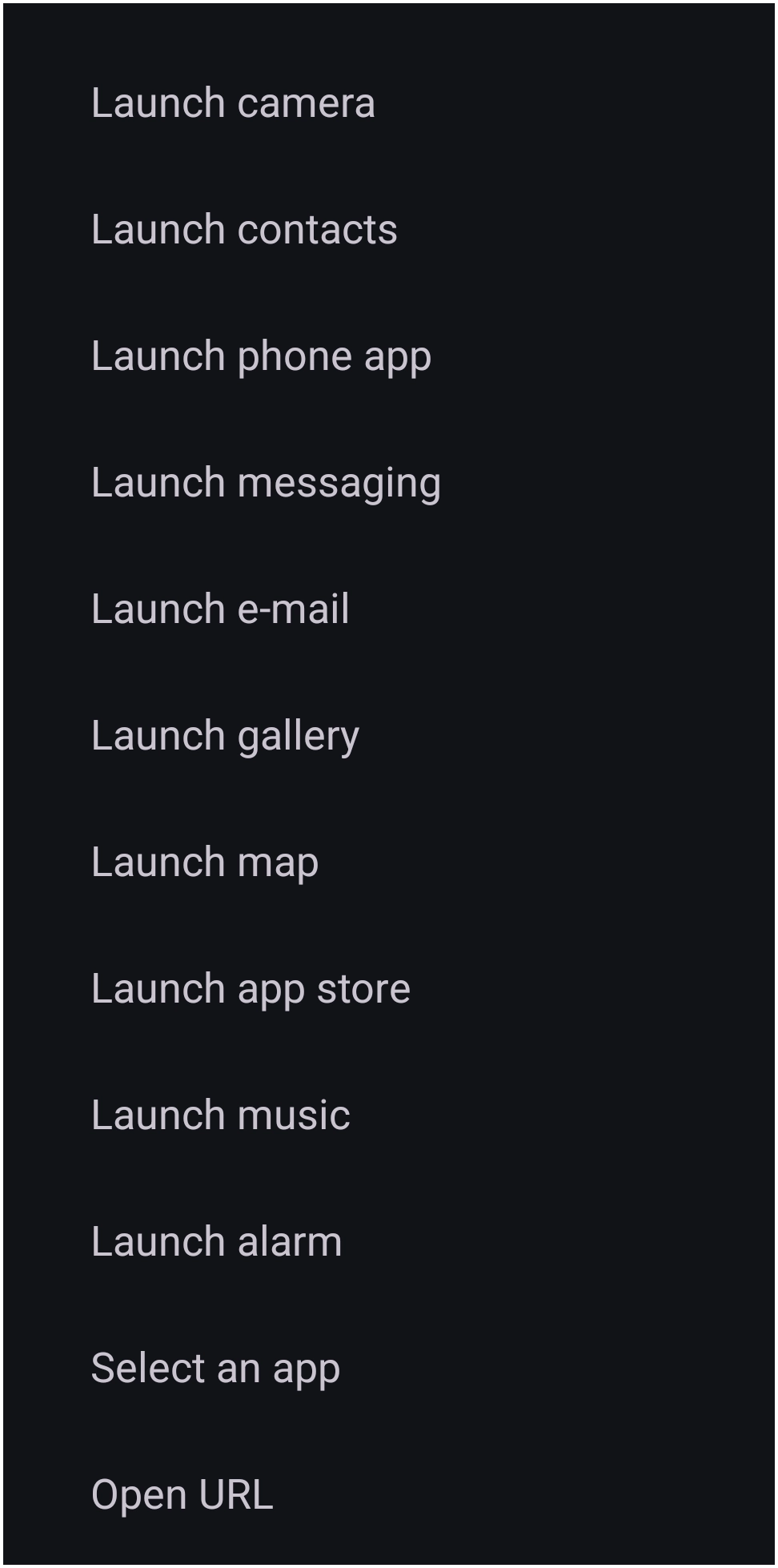
- Launch camera: - Opens the default camera app.
- Launch contacts: - Opens the default contacts app.
- Launch phone: - Opens the default dialer app.
- Launch messaging: - Opens the default SMS/messaging app.
- Launch email: - Opens the default email client (e.g., Gmail).
- Launch gallery: - Opens the default image viewer (e.g., Google Photos).
- Launch map: - Opens the default navigation app (e.g., Google Maps).
- Launch app store: - Opens the app store (e.g., Google Play Store).
- Launch music: - Opens the default music player.
- Launch alarm: - Opens the default clock/alarm app.
- Select an app: - Select the desired user-device app to open.
Advanced Actions
These actions allow for dynamic content or external linking.
- Do nothing: - No action will be initiated.
- Select action: - Places a placeholder object. Upon interaction, it allows the user to choose an application or function “on the fly” or can be pre-configured via the “Tap-on-Action” menu.
- Open URL: - Opens a specific web address (URL) in the default browser. This can be used to link to websites, search engines or apps, or specific app intents.
- Open tag: - Opens a view containing apps or objects which are user-
Comments & Feedback
Toby Lancer is ready to help! Look for the Quick Help form:
► Desktop: left sidebar located near the bottom for Private to Admin
► Mobile: 3-bar menu at page top.
► Use the Discussion section below to share any experiences and communications with other Total Launcher users.
► Any Registered User can directly update this and any wiki page if desired.
Moderation: To keep the manual clean, all comments are held for appropriateness review. Preview any comment before submitting it. It will not be displayed after submission until it is reviewed. So, please, do not resubmit.
Formatting: If using any code snippets, place them inside code tags (e.g., 'code') using double single quotes (') before and after to keep them readable.
Be Kind: This is a community effort. Please keep feedback constructive and on topic.
~~DISCUSSION~~