meta data for this page
Application Add
Dialog selections are discussed below or next to the image. The image contains no navigation selections. To return to the previous page, swipe (right to left), use the browser's return arrow, or select the Backlink icon  from the right sidebar.
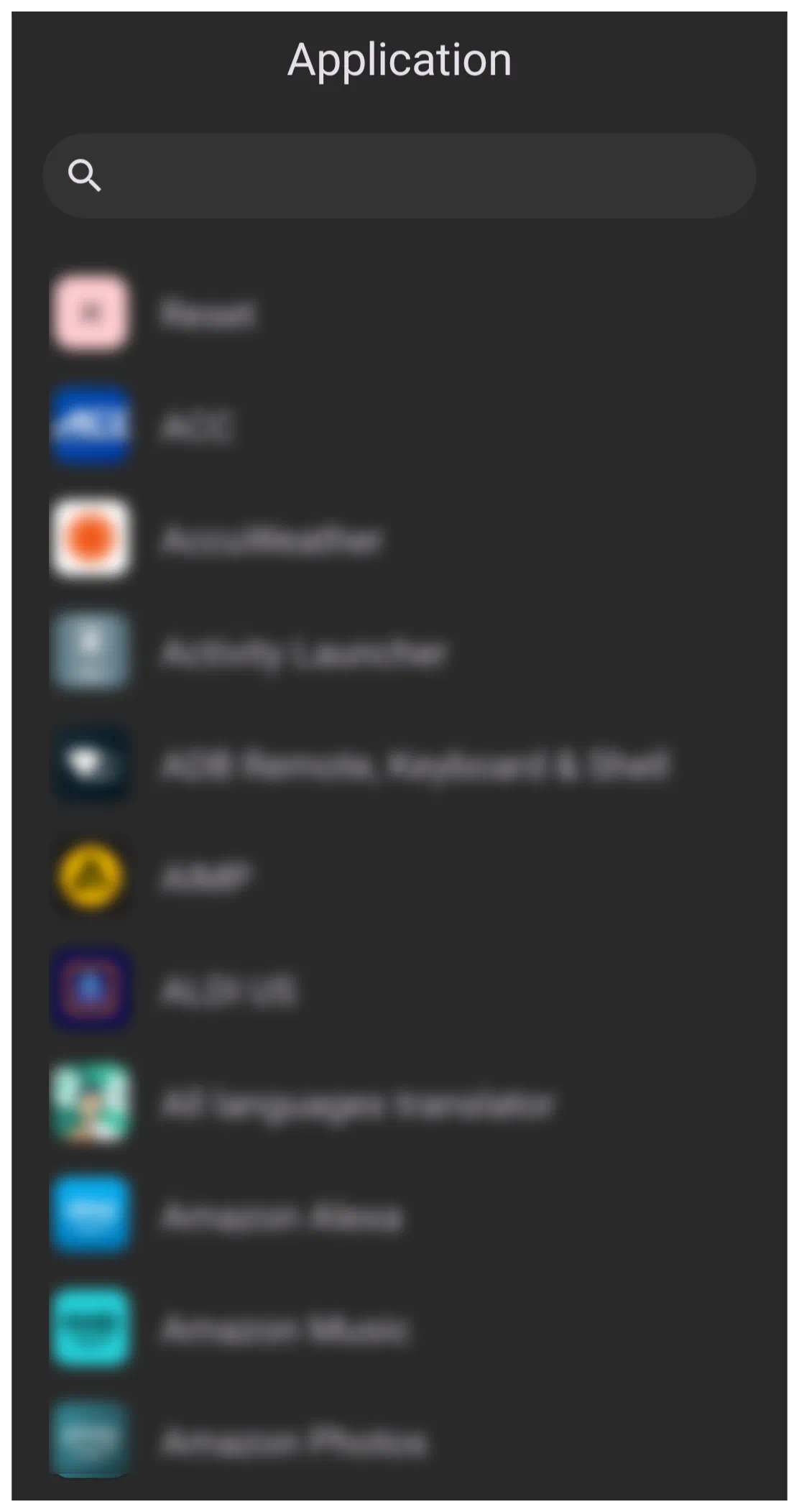
Application Add dialog. Make selection above.
- search icon - As text is entered, real-time results begin to filter in the dialog below. With each additional character entered, the search is progressively narrowed down. (incremental or hot search)
Applications are device-specific, depending on what was pre-installed by the manufacturer or installed by the user. They are represented here by their native icon and title in alphabetical order. The selection of an application here would be the result of an action (which could be a tap, swipe up, swipe down, swipe left, swipe right, or part of a sequence) selected on the original object.
For a complete discussion of how applications can be involved in a setup, see:
To navigate from this screen, the Android user would swipe. Here in this demo, select the back button in the upper left corner of the screen
Comments & Feedback
Toby Lancer is ready to help! Look for the Quick Help form:
► Desktop: left sidebar located near the bottom for Private to Admin
► Mobile: 3-bar menu at page top.
► Use the Discussion section below to share any experiences and communications with other Total Launcher users.
► Any Registered User can directly update this and any wiki page if desired.
Moderation: To keep the manual clean, all comments are held for appropriateness review. Preview any comment before submitting it. It will not be displayed after submission until it is reviewed. So, please, do not resubmit.
Formatting: If using any code snippets, place them inside code tags (e.g., 'code') using double single quotes (') before and after to keep them readable.
Be Kind: This is a community effort. Please keep feedback constructive and on topic.
~~DISCUSSION~~