meta data for this page
Sequence Actions
Dialog selections are discussed below the image. For navigation to an item, make a selection in the Sequence Actions image.
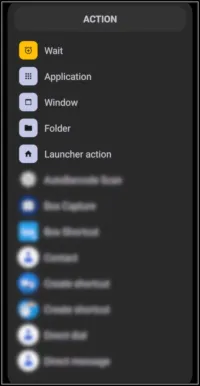
Sequence Actions dialog. Make selection above.
A sequence is a series of actions (similar to 'Macros') conducted in order. Total Launcher offers no conditional branching. Therefore, sequences remain “sequential,” containing the selections listed in the above dialog and discussed below.
- Wait - Allows for the introduction of a “pause” in seconds, either desired for effect or required for system execution.
- Application - Opens an application on the user's device
- Window - Causes a user-created window to activate, which could include animation
- Folder - Causes a user-created folder to activate
- Launcher action - Built-in Launcher actions covering interface control, page navigation, windows & drawers, system settings, search and tools, application shortcuts, and advanced actions involving URLs and Launcher tags.
===== Hidden Index Anchors ===== ID1|Wait@17,40,66,61 ID2|Application@16,65,93,84 ID3|Window@16,91,82,109 ID4|eliminate@19,117,52,132 ID5|Folder@17,116,77,138 ID6|Launcher action@18,143,114,165 { } cfg
You could leave a comment if you were logged in.
Comments & Feedback
Toby Lancer is ready to help! Look for the Quick Help form:
► Desktop: left sidebar located near the bottom for Private to Admin
► Mobile: 3-bar menu at page top.
► Use the Discussion section below to share any experiences and communications with other Total Launcher users.
► Any Registered User can directly update this and any wiki page if desired.
Moderation: To keep the manual clean, all comments are held for appropriateness review. Preview any comment before submitting it. It will not be displayed after submission until it is reviewed. So, please, do not resubmit.
Formatting: If using any code snippets, place them inside code tags (e.g., 'code') using double single quotes (') before and after to keep them readable.
Be Kind: This is a community effort. Please keep feedback constructive and on topic.
~~DISCUSSION~~