meta data for this page
Note: The image below is a static preview and contains no clickable dialogs. To navigate away after reviewing:
- Go Back: Return to the Widget Select page or use the browser's back arrow (swipe right-to-left).
- Explore: Choose a new topic from the left sidebar menu.
Widget: Checklist
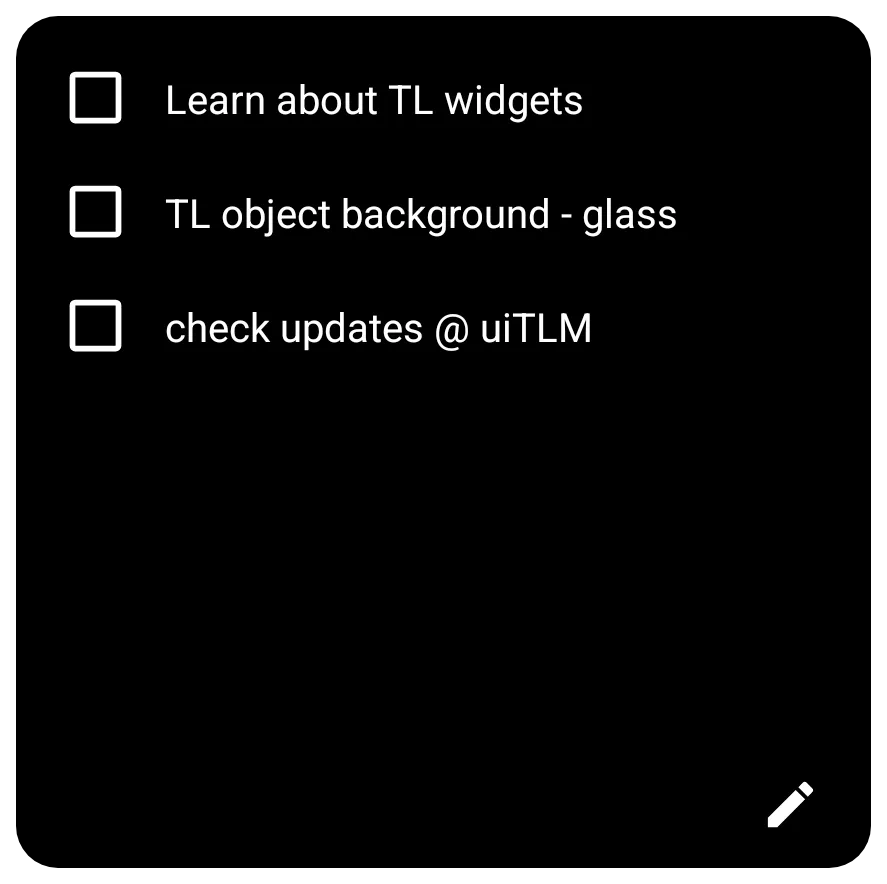 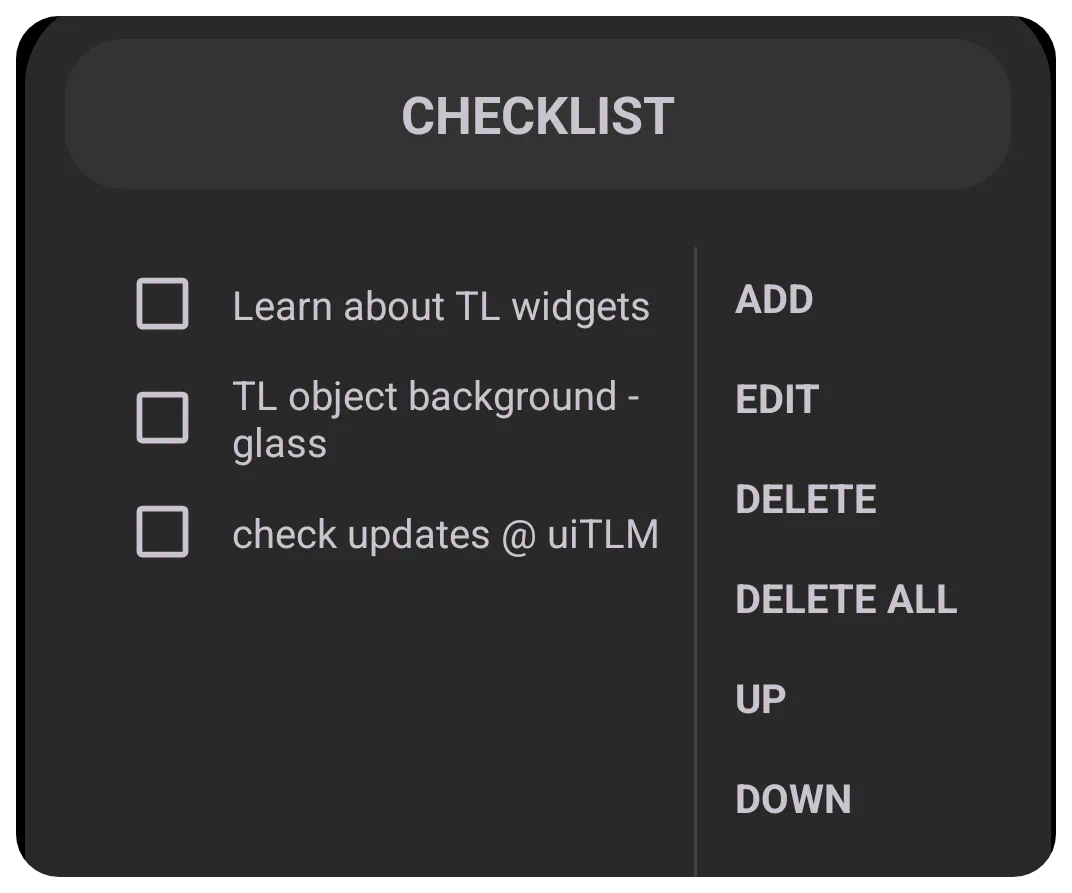 | This is a “To Do” list, with each item preceded by an active checkbox for a user to indicate “completion” and an edit icon to open the checklist dialog for creating, deleting, and managing the list. |
Key Functions and Customization
The Options dialog offers initial setup
- Items - This option offers the same item management as the widget container's “Edit” pencil icon. While it is possible to manage the items from this option dialog, the customary management will be done in the widget itself.
- Auto-delete - Check this to completely remove the item from the list if checked. If not checked and the item is selected and deleted, the item contents will remain but have a –strikeout through the contents–.
- Text color - This sets the color of all text content in the list items.
- Background - Defines the background of the widget container. See here.
- Margins: Allows adjustment of the margins surrounding the widget in its container. See here.
Functional Characteristics
The following describes the everyday use and management of the checklist widget:
- Edit Pencil Icon Item Management:
The item entry dialog offers the following options:
- Add - Tap to open the Checklist dialog and enter the item description. Then click “Cancel” or “OK”
- Edit - The user must tap the checklist item to select (highlight) it, then edit the item's contents. Then click “Cancel” or “OK”
- Delete - The user must tap the checklist item to select (highlight) it, then tap “Delete” to delete the item. The user is returned to the listing.
- Delete All - Tap this item to fully delete all items on the checklist. There is no confirmation request. Be cautious.
- Up - Select the list item to highlight it, then tap up to move the item one item up.
- Down - Select the list item to highlight it, then tap down to move the item one item down.
There is no stated limit on entries or on the character limit of an entry. The uiTLM wiki successfully tested 500-character entries and 10 entry items.
You could leave a comment if you were logged in.
Comments & Feedback
Toby Lancer is ready to help! Look for the Quick Help form:
► Desktop: left sidebar located near the bottom for Private to Admin
► Mobile: 3-bar menu at page top.
► Use the Discussion section below to share any experiences and communications with other Total Launcher users.
► Any Registered User can directly update this and any wiki page if desired.
Moderation: To keep the manual clean, all comments are held for appropriateness review. Preview any comment before submitting it. It will not be displayed after submission until it is reviewed. So, please, do not resubmit.
Formatting: If using any code snippets, place them inside code tags (e.g., 'code') using double single quotes (') before and after to keep them readable.
Be Kind: This is a community effort. Please keep feedback constructive and on topic.
~~DISCUSSION~~