meta data for this page
<!-- googleoff: index -->
⚠️ v4.0 UI Transition Notice - In Process: The release of Total Launcher v4.0 has introduced significant user interface changes. Please note that this page does not yet reflect these updates. The new layout paths, folds, and visual maps are currently being compiled and will be deployed shortly.
<!-- googleon: index -->
Note: The image below is a static preview and contains no clickable dialogs. To navigate away after reviewing:
- Go Back: Return to the Widget Select page or use the browser's back arrow (swipe right-to-left).
- Explore: Choose a new topic from the left sidebar menu.
Widget: Analog clock
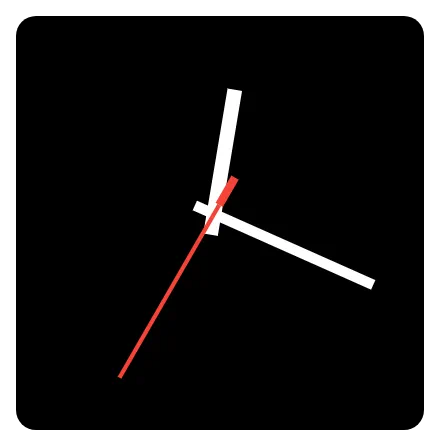 | This functions as a clock face, displaying time with hour, minute, and second hands. |
Customization and Features
All customization for the analog clock elements uses the widget's Edit dialog, which opens the launcher's standard Edit dialog, consisting of Reset, Color, Dynamic color, Icon pack, Shape, Image, and Dynamic image. These options are fully discussed here. The features to be customized with the above options are:
- Time Zone: Users can set the specific time zone the clock is to display, which defaults to the user's device setting. The user can manually select from over 500 locations in the global time zones.
- Clock Hand Customization: The appearance of each clock hand is individually configurable:
- Hour hand: Most users will customize this using a color or image. The hour hand can be made invisible (hidden) using the hex color code
#00000000. - Minute hand: See the above hour hand discussion.
- Second hand: See the above hour hand discussion.
- Aesthetics
- Background: The overall background of the widget would be the clock face. Users should find suitable images to import into Resource Images in the launcher for customization.
- The default background is transparent but can be modified with any of the six options above.
- Margins: The margins default to 5 pixels on all sides. Increasing the margins on all sides would reduce the space available for the hands, making them occupy less space. Also, manipulation of the margins could be used as an offset to shift the center point (fulcrum). The margin modification does not affect the background display.
- Animation
- Enter animation for the analog clock widget. See more discussion on enter animation here.
- If the clock is on the designated home page and the phone is on the home page, the enter animation is affected after a system doze and “awakened” by the power button or phone unlock.
- Returning to home screen from exiting 'recent apps', enter animation activates.
- 'Quick Exit' swipe: swiping up from the bottom navigation bar wipes the immediate app to background and brings forth the home screen, in which the enter animation also activates, creating a clean transition.
Comments & Feedback
Toby Lancer is ready to help! Look for the Quick Help form:
► Desktop: left sidebar located near the bottom for Private to Admin
► Mobile: 3-bar menu at page top.
► Use the Discussion section below to share any experiences and communications with other Total Launcher users.
► Any Registered User can directly update this and any wiki page if desired.
Moderation: To keep the manual clean, all comments are held for appropriateness review. Preview any comment before submitting it. It will not be displayed after submission until it is reviewed. So, please, do not resubmit.
Formatting: If using any code snippets, place them inside code tags (e.g., 'code') using double single quotes (') before and after to keep them readable.
Be Kind: This is a community effort. Please keep feedback constructive and on topic.
~~DISCUSSION~~