meta data for this page
Squircle Options
Dialog selections are discussed below the image. To navigate to an item, select it in the Squircle Options image . If NOT selecting any item and wanting to return to the prior page: swipe right-to-left; use the browser’s ‘back’ arrow; or use the Wiki’s Backlink icon  on the right sidebar (mobile: drop-down dialog at the top of the page).
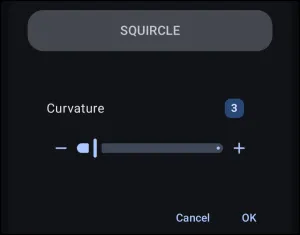
Squircle Options dialog. Make selection above.
In the above image, tap these elements to navigate in this demo:
- Cancel - Discards any modifications made to the curvature settings and returns to the previous menu without saving changes.
- OK - Confirms the selected curvature settings and saves the customized squircle resource to the shape palette.
Other elements in this dialog screen (which are interactive in the app, but not this demo) show options for:
* Curvature - Displays the label for the corner smoothing parameter that controls the transitional curve between a circle and a square. The value range is 2 to 10.
- Lower Values (e.g., 2 to 4): Produces the roundest profiles. At
2, the shape resolves into a circle, while values3and4form a balanced superellipse (classic squircle) with deep, continuous corner transitions. - Higher Values (e.g., 5 to 10) (toward the right of the slider): Progressively pushes the curve out toward the corners, flattening the perimeter edges until the geometry closely resembles a square with tight corner rounding at
10. - Curvature Value (3) - Shows the currently assigned curvature index. Selecting this badge opens a numeric entry dialog to input an exact value directly.
- Decrease (-) Button - Decrements the curvature value by single-unit increments to sharpen the shape corners closer to a square profile.
- Curvature Slider - Adjusts the curvature dynamically across its range by dragging the indicator handle left or right.
- Increase (+) Button - Increments the curvature value by single-unit increments to increase corner roundness toward a circular profile.
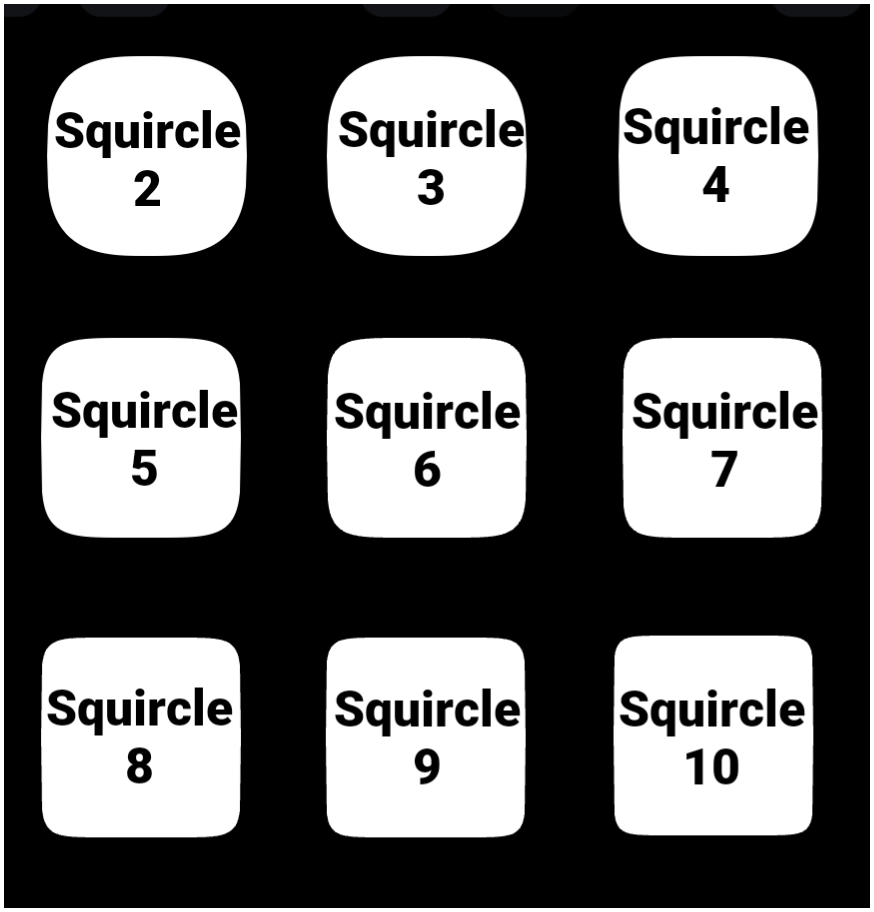
Toby says  : More Squircle distinctions:
🔹Squircle 2: Essentially a true circle (the standard mathematical circle exponent n=2).
🔹Squircle 3: A ballooned circle / heavy squircle. The sides bow outward prominently, leaving very little flat edge.
🔹Squircle 4 & 5 (The Sweet Spot for a “Rounded Square”): Squircle 4 provides distinct, straight-feeling flat edges along the top, bottom, and sides while maintaining generous, organic corner curves. This is visually identical to classic Apple/Samsung app icon silhouettes.
🔹Squircle 5 firms up the straight edges even further, closely mimicking a square with a moderate corner radius, but with continuous superellipse curvature rather than abrupt circular arcs.
🔹Squircle 6 to 8: Approaches a box/tile. The flat edges dominate the perimeter, and only the outer tips curve inward.
🔹Squircle 9 & 10: Virtually a sharp square with only subtle, tight corner rounding.
Technical Distinction: “Squircle 4–5” vs. Native “Round Rectangle” In Total Launcher:
🔹Default Shape > Round Rectangle: Constructs a shape by taking straight lines and splicing four separate circular quarter-arcs at the corners. This produces a noticeable point of tangency (a visible “seam”) where the straight edge transitions into the circle.
🔹Squircle (Curvature 4 or 5): Uses a continuous mathematical curve across the entire perimeter without hard tangency seams. It achieves the visual function of a rounded square with a significantly smoother, more modern look.
===== Hidden Index Anchors ===== ui-resources-shape-selection-squircle
Comments & Feedback
Toby Lancer is ready to help! Look for the Quick Help form:
► Desktop: left sidebar located near the bottom for Private to Admin
► Mobile: 3-bar menu at page top.
► Use the Discussion section below to share any experiences and communications with other Total Launcher users.
► Any Registered User can directly update this and any wiki page if desired.
Moderation: To keep the manual clean, all comments are held for appropriateness review. Preview any comment before submitting it. It will not be displayed after submission until it is reviewed. So, please, do not resubmit.
Formatting: If using any code snippets, place them inside code tags (e.g., 'code') using double single quotes (') before and after to keep them readable.
Be Kind: This is a community effort. Please keep feedback constructive and on topic.
~~DISCUSSION~~