meta data for this page
Shape - Arc Options
The Arc Options dialog defines the radial geometry of vector arc shapes in Total Launcher. Unlike standard shapes with fixed bounds, arcs are plotted along a circular perimeter using an angular starting origin and a clockwise rotational sweep.
Dialog selections are discussed below the image. To navigate to an item, select it in the Shape - Arc Options image. If NOT selecting any item and wanting to return to the prior page: swipe right-to-left; use the browser’s ‘back’ arrow; or use the Wiki’s Backlink icon  on the right sidebar (mobile: drop-down dialog at the top of the page).
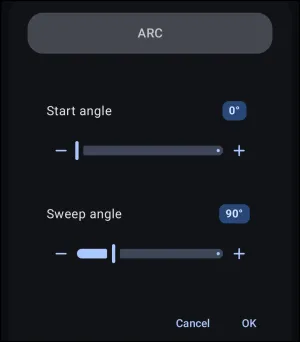
Shape - Arc Options dialog. Make selection above.
The navigable elements in this demo dialog are:
- Cancel / OK: Tap Cancel to discard changes or OK to commit the arc configuration to the shape resource. Both will return the user to the Arc Add dialog to continue with other arc modifications
The other elements in this demo dialog are discussed below:
- Start angle: Defines the starting radial coordinate along the circular perimeter. Total Launcher anchors 0° at 3 o'clock (the positive horizontal axis) and advances clockwise around the center pivot.
- Start angle value 0° (Pill Badge): Tap the badge to open an on-screen numeric keypad and input an exact degree integer (`0°` to `360°`).
- Start Angle Slider & Step Buttons (- / +): Drag the horizontal slider or tap the minus/plus buttons to adjust the starting angle incrementally.
- Sweep angle: Defines the rotational length of the arc segment extending clockwise from the designated Start Angle (`1°` to `359°`).
- Sweep angle value 90° (Pill Badge): Tap the blue pill badge to enter an exact sweep angle via numeric keypad.
- Sweep Angle Slider & Step Buttons (- / +): Drag the slider or tap minus/plus buttons to adjust the angular span.
⚠️ The Coordinate Challenge: 12 o'clock vs. 3 o'clock
In design intuition, most creators envision an arc like a clock face with 12 o'clock as the natural top (0°). Because Total Launcher's coordinate system anchors 0° at 3 o'clock, configuring arcs from the top requires angular conversion:
Total Launcher Start Angle = (Clock Face Angle - 90° + 360°) mod 360
uiTLM Arc Calculator Tool & App
To completely eliminate mental math and blind slider guessing, uiTLM provides a dedicated visual calculator utility:
uiTLM Arc Calculator interface

Online Web Calculator: Open Interactive Arc Calculator ↗
Visualize arcs on an interactive 12-hour clock dial with live WYSIWYG rendering, touch pill inputs, and one-tap clipboard copying directly into Total Launcher.
📱 Standalone Android App (APK):
Prefer an offline mobile utility to use in split-screen alongside Total Launcher? Download the free, lightweight utility app directly from our downloads repository:
➡️ Download TL Arc Calculator APK
Quick Reference: Clock Position to Total Launcher Input
Use this table as a quick reference guide to achieve common clock-oriented shapes in Total Launcher:
| Intended Visual Arc | Clock Face Position | TL Start Angle | TL Sweep Angle | Resulting Shape Profile |
|---|---|---|---|---|
| Top Quarter (12 to 3) | Start 12:00 (0°) | `270°` | `+90°` | Top-right quadrant wedge / gauge |
| Top Half (9 to 3) | Start 9:00 (270°) | `180°` | `+180°` | Upper speedometer / dome arc |
| Bottom Half (3 to 9) | Start 3:00 (90°) | `0°` | `+180°` | Lower smile / inverted semicircular tray |
| Right Half (12 to 6) | Start 12:00 (0°) | `270°` | `+180°` | Right sidebar vertical arc container |
| Full Circle Gauge | Start 12:00 (0°) | `270°` | `+359°` | Circular progress ring (leaving 1° gap) |
===== Hidden Index Anchors ===== ui-resources-shape-selection-arc
Comments & Feedback
Toby Lancer is ready to help! Look for the Quick Help form:
► Desktop: left sidebar located near the bottom for Private to Admin
► Mobile: 3-bar menu at page top.
► Use the Discussion section below to share any experiences and communications with other Total Launcher users.
► Any Registered User can directly update this and any wiki page if desired.
Moderation: To keep the manual clean, all comments are held for appropriateness review. Preview any comment before submitting it. It will not be displayed after submission until it is reviewed. So, please, do not resubmit.
Formatting: If using any code snippets, place them inside code tags (e.g., 'code') using double single quotes (') before and after to keep them readable.
Be Kind: This is a community effort. Please keep feedback constructive and on topic.
~~DISCUSSION~~