meta data for this page
- en
<!-- googleoff: index -->
⚠️ v4.0 UI Transition Notice - In Process: The release of Total Launcher v4.0 has introduced significant user interface changes. Please note that this page does not yet reflect these updates. The new layout paths, folds, and visual maps are currently being compiled and will be deployed shortly.
<!-- googleon: index -->
Main Menu: Wallpaper
There are no navigation elements in this image to tap. To return to the Edit On ui-demo page • ☛ click here, otherwise, make a selection from the left sidebar of the next page or topic to visit or swipe right-to-left if on a touchscreen device.
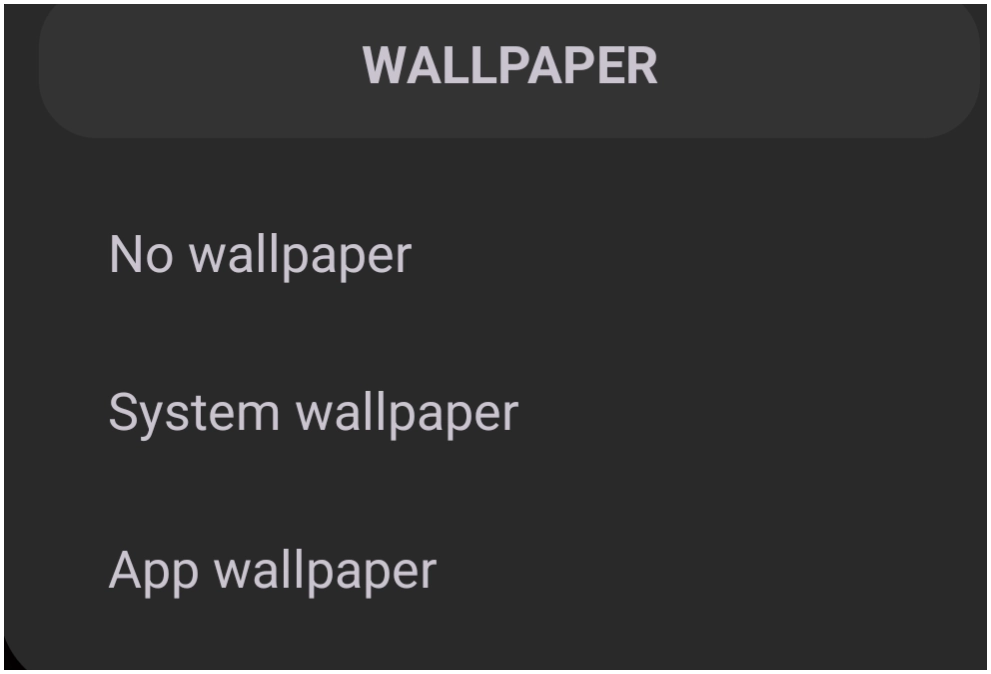
This represents the Wallpaper dialog reached by Main Menu > Wallpaper. Any wallpapers must already be located on the user device. Total Launcher does not include wallpapers in its installation.
- No wallpaper: All launcher pages will have no “wallpaper” but will have a default black background unless otherwise selected. However, the launcher does provide in its Page Options accessed by
long press>Edit Off → Edit Onand selection of the background image icon. If desired that page can be accessed here.

- System wallpaper: If the user device has previously set a wallpaper to display, this selection will enable it for all pages created by the launcher.
- App wallpaper: There are Android apps which provide wallpapers and their management. Selecting this option will display a dialog with those apps for user selection and configuration.
Comments & Feedback
Toby Lancer is ready to help! Look for the Quick Help form:
► Desktop: left sidebar located near the bottom for Private to Admin
► Mobile: 3-bar menu at page top.
► Use the Discussion section below to share any experiences and communications with other Total Launcher users.
► Any Registered User can directly update this and any wiki page if desired.
Moderation: To keep the manual clean, all comments are held for appropriateness review. Preview any comment before submitting it. It will not be displayed after submission until it is reviewed. So, please, do not resubmit.
Formatting: If using any code snippets, place them inside code tags (e.g., 'code') using double single quotes (') before and after to keep them readable.
Be Kind: This is a community effort. Please keep feedback constructive and on topic.
~~DISCUSSION~~