<!-- googleoff: index -->
⚠️ v4.0 UI Transition Notice - In Process: The release of Total Launcher v4.0 has introduced significant user interface changes. Please note that this page does not yet reflect these updates. The new layout paths, folds, and visual maps are currently being compiled and will be deployed shortly.
<!-- googleon: index -->
ui-sliding_drawer
created by ui-ui_anim-sliding_drawer
Sliding Drawer Options
Location:
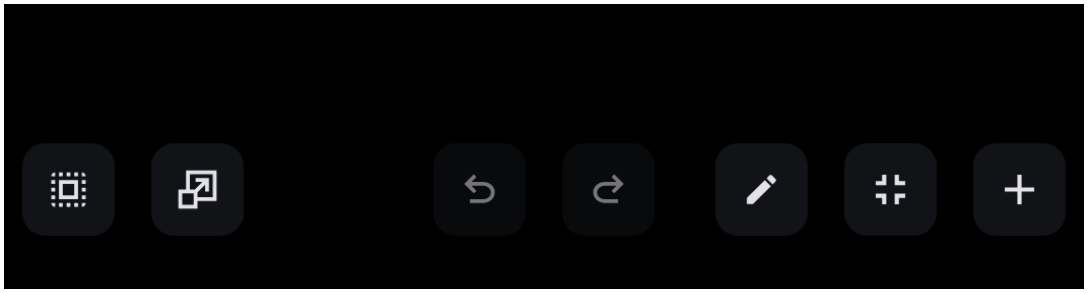
Edit mode> ''Edit Off'' icon to ''Edit On'' icon > Tap the page to open it > Open the sliding drawer (right, left, top, or bottom) > Tap/hold the container to select to reveal the Edit menu. > tap the pencil icon > view the open the container option icon seen here. > Option icon to open the Sliding Drawer Edit Options dialog, shown below.

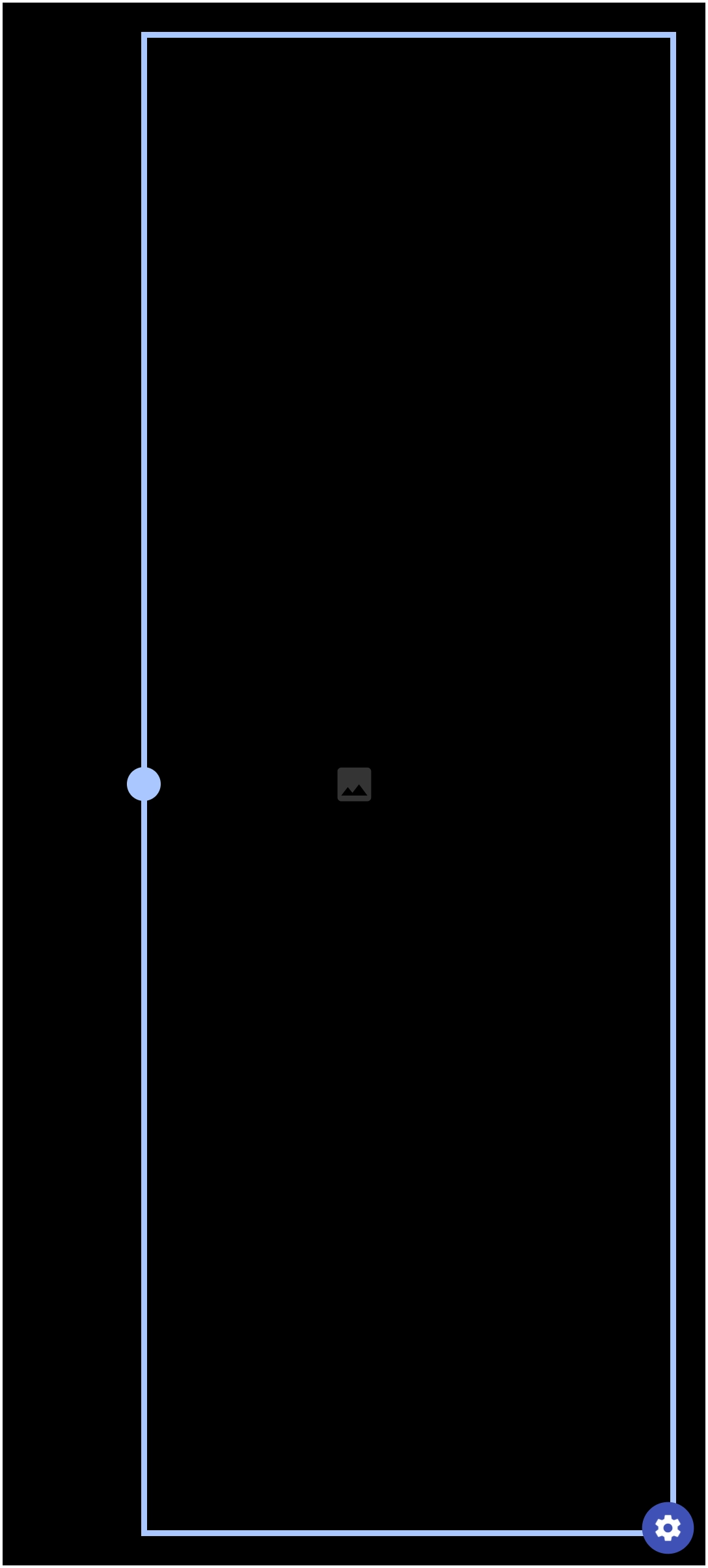

Dialog selections are discussed below the image. To navigate to an item, select it in the Sliding Drawer Options image. If NOT selecting any item and wanting to return to the prior page: swipe right-to-left; use the browser’s ‘back’ arrow; or use the Wiki’s Backlink icon  on the right sidebar (mobile: drop-down dialog at the top of the page).
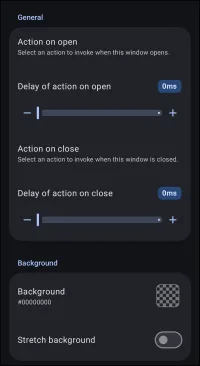
Sliding Drawer Options dialog. Make selection above.
The following elements in the above dialog can be tapped for navigation and are discussed below:
- Action on open - Specifies a Total Launcher action, application shortcut, or command to execute automatically whenever the drawer opens.
- Action on close - Specifies a Total Launcher action, application shortcut, or command to execute automatically whenever the drawer closes.
- Background - Selects the fill color or image used for the drawer's background. The displayed code (e.g.,
#00000000) represents the current color value and alpha transparency.
Other elements in the above dialog are discussed below:
- Delay of action on open - Sets the wait time in milliseconds before the configured opening action executes. A value of
0indicates immediate execution. - Delay of action on close - Sets the wait time in milliseconds before the configured closing action executes. A value of
0indicates immediate execution. - Stretch background - Determines whether the selected background image or color scales to fill the entire available space of the sliding drawer.
```
Other notable elements in the above image:
- Stretch background -
===== Hidden Index Anchors ===== ID1|Background@33,52,97,80 ID2|Action on open@35,115,192,153 ID3|Delay of action on open@34,165,139,191 ID4|Action on close@36,202,189,236 ID5|Delay of action on close@35,250,140,273 { } cfg
Comments & Feedback
Toby Lancer is ready to help! Look for the Quick Help form:
► Desktop: left sidebar located near the bottom for Private to Admin
► Mobile: 3-bar menu at page top.
► Use the Discussion section below to share any experiences and communications with other Total Launcher users.
► Any Registered User can directly update this and any wiki page if desired.
Moderation: To keep the manual clean, all comments are held for appropriateness review. Preview any comment before submitting it. It will not be displayed after submission until it is reviewed. So, please, do not resubmit.
Formatting: If using any code snippets, place them inside code tags (e.g., 'code') using double single quotes (') before and after to keep them readable.
Be Kind: This is a community effort. Please keep feedback constructive and on topic.
~~DISCUSSION~~