Table of Contents
Dynamic Image - Add Image
In the app, the user selects the desired Dynamic Image and is returned to the previous screen, with the dynamic image shown in the selection box (if a background) or on the page (if an independent object). In this demo, to return to the previous page, swipe (right to left), use the browser's return arrow, or select the Backlink icon  from the right sidebar.
When learning Total Launcher, background knowledge of various dynamic images will be useful. Dynamic images automatically update data or change appearance based on device state (e.g., Battery level, Wifi signal, Time). Users can create other dynamic images (e.g., custom clock faces). Make sure to review the Dynamic Image Categories section below.
Dialog selections are discussed below the image. To navigate to an item, select it in the Dynamic Image Add image. If NOT selecting any item and wanting to return to the prior page: swipe right-to-left; use the browser’s ‘back’ arrow; or use the Wiki’s Backlink icon on the right sidebar (mobile: drop-down dialog at the top of the page).
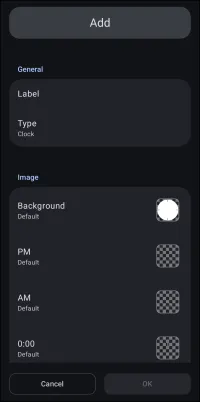
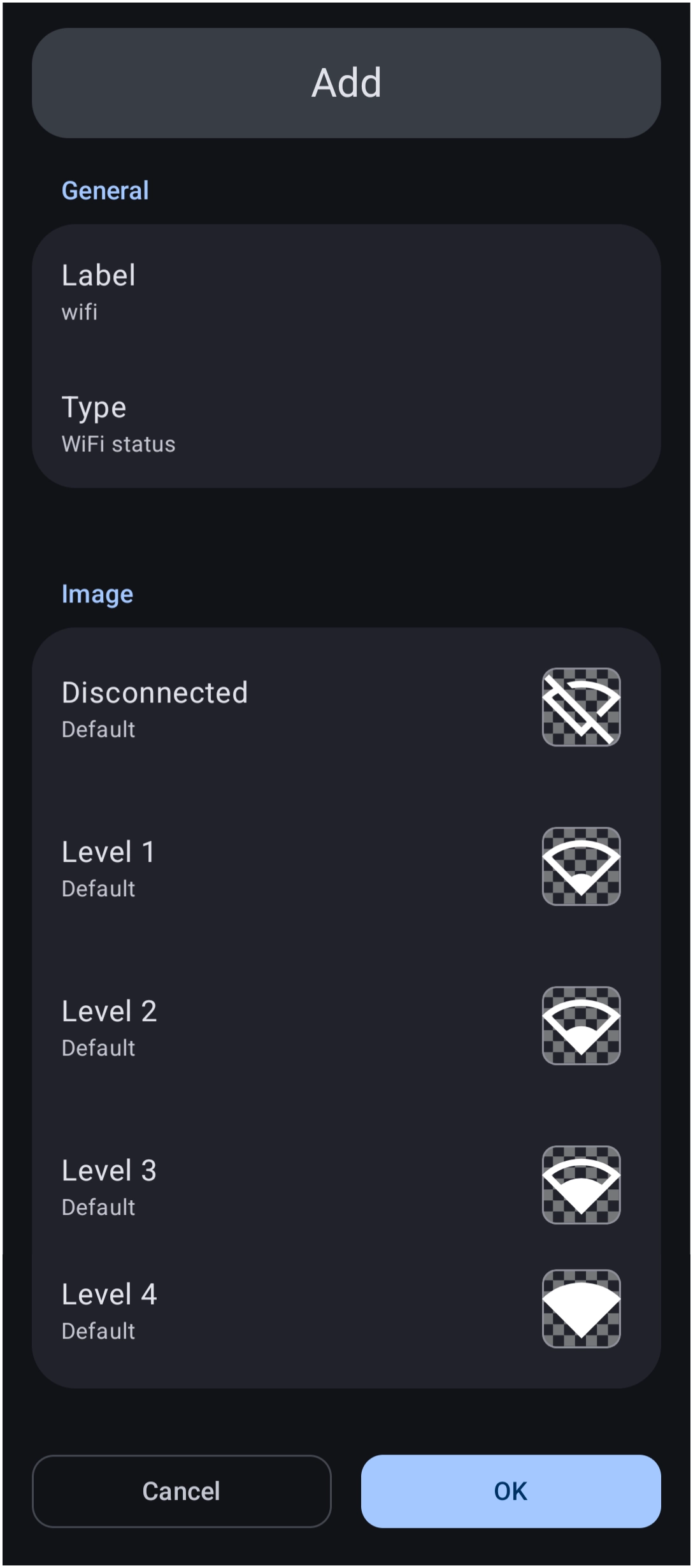
The image above shows the default 'Type' landing page when adding a dynamic image to the page. In the app, selecting Type will open the dialog which provides a selection to change the 'Type' selection and then display that 'Types' dialog. In this demo, selecting the element Type in the image above shows the 'Type' list. A selection from that list will navigate to the discussion of it on this page.Dynamic Image Add dialog. Make selection above.
Pro Tip: A dynamic image can be attached to a Launcher Action (like tapping the Battery icon to open Battery Settings) using the Action on Tap menu.
Dynamic Image Categories
The built-in dynamic images, discussed below, are found in the Total Launcher app by navigating to:
Edit mode > Launcher options > Resources > Dynamic Image > + > Type.
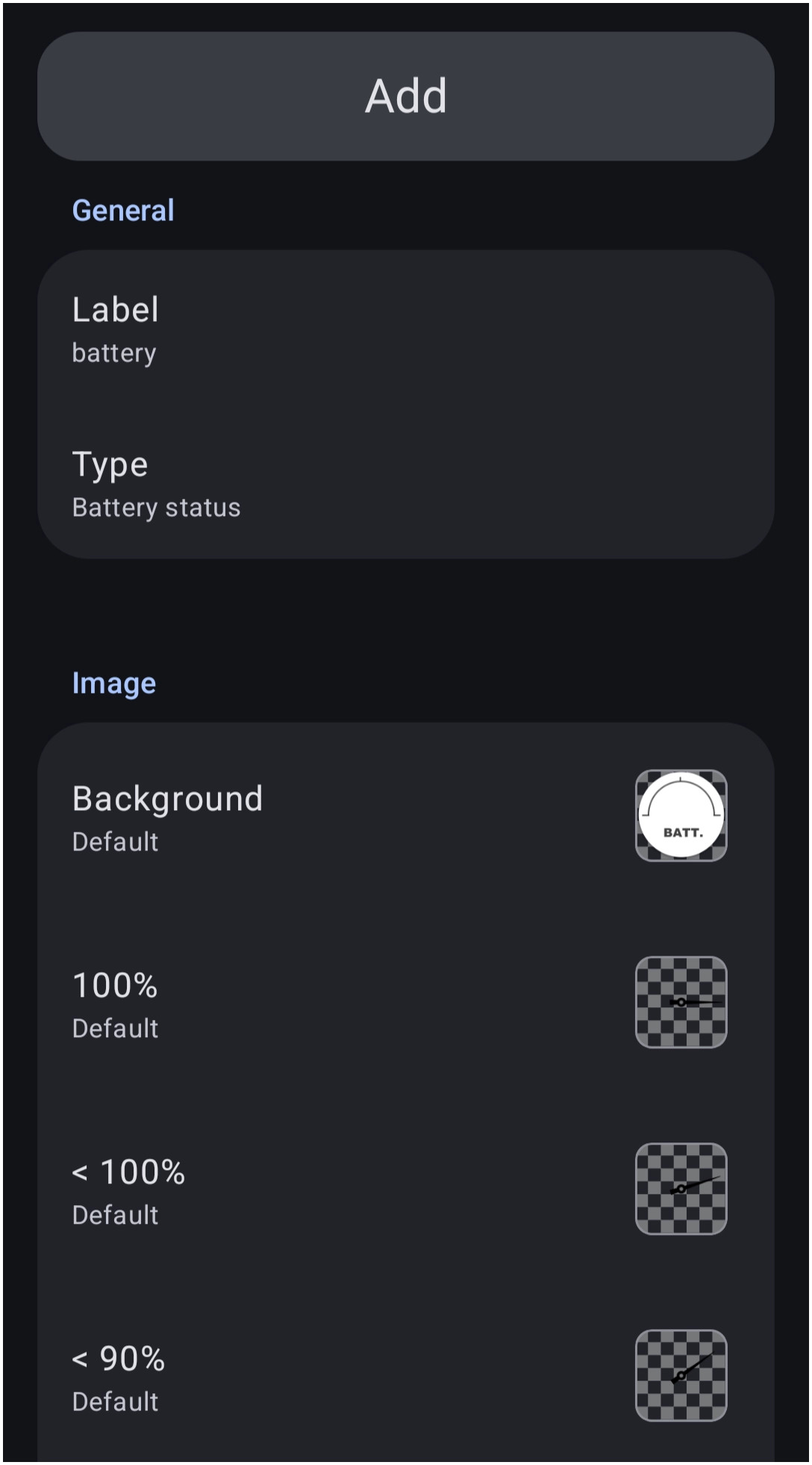
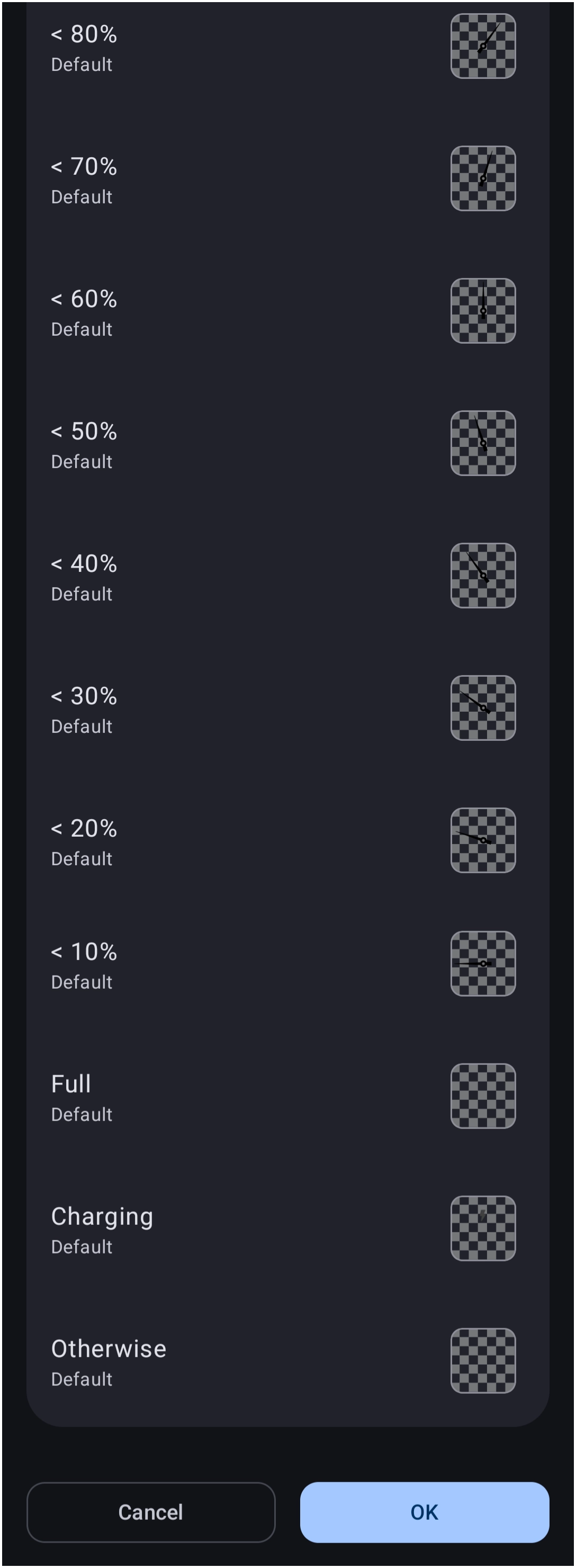
Battery status
- Shows current battery level on a 180° dial. Shows a “bolt” symbol when charging.
| Battery Status 1 of 2 | Battery Status 2 of 2 |
 |  |
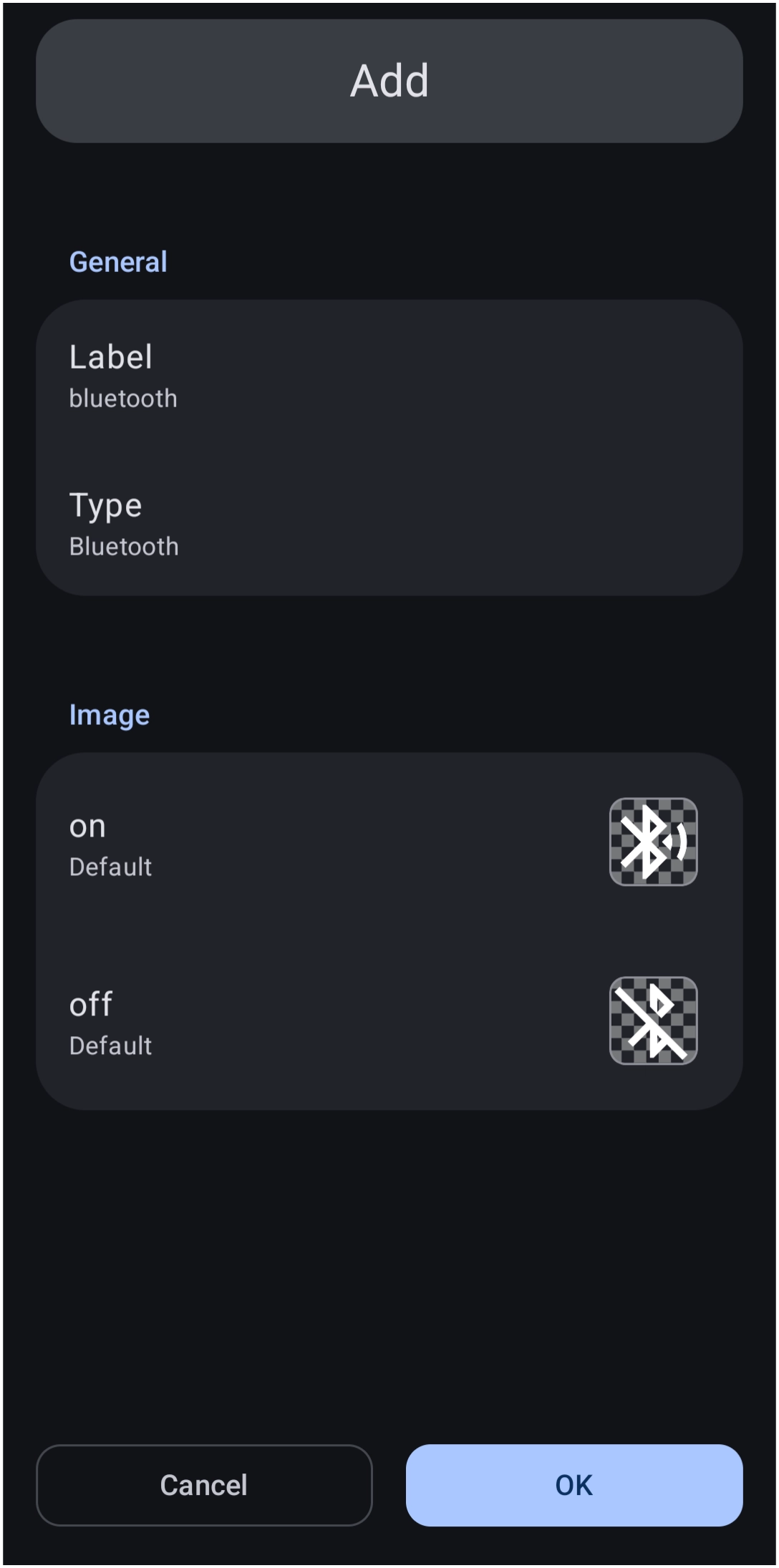
Bluetooth
- Shows the On/Off state image.
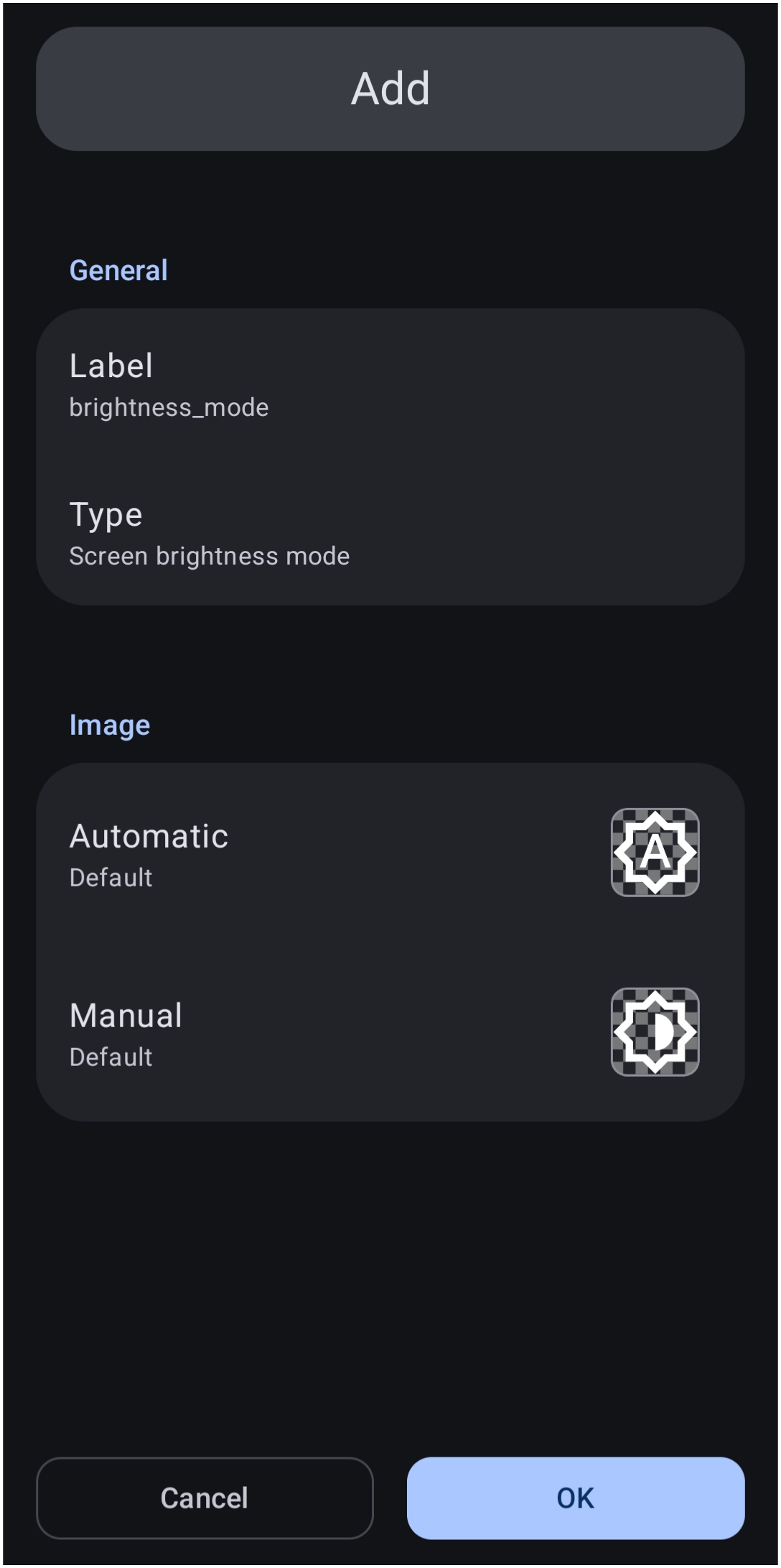
Brightness Mode
- Shows the state of the screen brightness as an image indicating automatic or manual control by the device's system
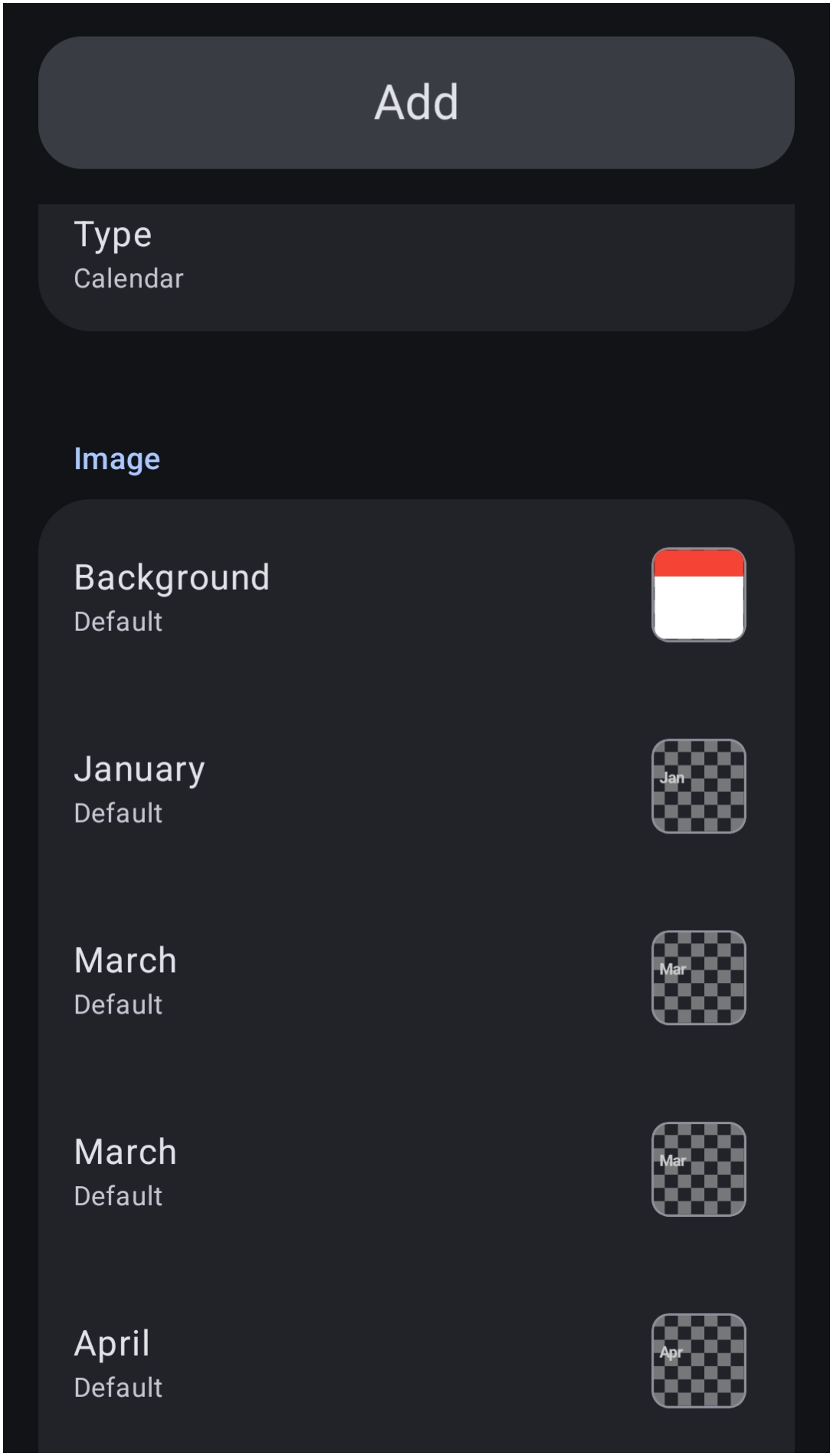
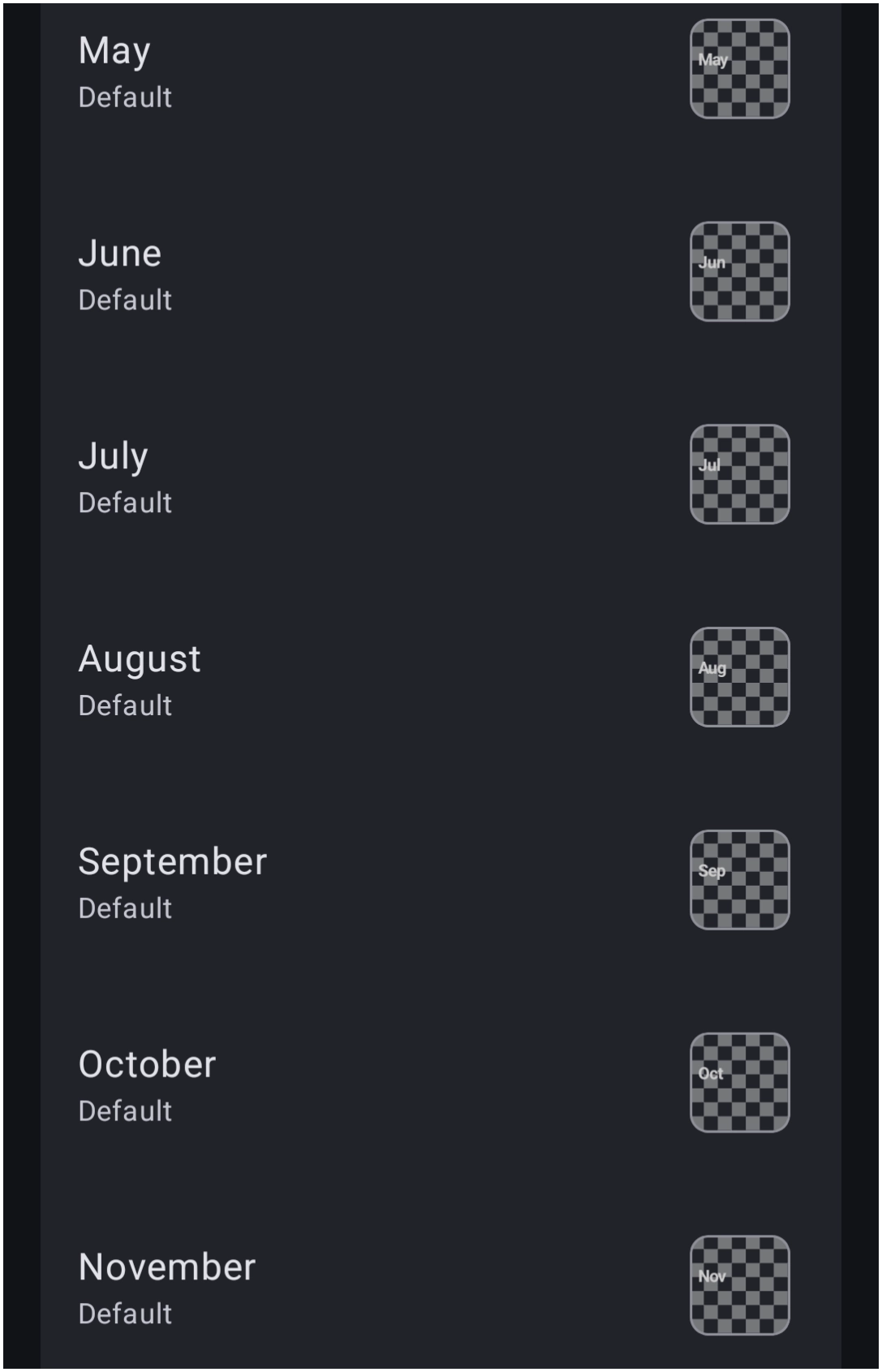
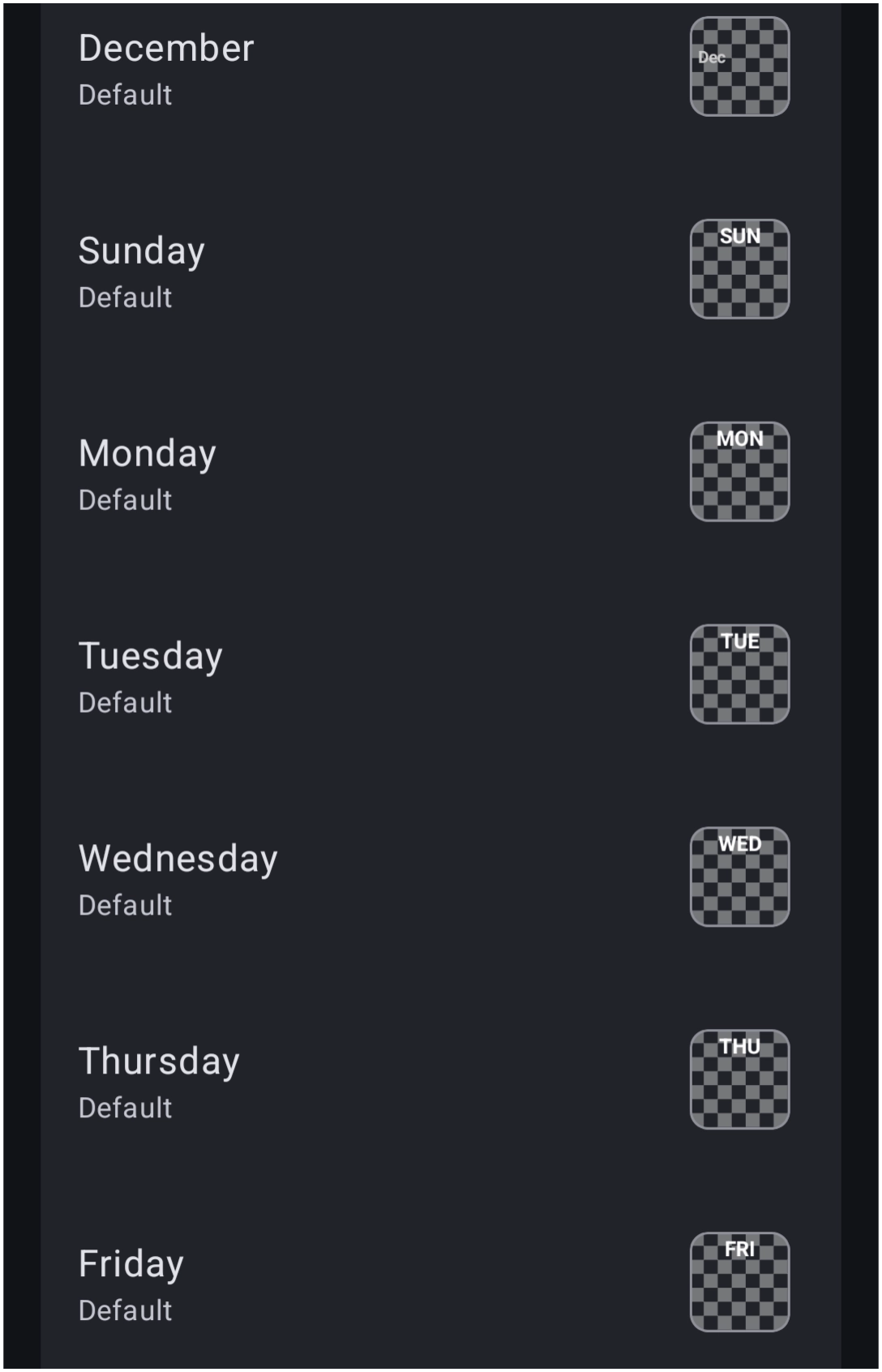
Calendar
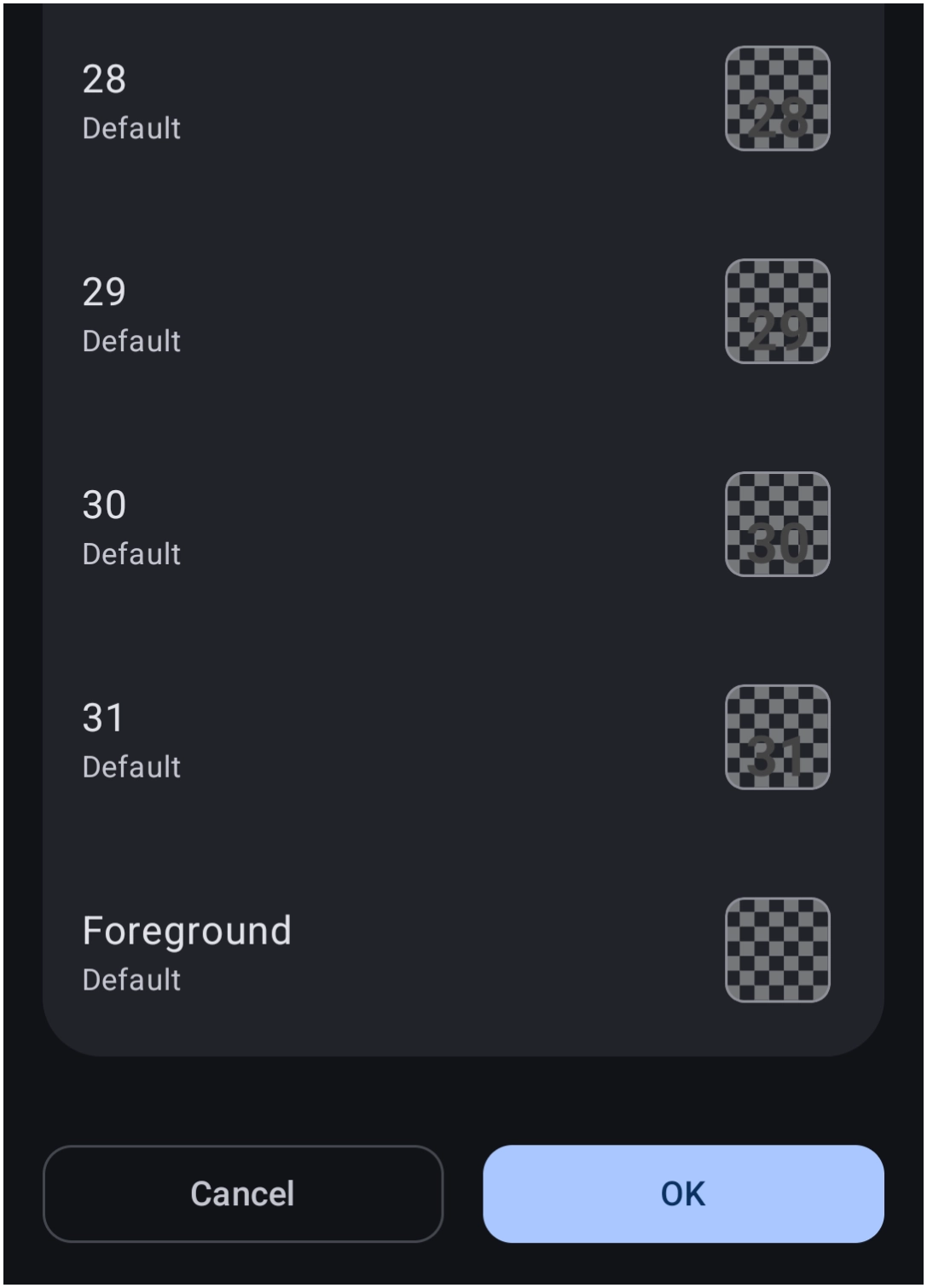
- Shows current Day, Month, and Date as a dynamic icon.
| Calendar 1 of 8 | Calendar 2 of 8 | Calendar 3 of 8 | Calendar 4 of 8 |
 |  |  | 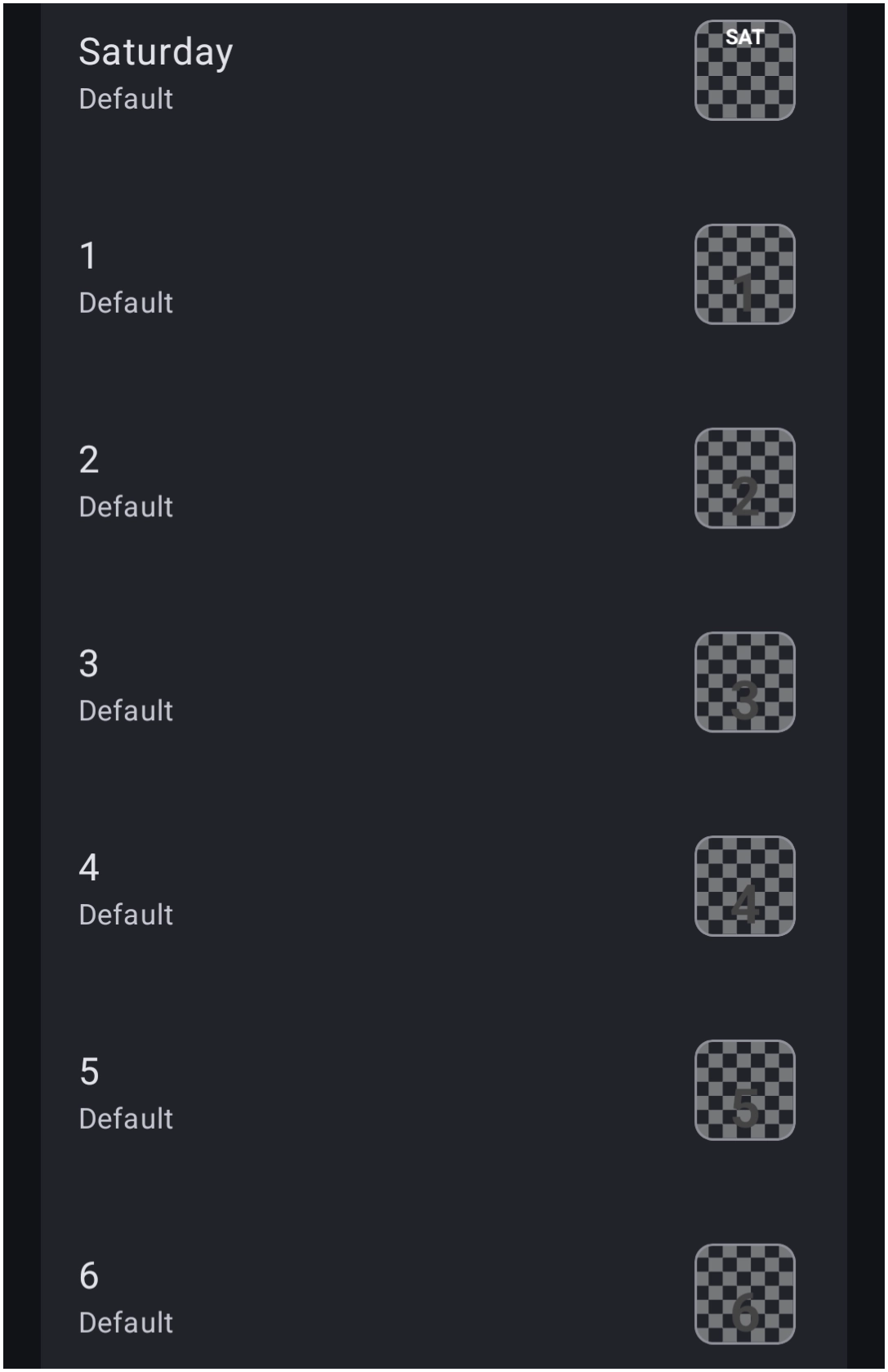 |
| Calendar 5 of 8 | Calendar 6 of 8 | Calendar 7 of 8 | Calendar 8 of 8 |
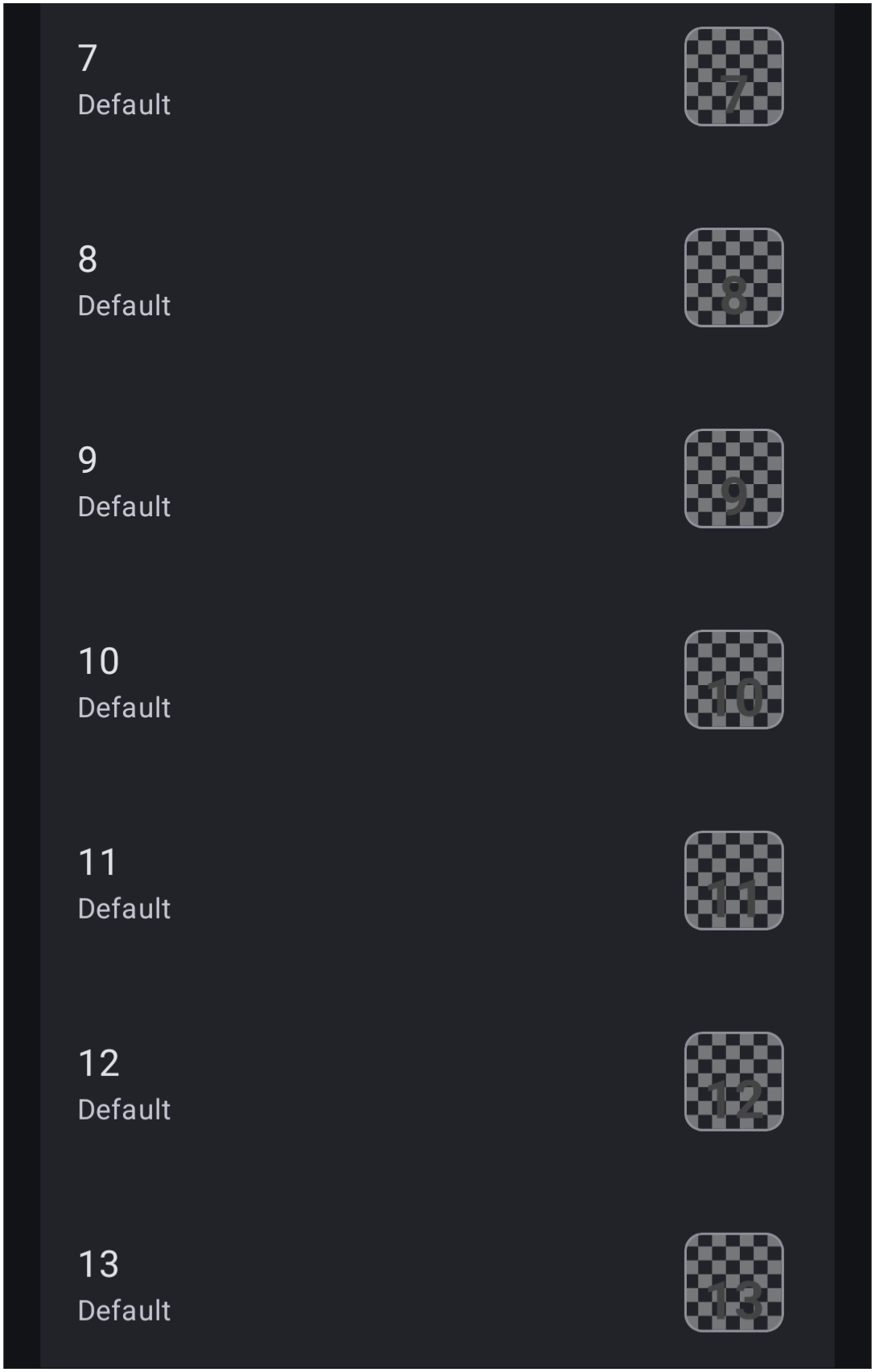 | 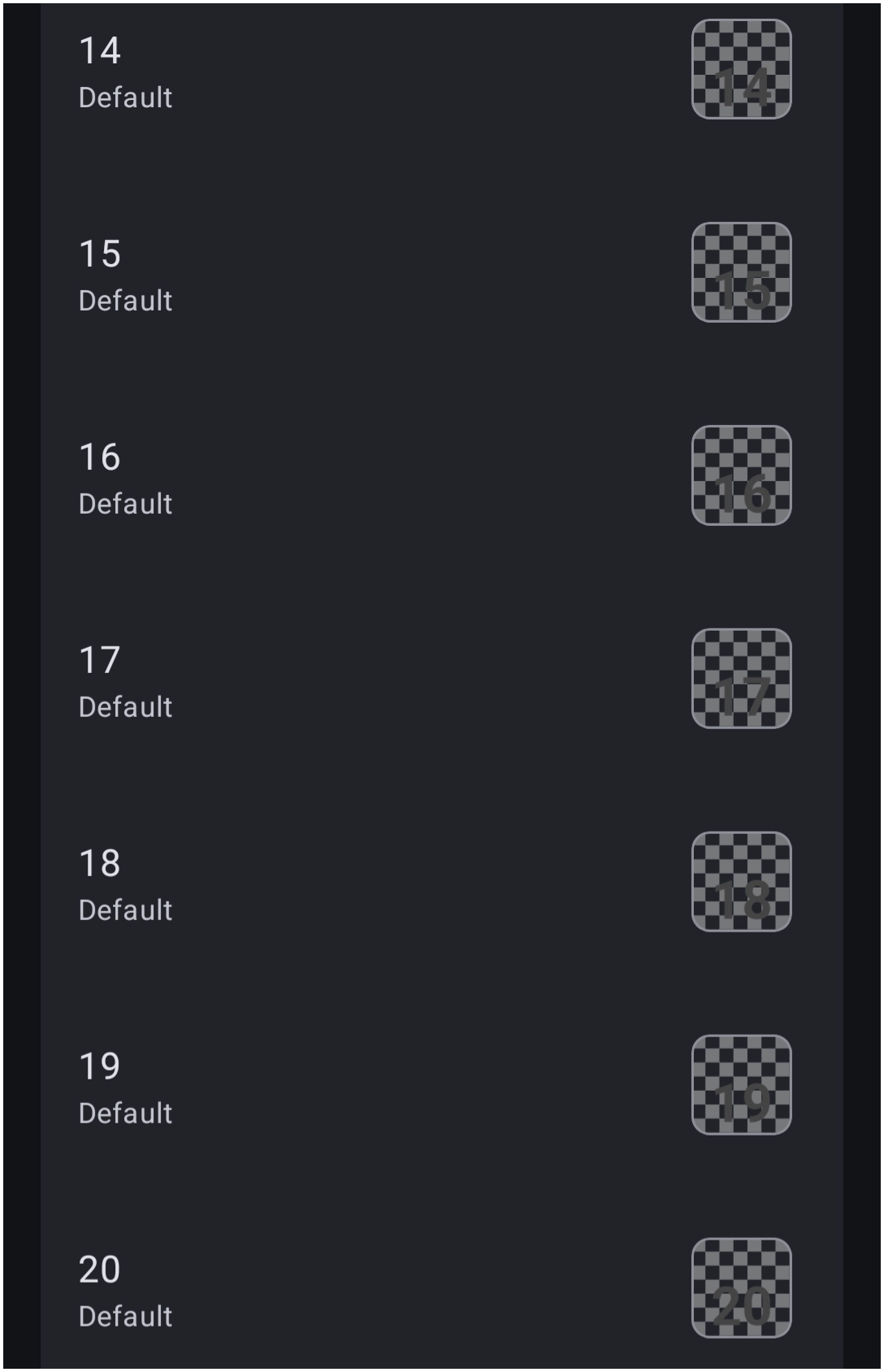 | 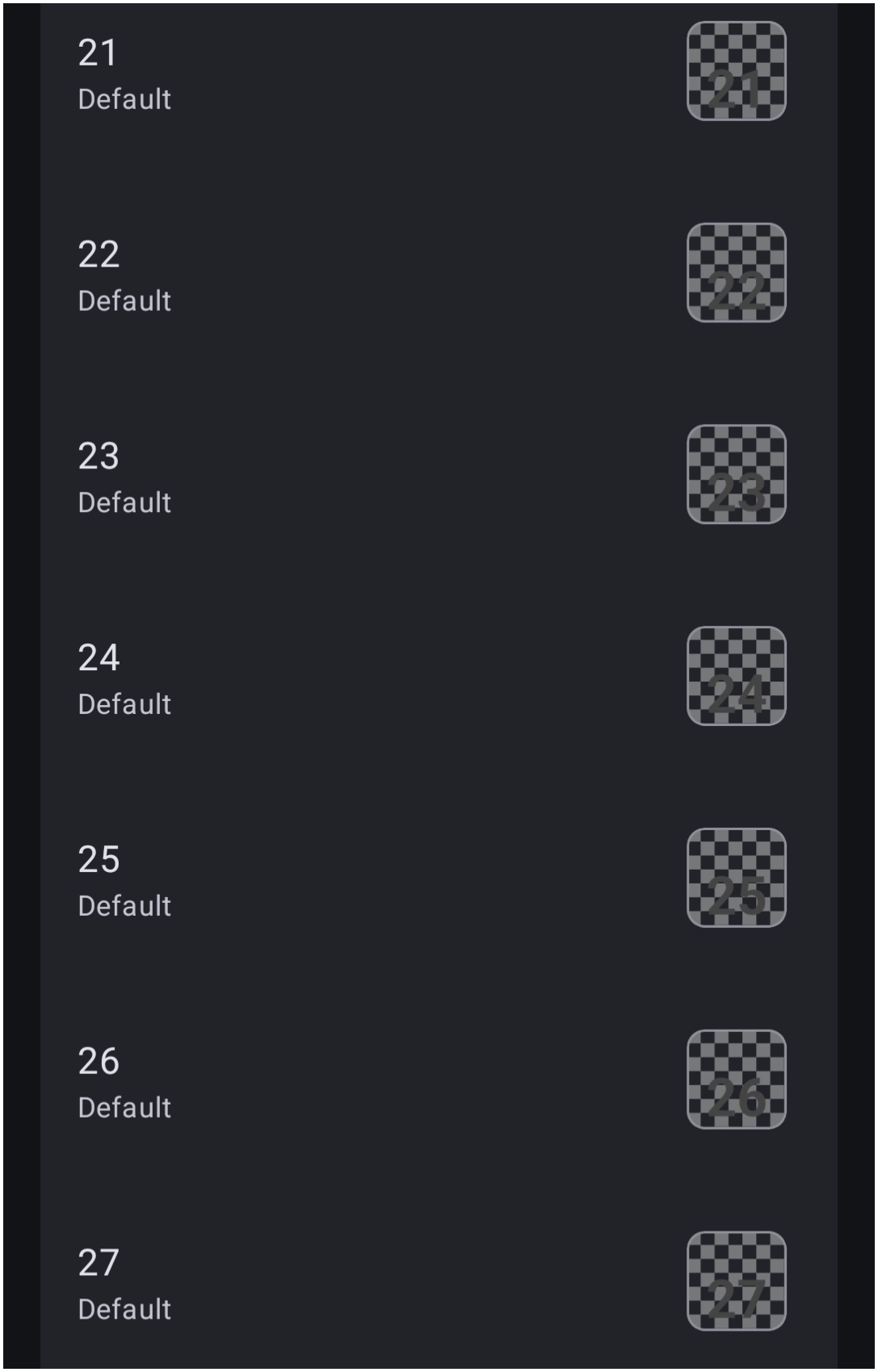 |  |
Clock
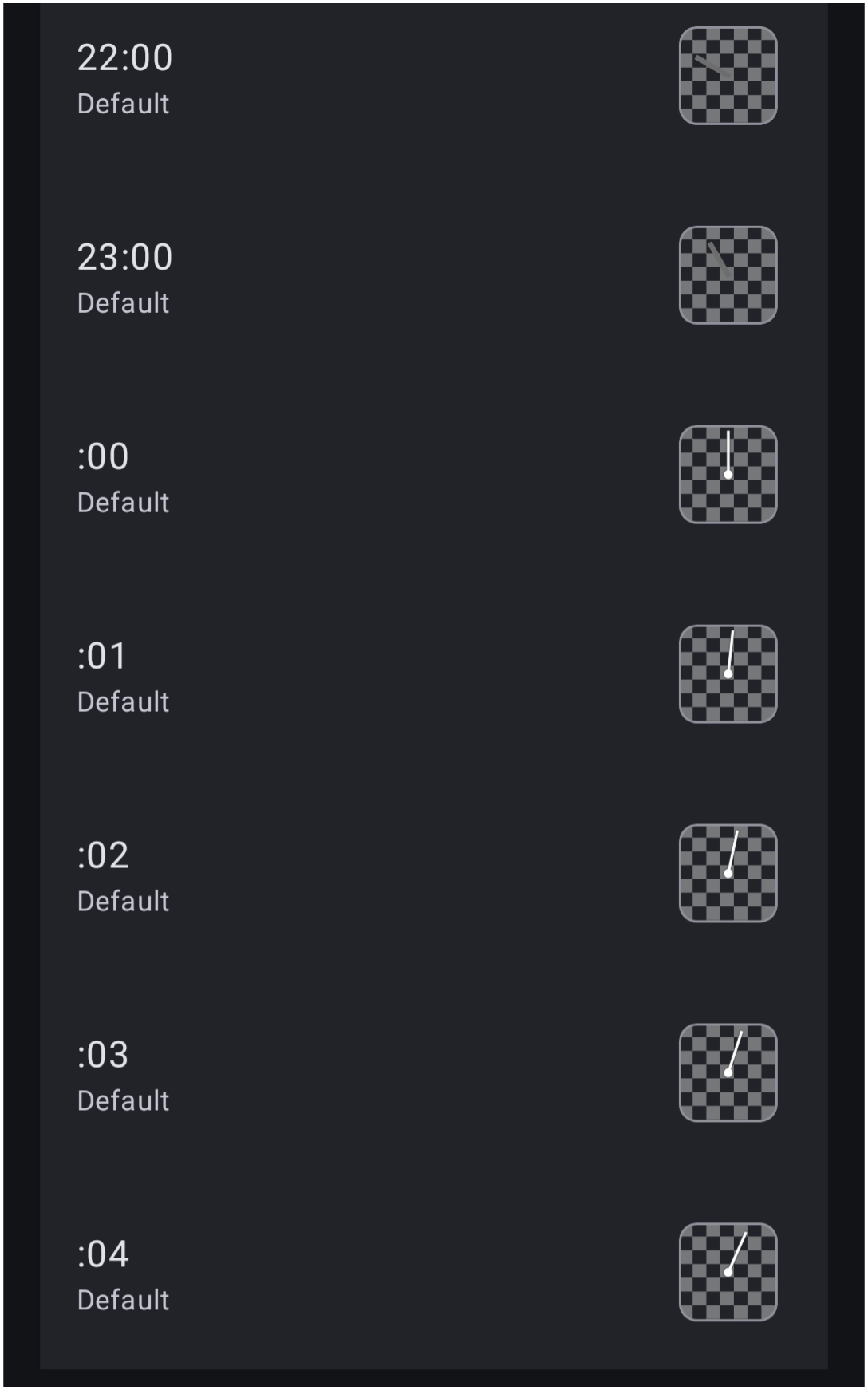
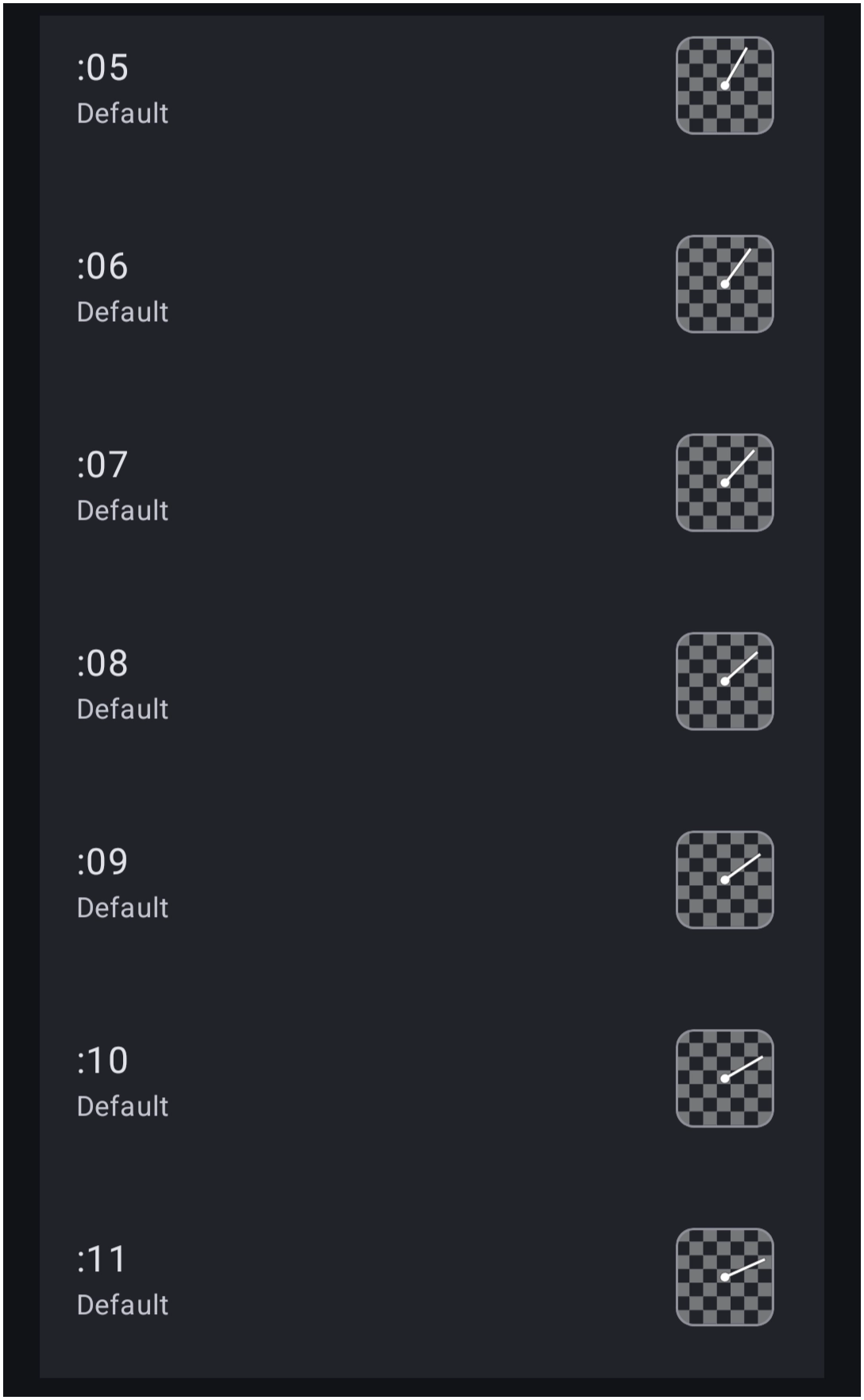
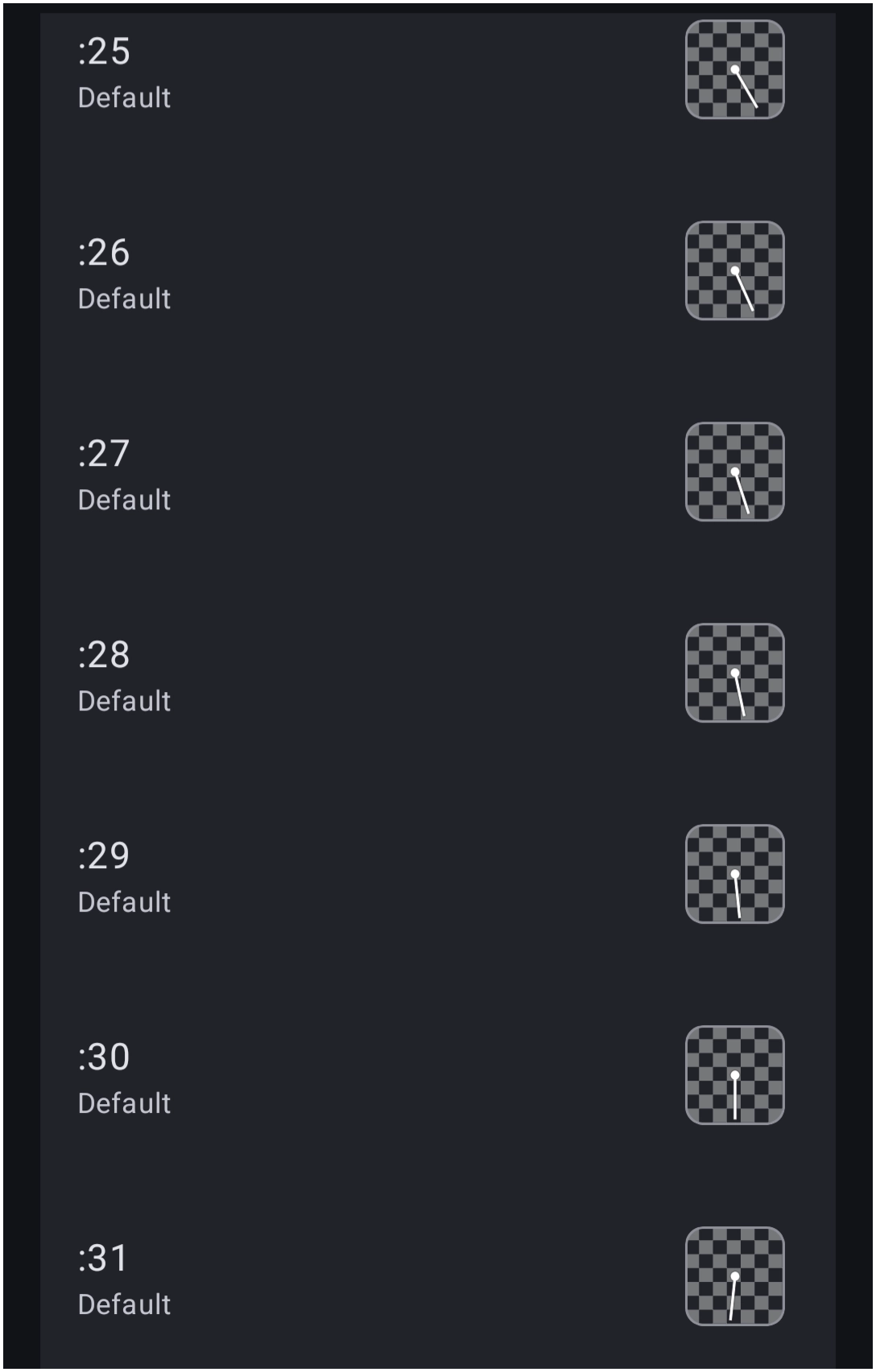
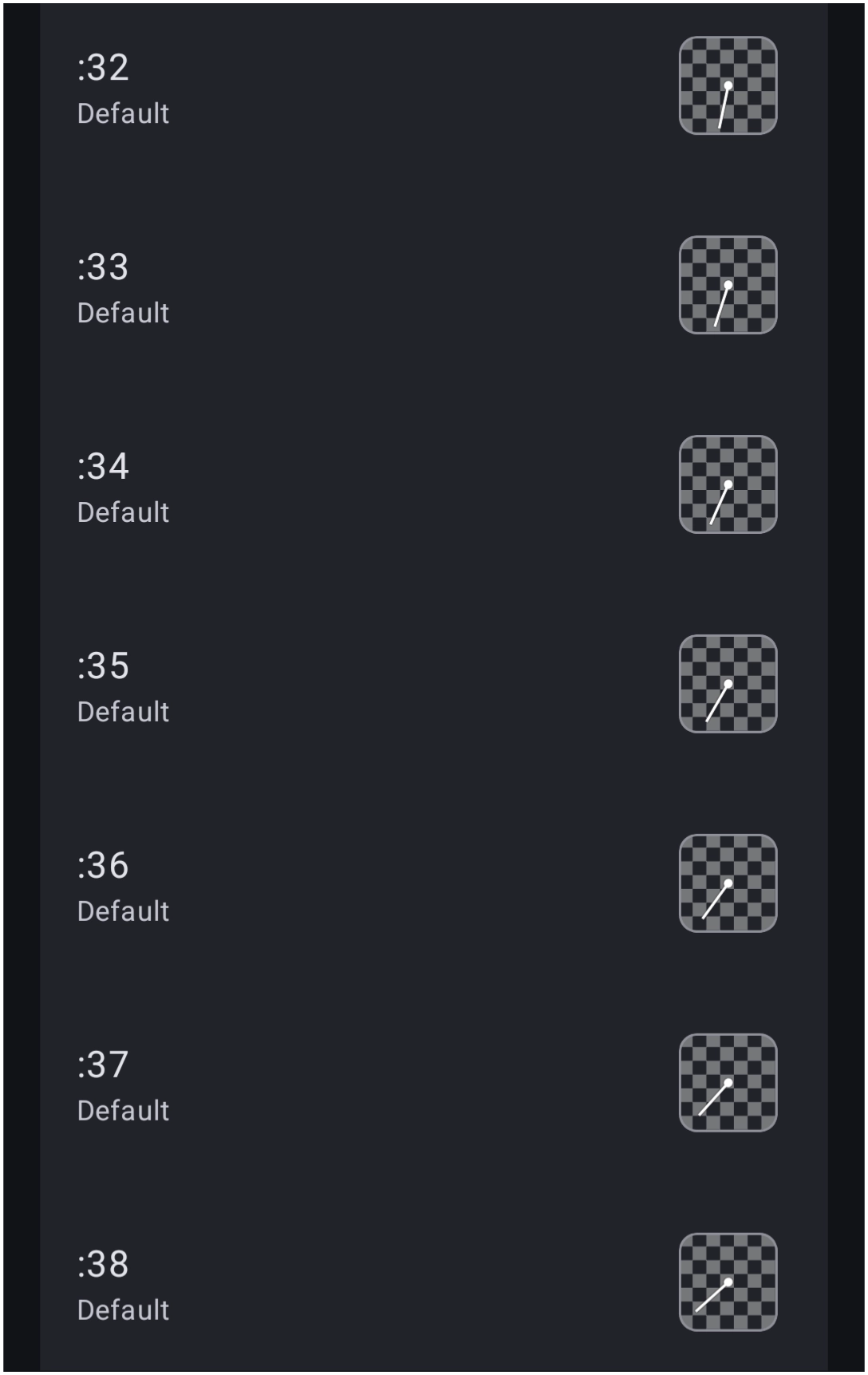
- Shows current time on an analog face.
| Clock 1 of 13 | Clock 2 of 13 | Clock 3 of 13 | Clock 4 of 13 |
|---|---|---|---|
 |  |  |  |
| Clock 5 of 13 | Clock 6 of 13 | Clock 7 of 13 | Clock 8 of 13 |
 |  |  |  |
| Clock 9 of 13 | Clock 10 of 13 | Clock 11 of 13 | Clock 12 of 13 |
 |  |  |  |
| Clock 13 of 13 | |||
 |
Do Not Disturb
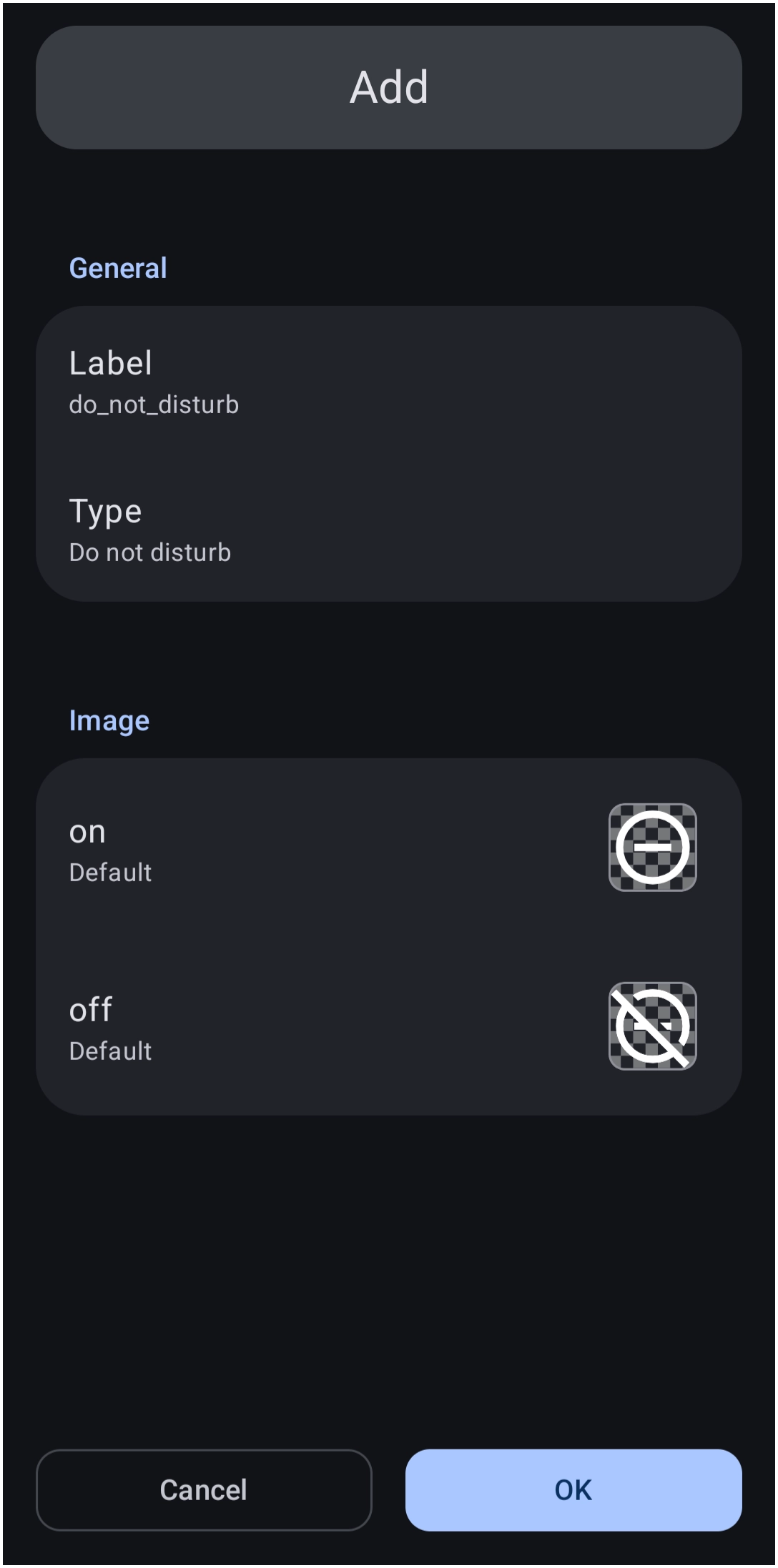
- Shows the state of do not disturb as an on or off image
Gmails (Unread)
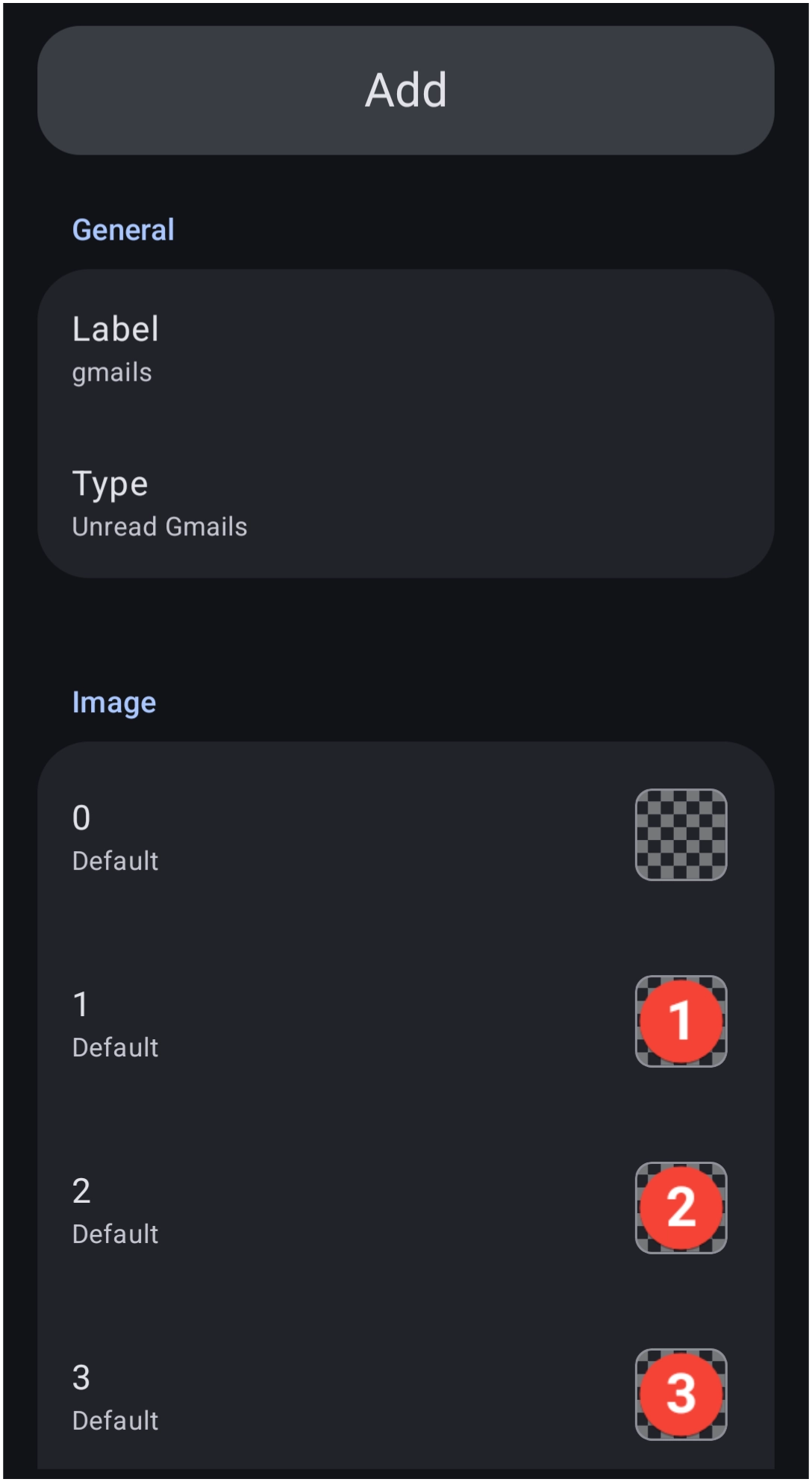
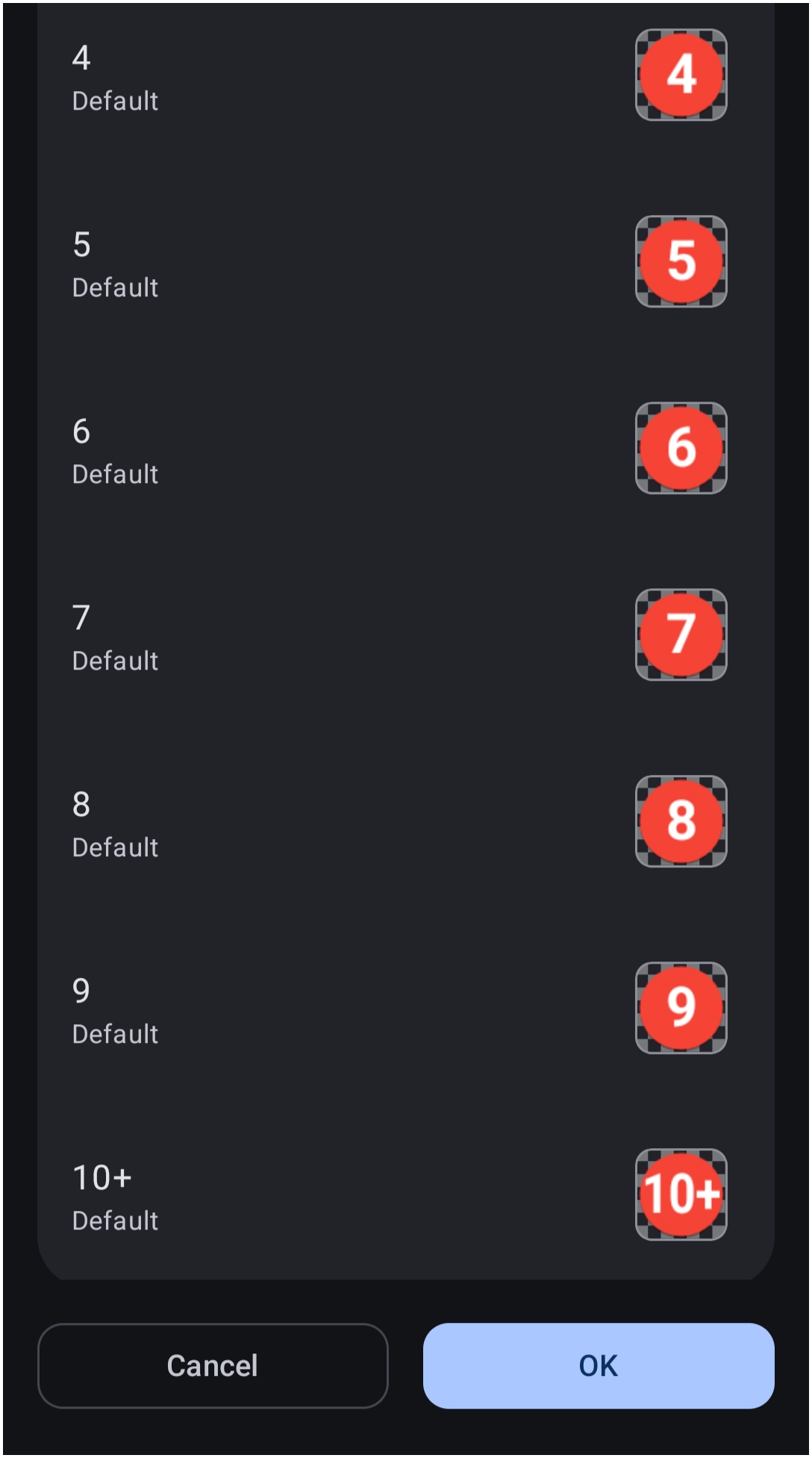
- Show the count of currently unread Gmails as a number within a circle
| Unread Gmails 1 of 2 | Unread Gmails 2 of 2 |
 |  |
Note: This feature relies on older Android permissions and may not function on newer Android versions due to Google security updates.
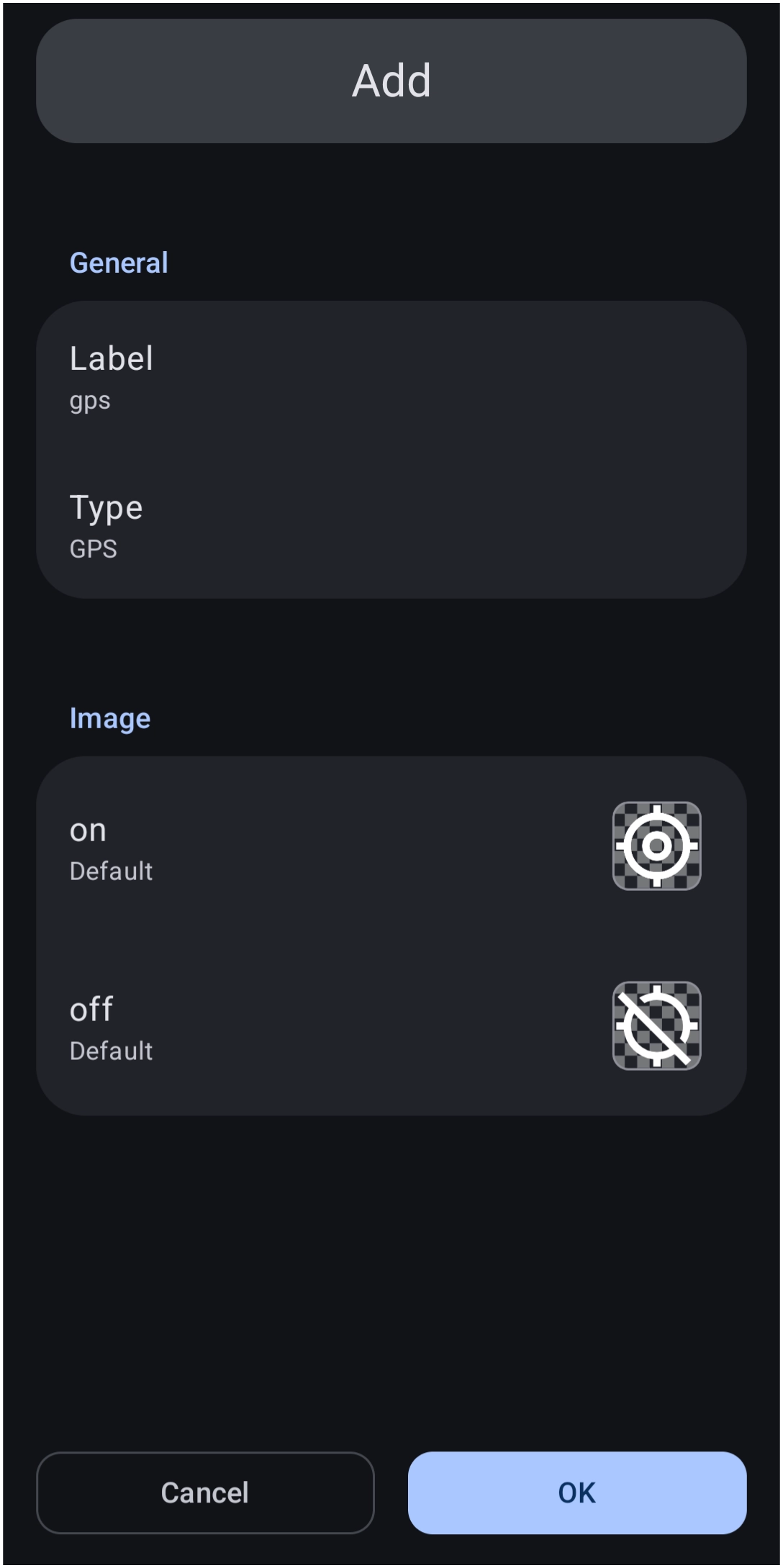
GPS status
- Shows the state of the device's GPS as an on or off image
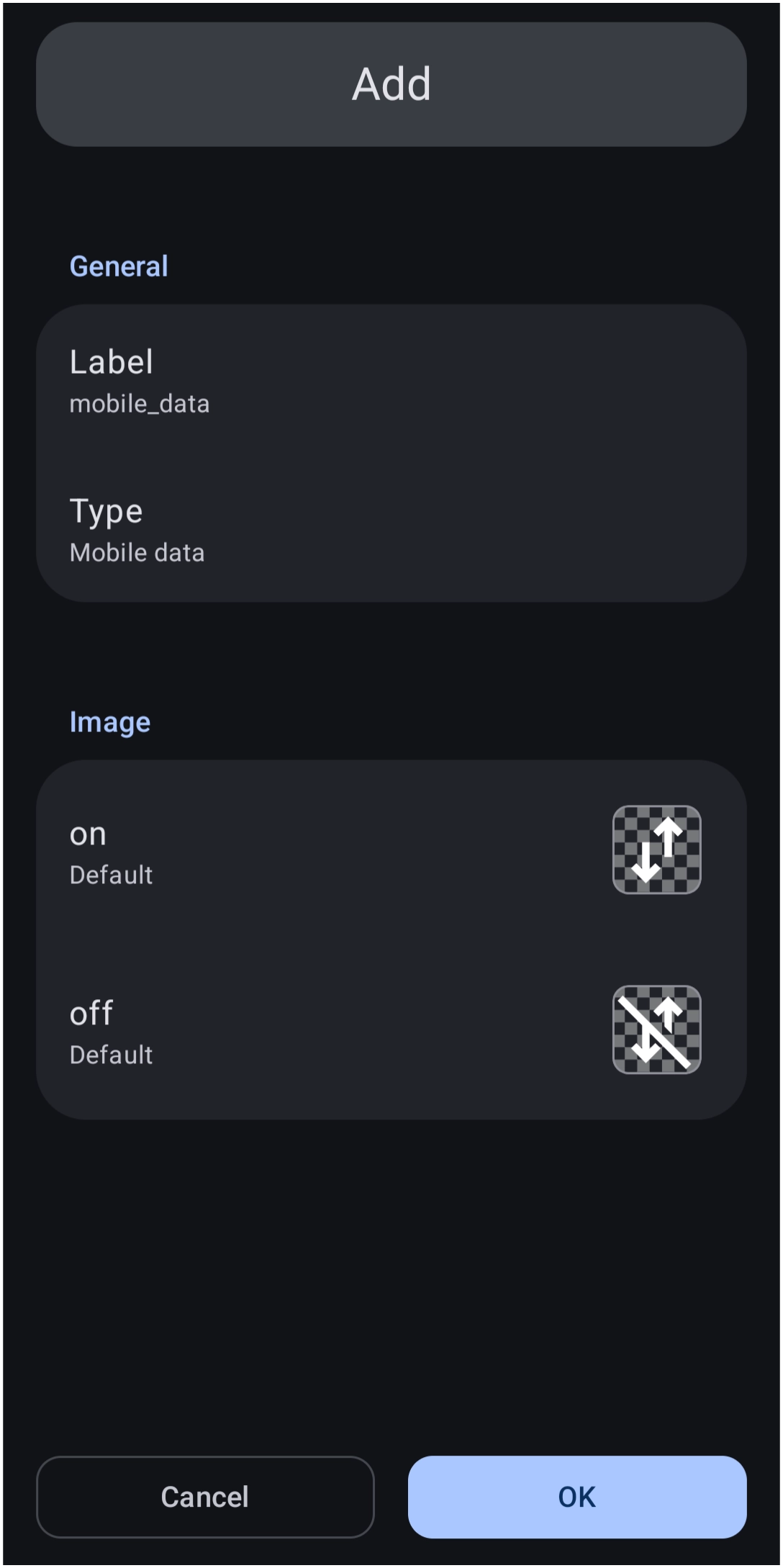
Mobile Data status
- Shows the state of the device's mobile data as an on or off image
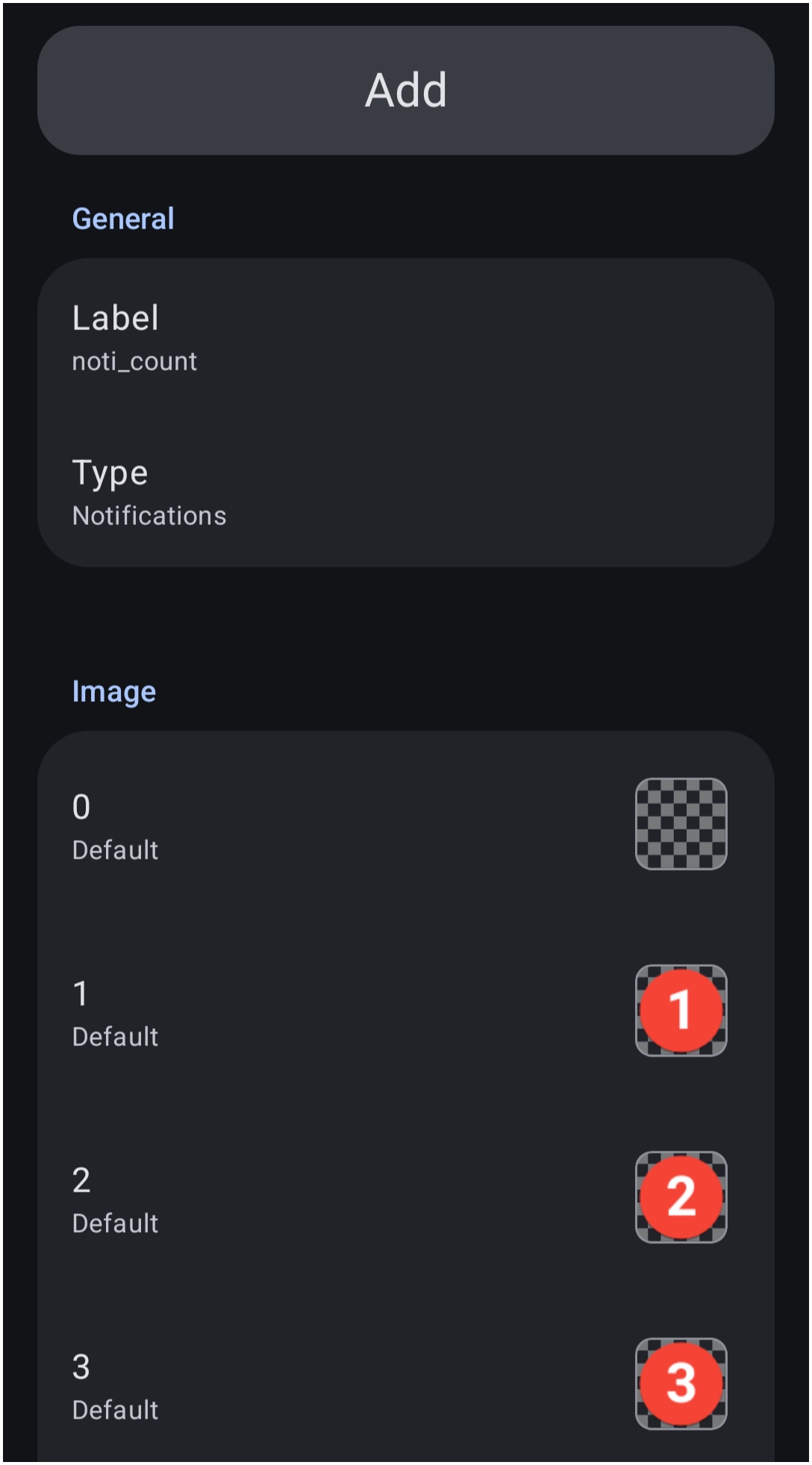
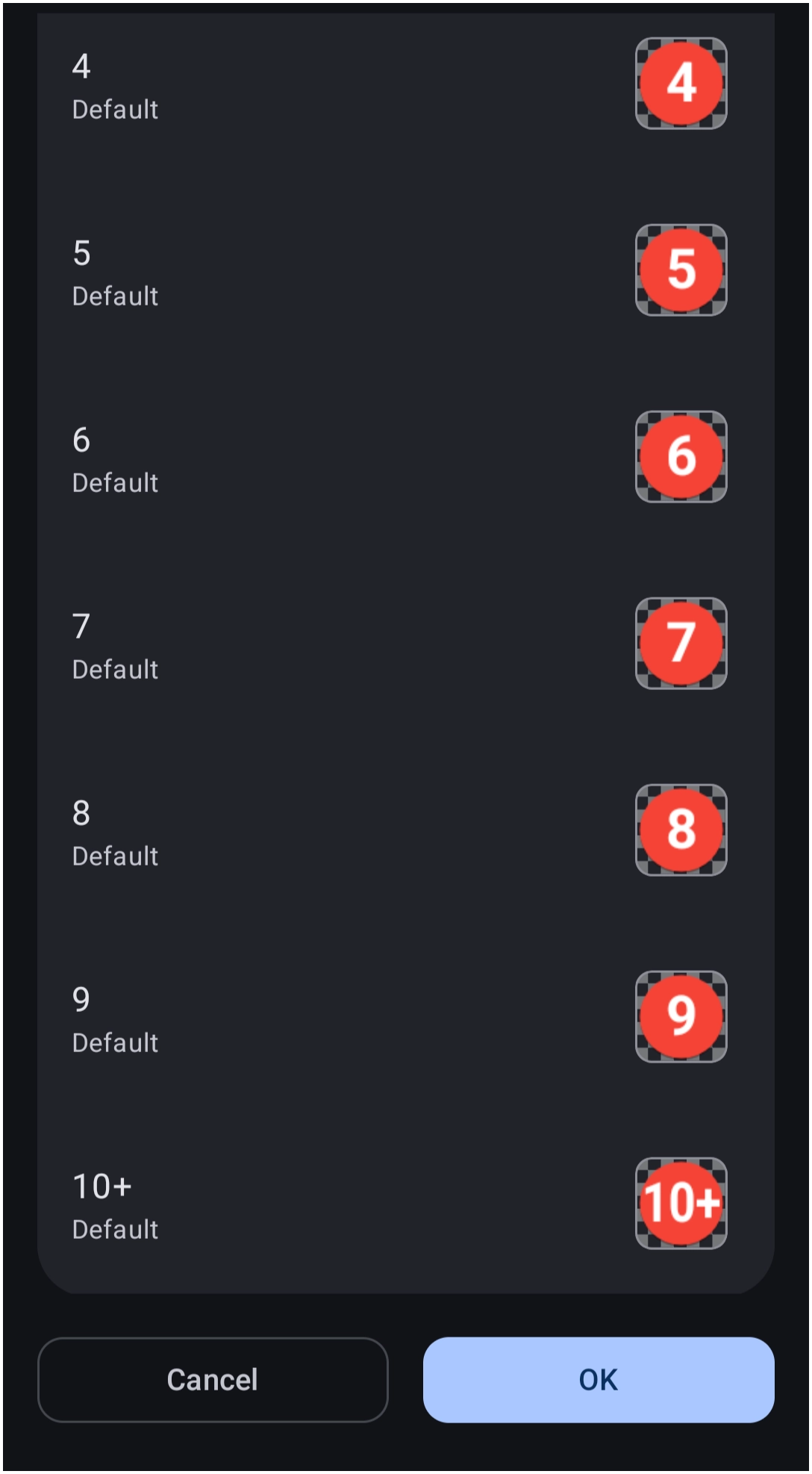
Notification Count
- Shows the total number of notifications on the status bar.
| Notification Count 1 of 2 | Notification Count 2 of 2 |
 |  |
Requirement:
Total Launcher must be granted “Notification Access” in Android System Settings for this to work.
Icon Specific Notification Counts
To have an icon or other object show its notification count only:
Edit On > Object Design Menu > Option > Text > Notifications > OK
RAM usage
- Shows current RAM usage (0-100%) on a dial. Refreshes every second.
| RAM 1 of 2 | RAM 2 of 2 |
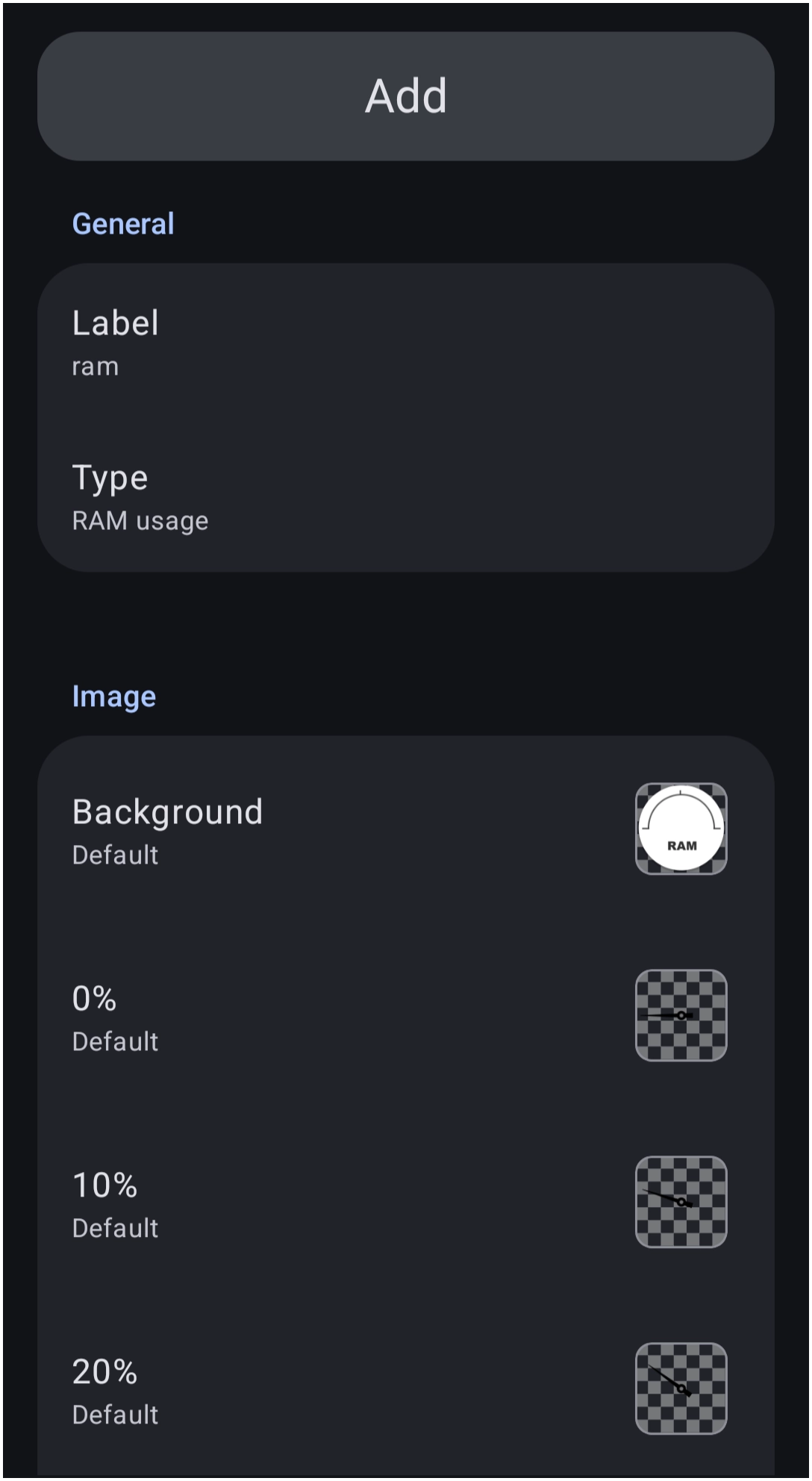 | 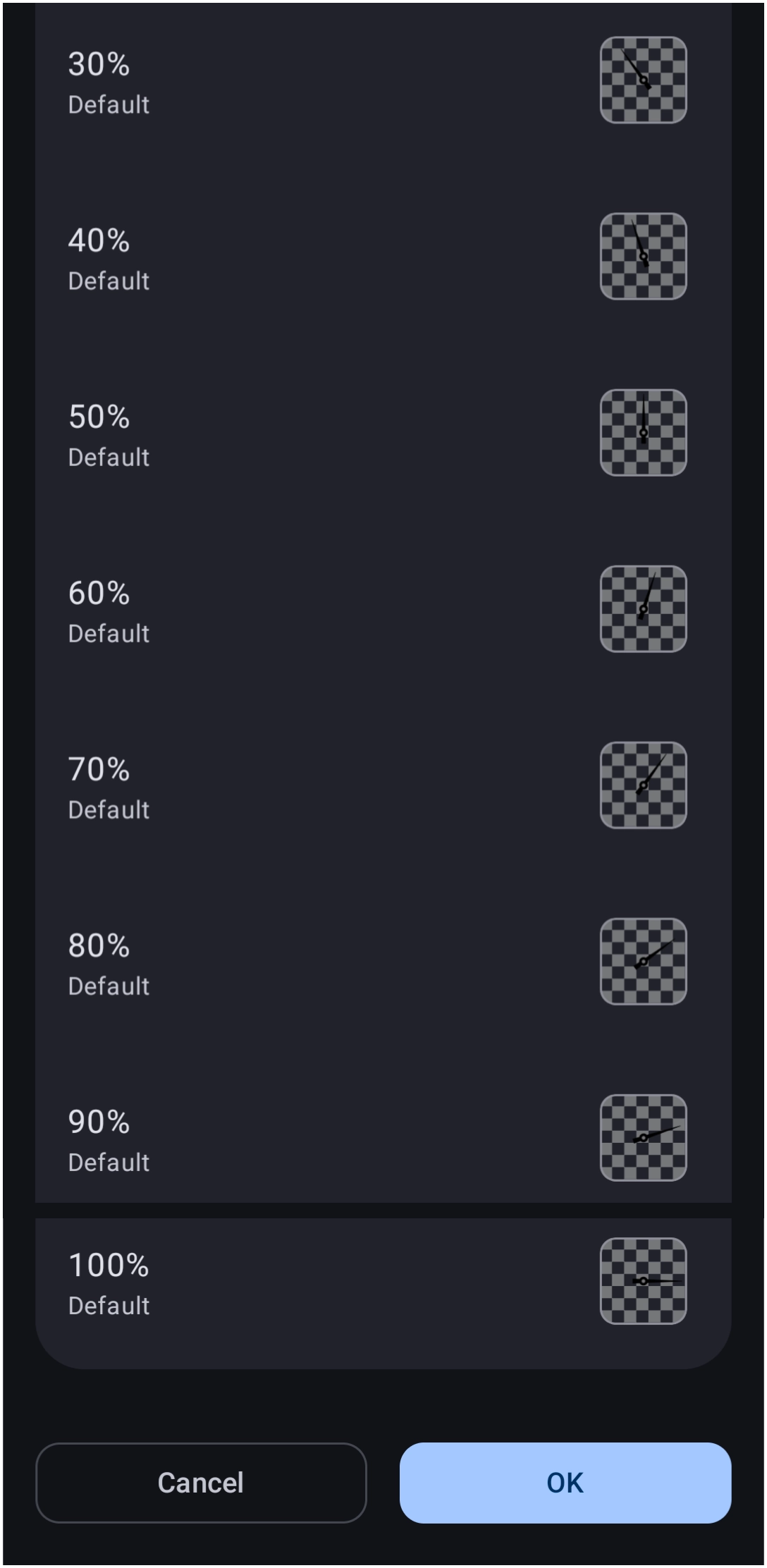 |
Ringer Mode
- Shows the state of the device's ringer mode: normal (on … any volume), silent (off), vibrate (if set to vibrate)
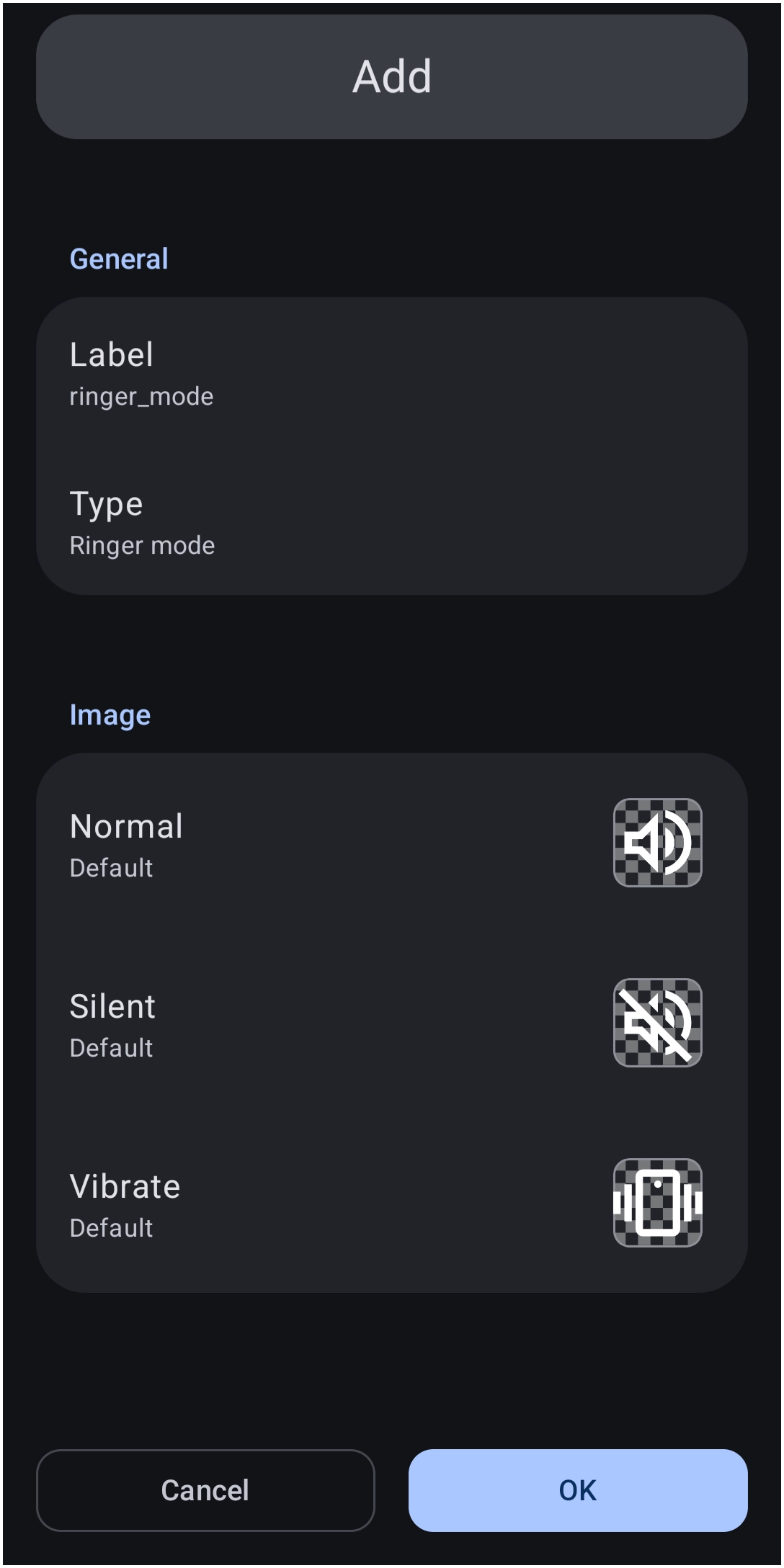
Signal Strength
- Shows current signal strength (0, 25, 50, 75, 100%).
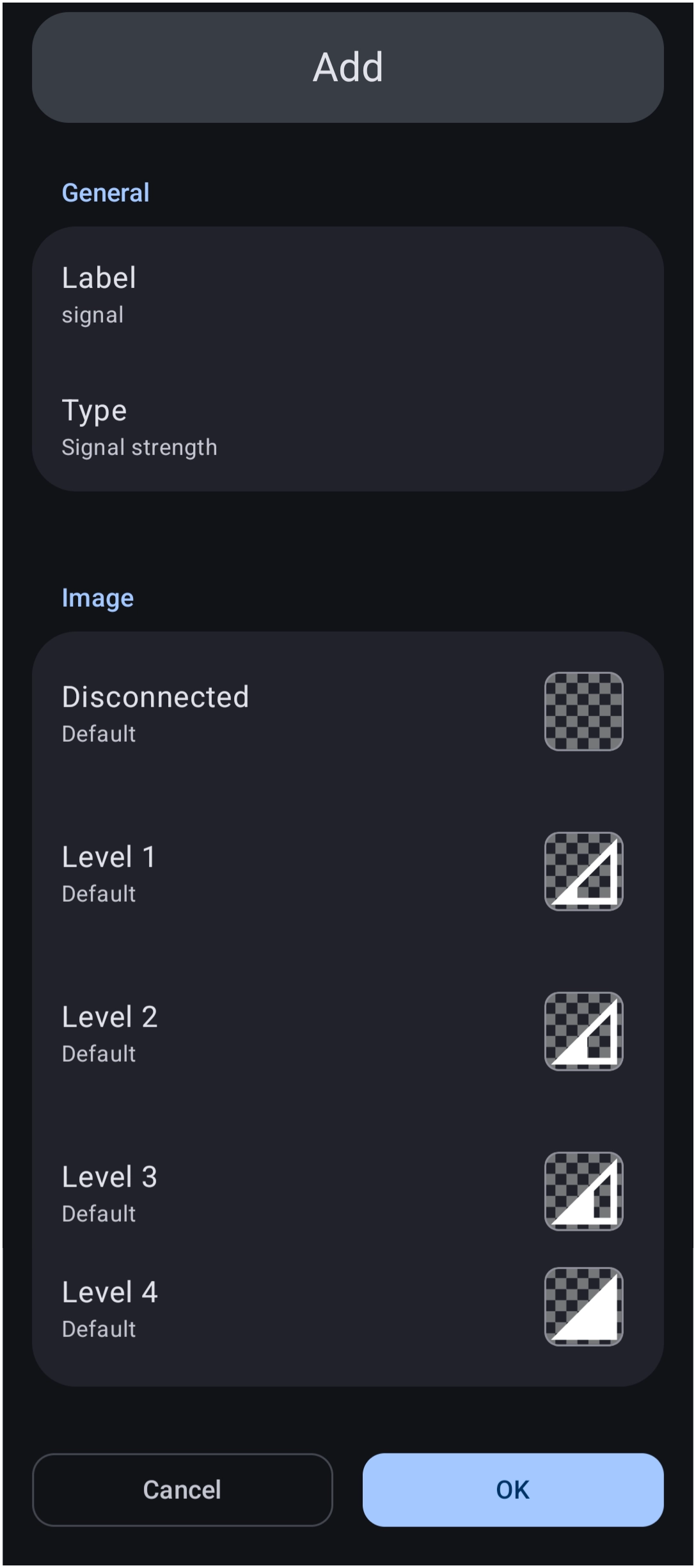
Confirmation needed: Is Signalis WiFi only or does it work for WiFi and Data
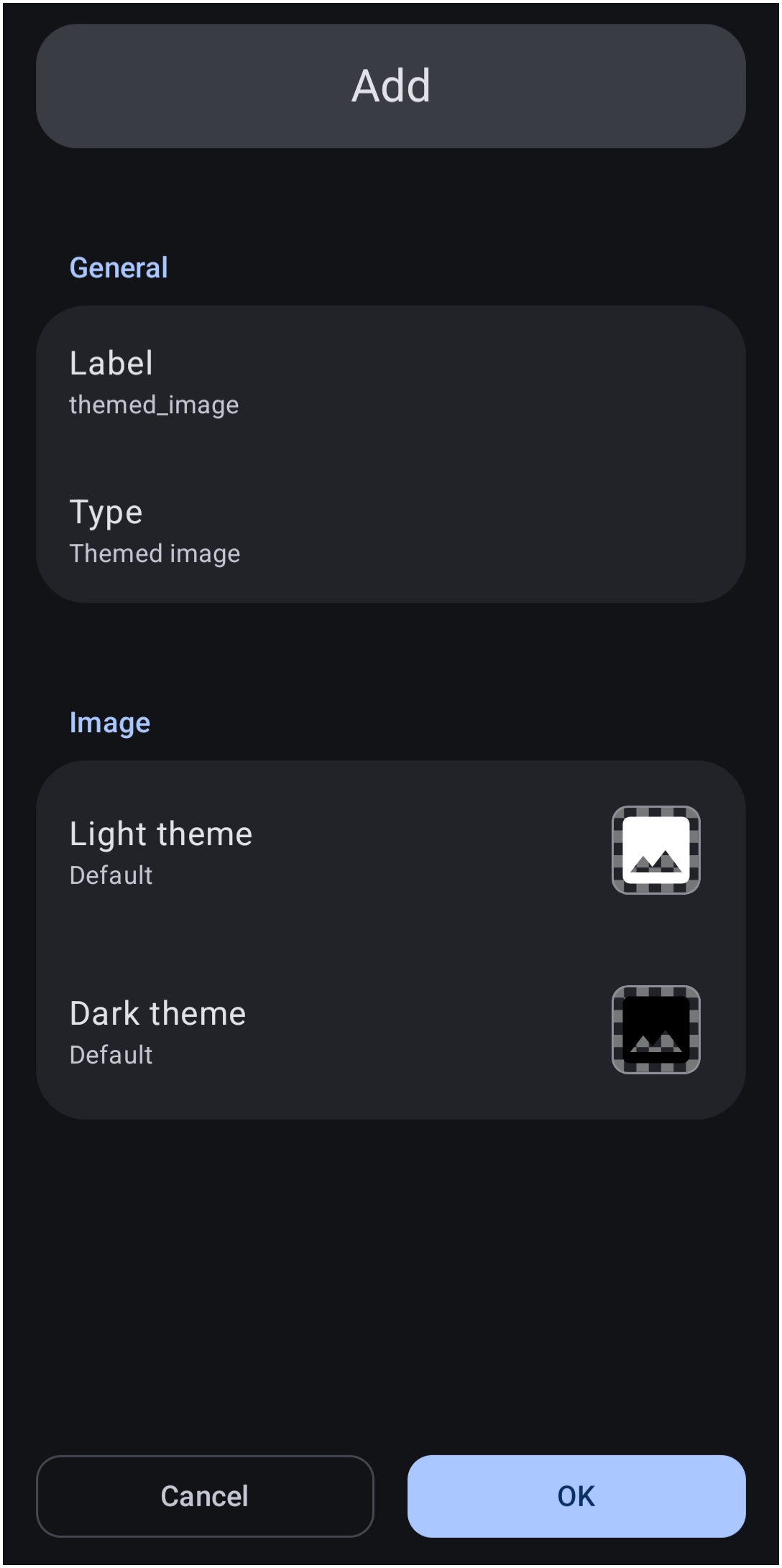
Themed Image
- provides for the selection of an icon pack (or icon) or image to be used based on light or dark mode system setting
Weather
Users have commented on the Telegram support website (late 2024-mid 2025) about delayed and inconsistent data updates through the provider.
| Weather 1 of 3 | Weather 2 of 3 | Weather 3 of 3 |
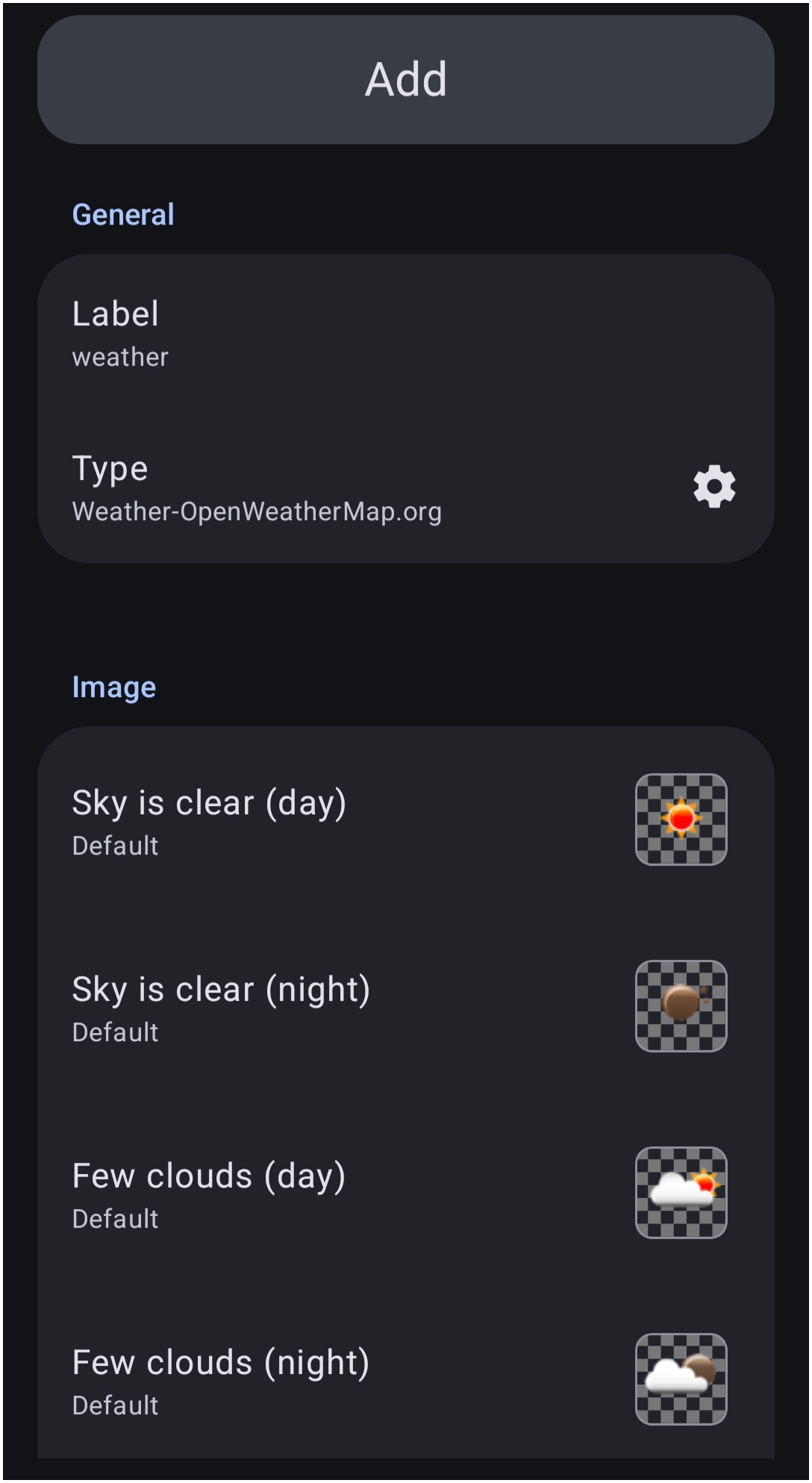 | 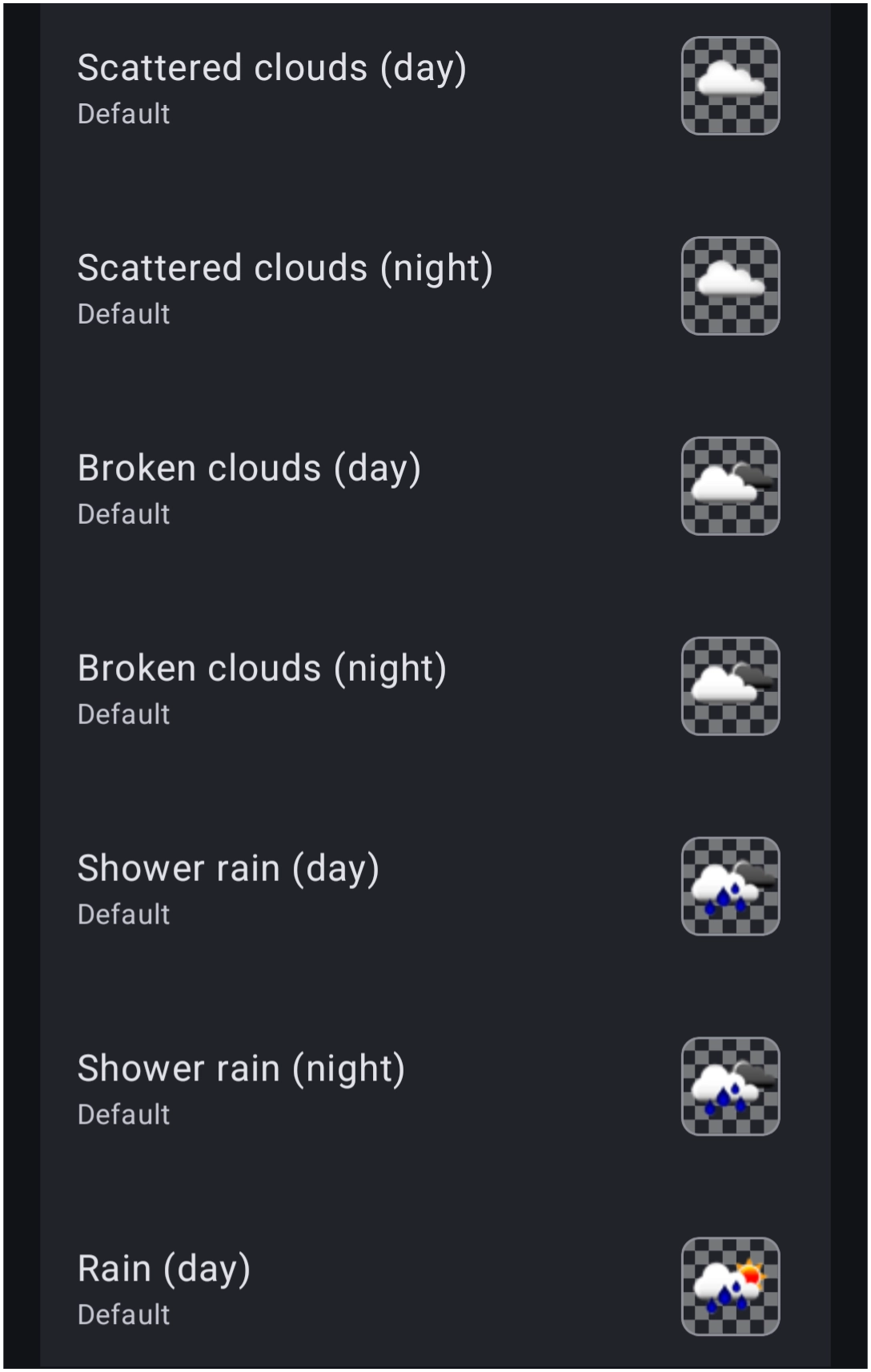 | |
* Shows current weather condition icon (via OpenWeatherMap). Location: Weather is determined by GPS.
- By default, the “weather icons” will show the weather at the current GPS location. However, this can be changed in the weather dynamic image settings as discussed in Weather Images.
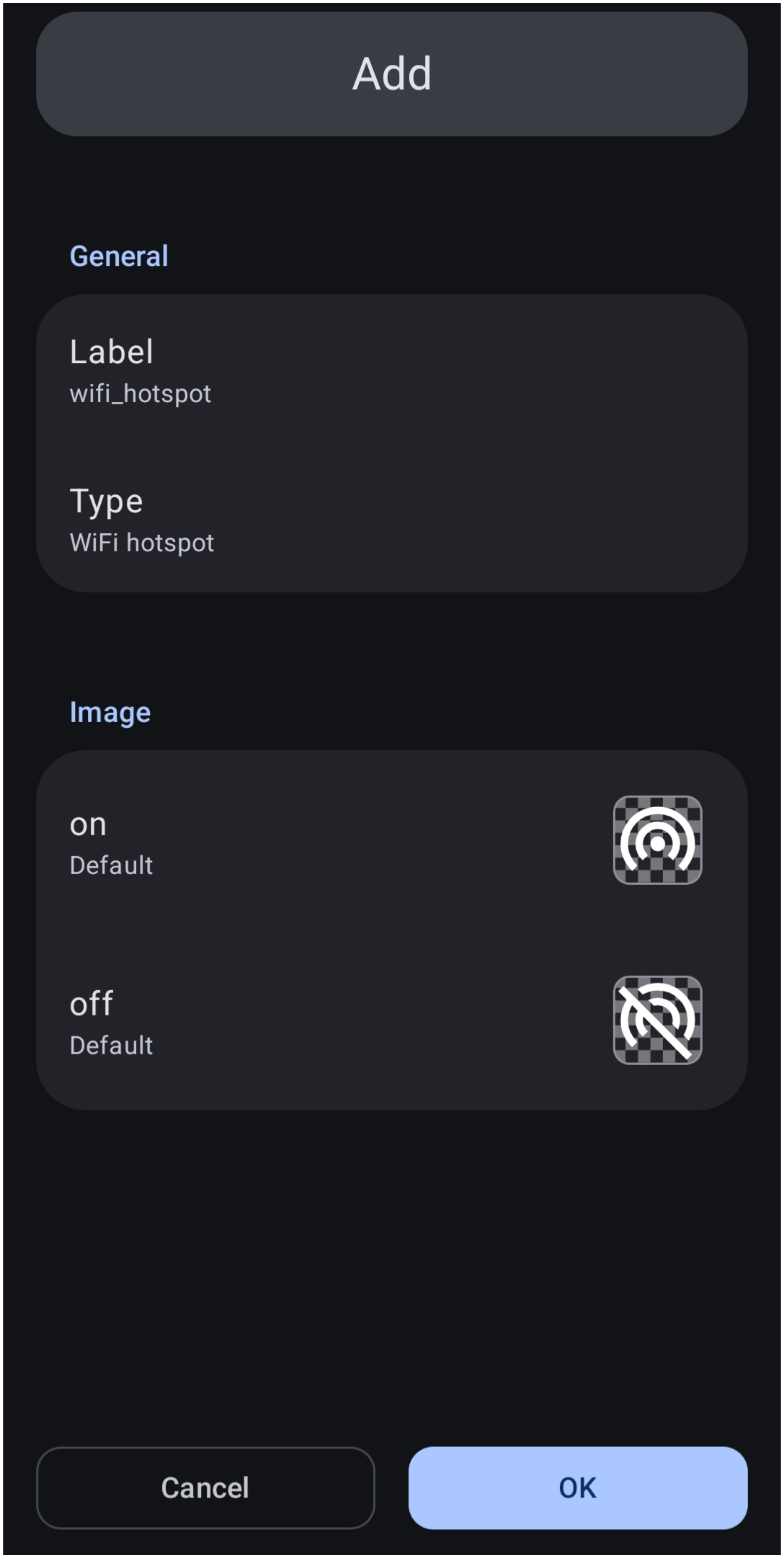
Wifi Hotspot
- Shows the state of the device's wifi hotspot as an on or off image
Wifi Status
- Shows Wifi signal strength (25%, 50%, 75%, 100%) or disconnected state (0%).
Dynamic Image
Dialog selections are discussed below the image. To navigate to an item, select it in the Dynamic Image dialog. NOT selecting any item and wanting to return to the prior page: swipe right-to-left; use the browser’s ‘back’ arrow; or use the Wiki’s Backlink icon on the right sidebar (mobile: drop-down dialog at the top of the page).
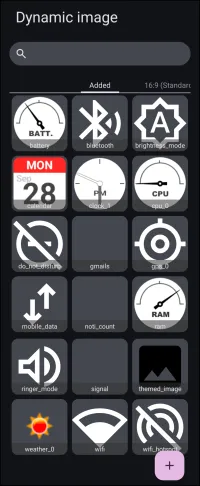
Dynamic Image dialog. Make selection above.
This dialog minimally displays the built-in dynamic images of Total Launcher. In the app, a user will tap the desired item to add it as an object or background (this demo cannot do that). The image shows the types of dynamic images. To jump directly to a review of a specific dynamic image, tap the category in the table below:
| ▶️ Battery status | ▶️ Gmails (unread) |
| ▶️ Bluetooth | ▶️ RAM |
| ▶️ Brightness mode | ▶️ Ringer mode |
| ▶️ Calendar | ▶️ Themed image |
| ▶️ Clock | ▶️ Weather |
| ▶️ CPU | ▶️ WiFi |
| ▶️ Do not disturb | ▶️ WiFi hotspot |
In the above dialog, tap this element to navigate in this demo:
- Add: Navigates to the Launcher
Adddialog for creating a new dynamic image widget.
Other element is this dialog are:
- Search
 - If scrolling the dynamic images is not successful in locating one, enter a string of characters to locate a user-created or built-in dynamic image easily.
 - 16:9 (Standard) - represents optional screen resolutions for use. The Added shows the current use of images, while 16:9 represents the standard resolution for 1080×2400. Screen resolution impacts the display of elements, such as images and shapes (circles) or text, which may appear correct but skewed on a different resolution screen. Other resolutions available (very usable by multi-screen devices) are:
- 18:9 (medium screen)
- 18.5:9 (Long screen)
- 19:9 (Long screen medium)
- 19.3:9 (long screen medium +)
- 19.5:9 (Long screen +)
- 20:9 (Extra long screen)
- 21:9 (Super long screen)
- 22:9 (Flip - Super long screen)
- 25:9+2.5:18 (Fold)
- 25:9 (Extremely long screen)
- 22.5:18 (Squarish screen)
- 5:8 (Tablet)

Additional information on dynamic image can be found in Resource - Dynamic Image.
===== Hidden Index Anchors ===== ui-resources-dynamic_image-add-type-selection ui-launcher_options-resources-dynamic_image

Comments & Feedback
Toby Lancer is ready to help! Look for the Quick Help form:
► Desktop: left sidebar located near the bottom for Private to Admin
► Mobile: 3-bar menu at page top.
► Use the Discussion section below to share any experiences and communications with other Total Launcher users.
► Any Registered User can directly update this and any wiki page if desired.
Moderation: To keep the manual clean, all comments are held for appropriateness review. Preview any comment before submitting it. It will not be displayed after submission until it is reviewed. So, please, do not resubmit.
Formatting: If using any code snippets, place them inside code tags (e.g., 'code') using double single quotes (') before and after to keep them readable.
Be Kind: This is a community effort. Please keep feedback constructive and on topic.
~~DISCUSSION~~