Table of Contents
Resource - Shadow
Shadows for an object, whether it is text or other graphics such as images, shapes, icons, windows, or folders, serve as a fundamental visual anchor that provides a three-dimensional lift to complement a professional interface. By separating the object from its background, the user's eye can easily distinguish what is interactive and what is static.
Quick Start: The Two Rules of Drop Shadows
Total Launcher relies on Android's native rendering engine, which features specific behaviors. Use these two concepts when working with graphic objects:
To create a reliable drop shadow, follow these guidelines:
- For a Solid Shadow: -
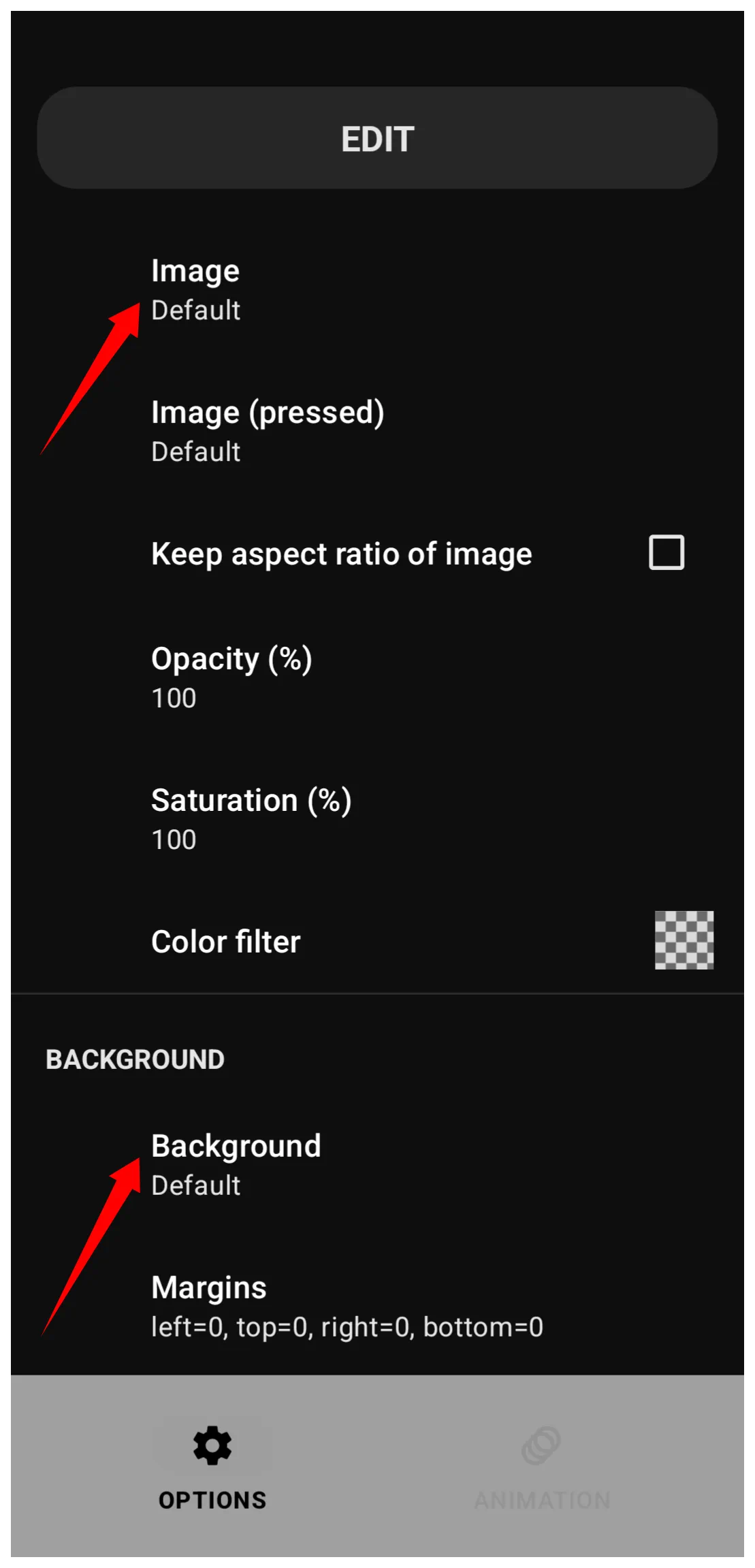
- Assign the shape or picture/image to the Object's Edit Option dialog
Image(foreground) property (the first element) - Assign the shadow preset to its single
Backgroundproperty in that dialog. An example of that dialog is shown here.
- For a Hollow Ring Shadow: - Apply a border width of at least
3to the shape, and set the Alpha Fill opacity to 1% (e.g.,ARGB 01000000).- See the example here.
- For ALL Shadows (The Margin Rule): - Increase the object's
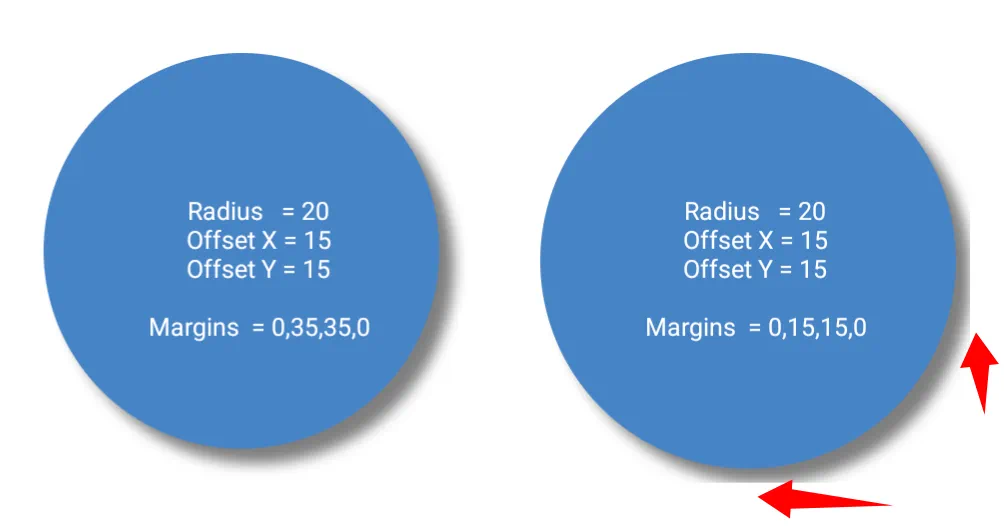
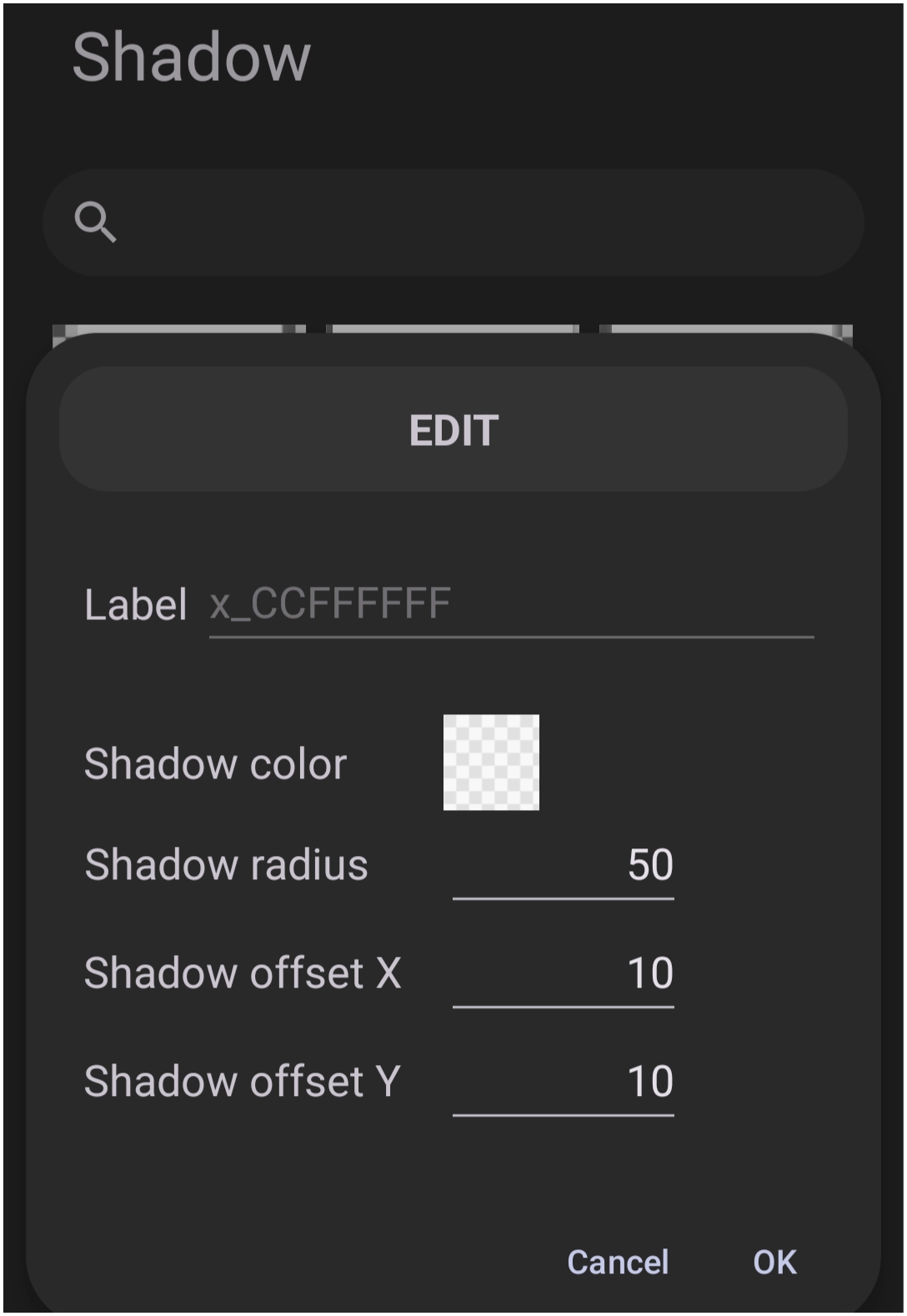
Marginsin the direction the shadow falls. The margin value must be equal to or greater than the shadow's radius to prevent the soft edges of the shadow from hitting the object's invisible bounding box and clipping.- Notice the images below with the shadow clipped on the right image's right and bottom since the margin is less than the shadow's radius.

| Using the Formula ↔ No Formula Boundary Clips Shadow |
|---|
 |
When a drop shadow is desired, avoid the following actions:
- 0% Alpha Transparency: - Never set a shape's fill to exactly
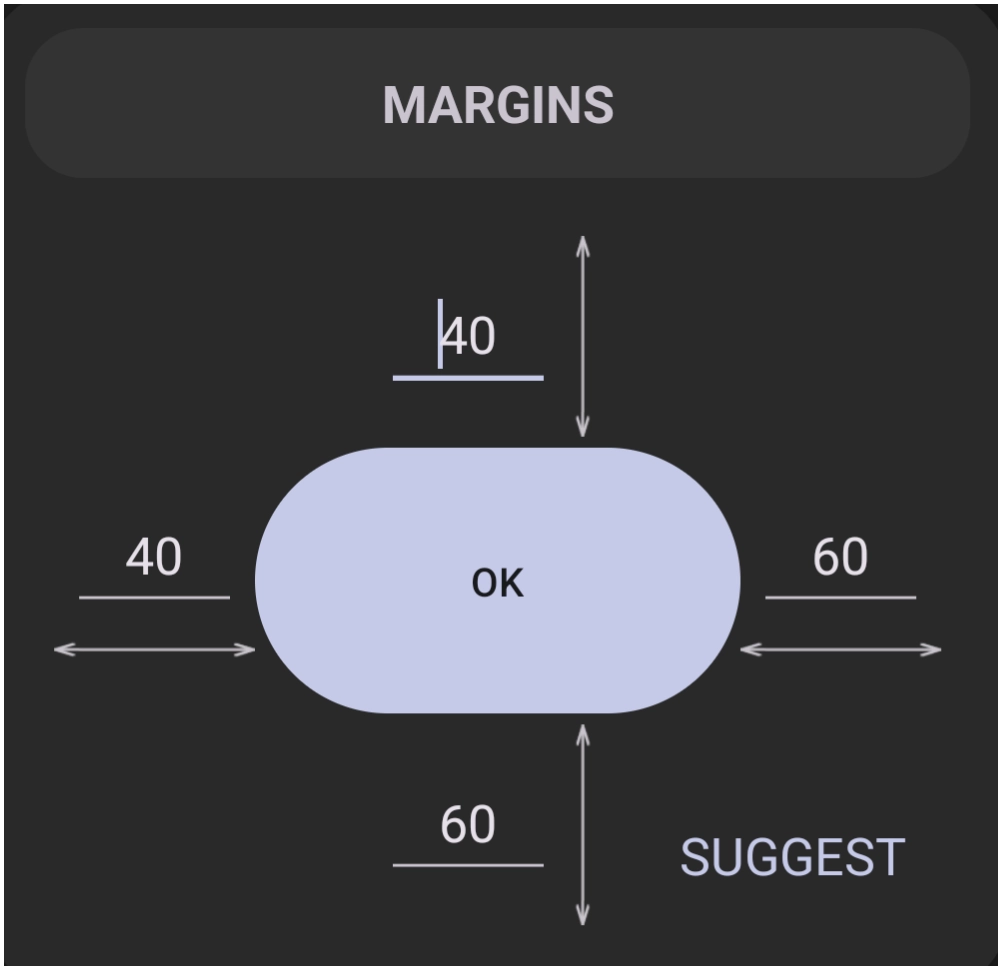
00(e.g.,ARGB 00000000). The rendering engine assumes the object is completely invisible and instantly deletes the shape, border, and shadow from the screen to save processing power. - Margins at 0: - A zero margin forces the shape to touch the absolute edges of its container, leaving zero physical room on the canvas for the shadow to be drawn. The Margin dialog does offer a
Suggestsetting to try first. - Stacking Backgrounds: - The
Backgroundmenu is a single-occupancy slot. The slot accommodates a Shape resource or a Shadow resource, but cannot stack them directly inside the same menu field at the same time.
What is a Shadow Resource?
Total Launcher offers a “library” for its user-created shadow presets used for visual depth and separation from background objects. The library is viewed by navigating to the Main Menu > Launcher options > Resources > Shadow as shown in this dialog.
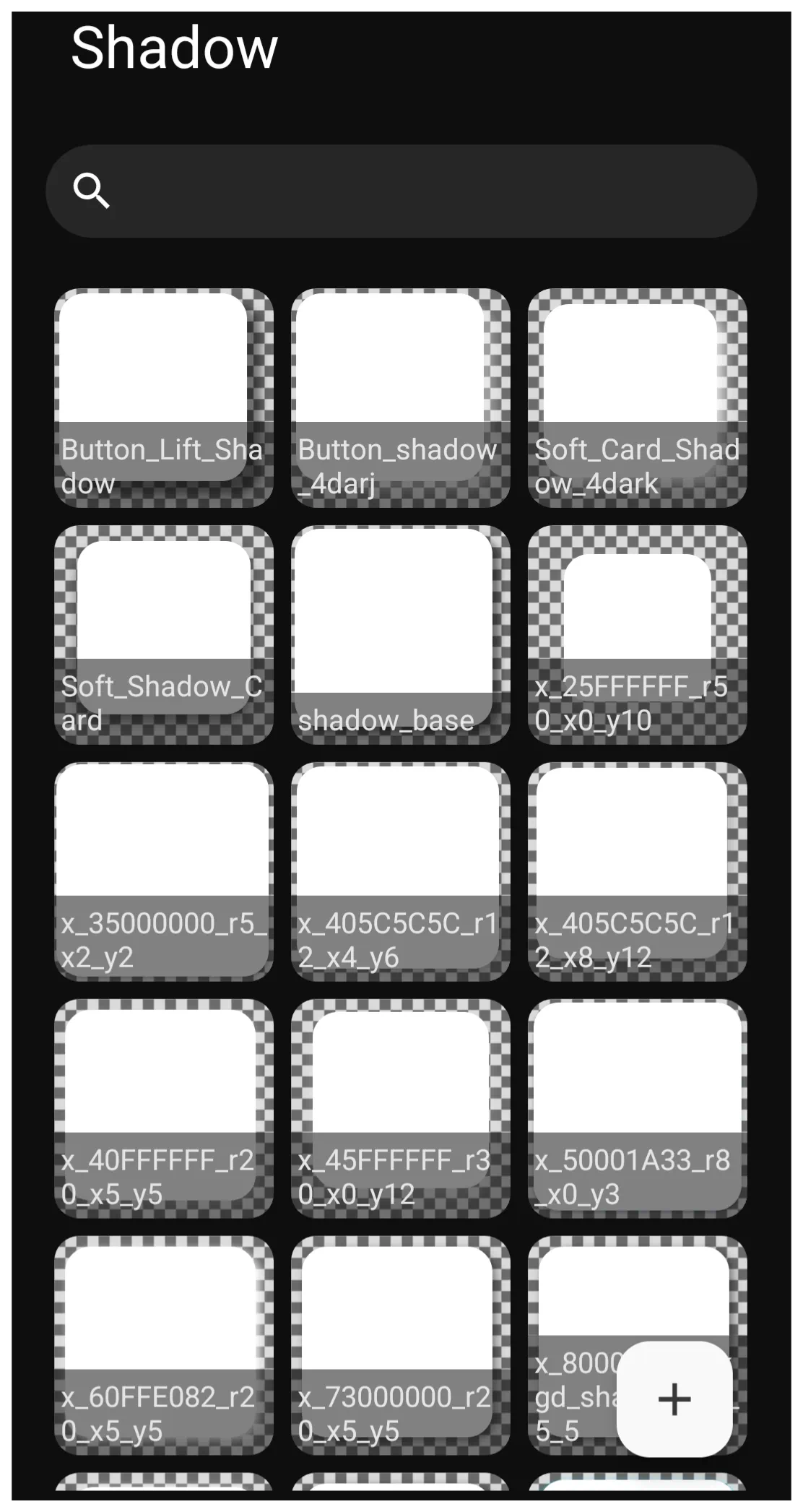
Common uses for shadow resources include:
- Exterior or Interior Drop Shadows: - Provides the native ability to cast outward shadows based on an object's external mathematical boundaries. Total Launcher does not natively support inner shadows (shadows cast inside the object). Creating an inner shadow effect requires combining multiple hollow shapes with inverted margins.
- View drop vs inner shadow examples here.
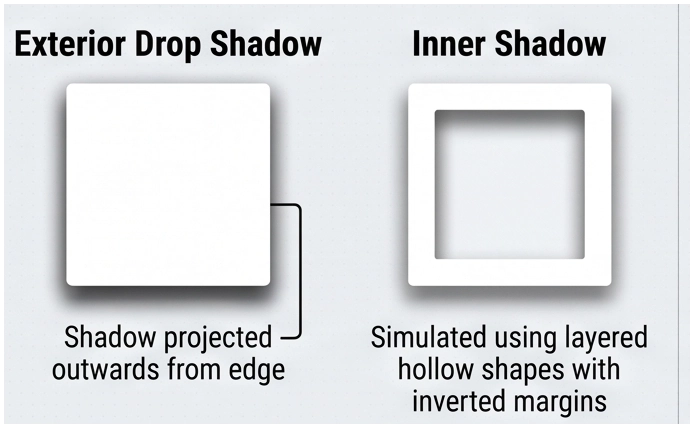
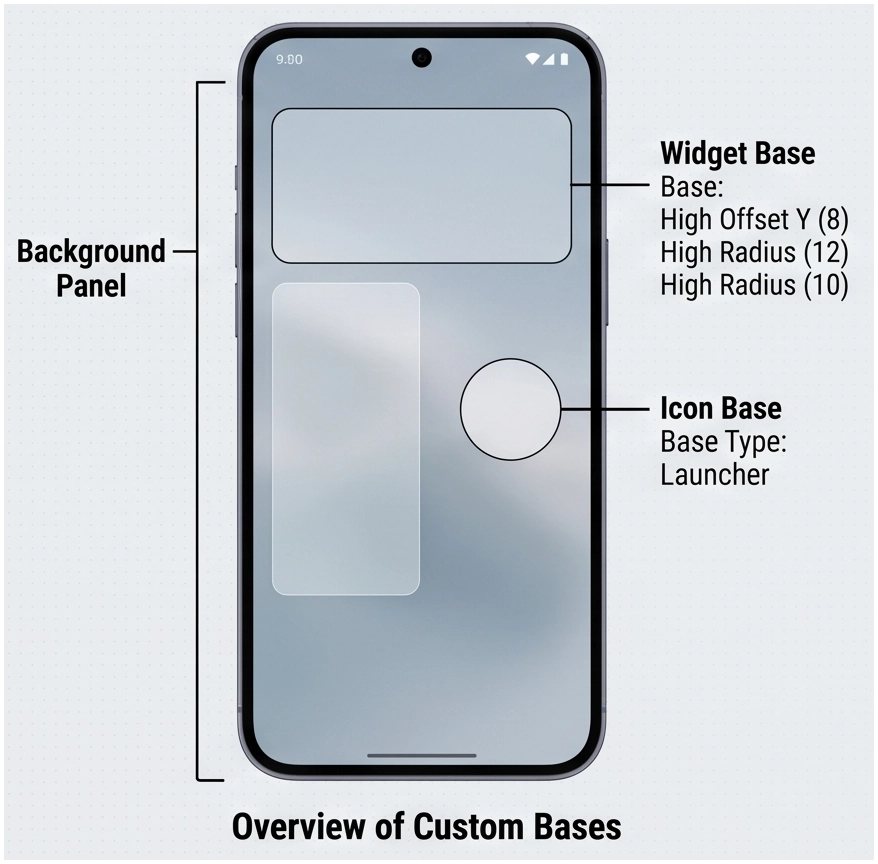
- Custom Bases: - Acts as the foundational layer for launcher objects, granting flat graphics a physical presence on the screen.
- View custom base examples here
- Floating Cards: - Applies high
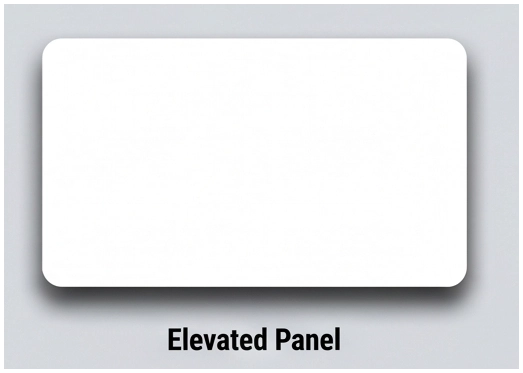
Offset YandRadiusvalues to background shapes to create panels that appear elevated far above the wallpaper.- View floating card examples here.
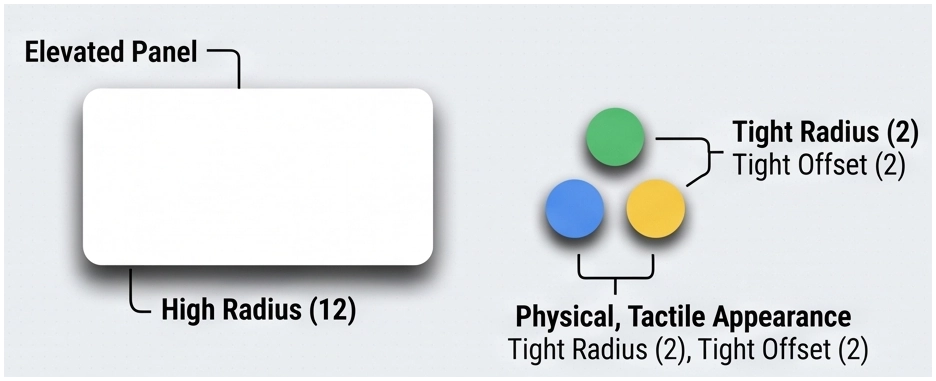
- Lifted Buttons: - Utilizes a tight
Radiusand lowOffsetvalues behind icons or small shapes to create tactile, clickable elements that mimic physical hardware keys.- * View lifted button examples here.
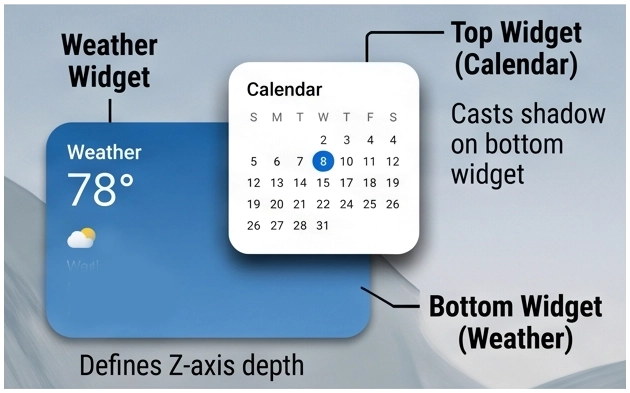
- Layered UI Effects: - Generates visual hierarchy (Z-axis depth) and clear boundaries when stacking multiple widgets, overlapping windows, or pinning panels. The shadow visually dictates which element resides in the foreground, preventing flat, confusing layouts.
- View layered UI examples here.
- Text Emphasis: - Ensures text remains legible regardless of the wallpaper underneath. Applying a tight, dark shadow preset behind bright text separates the characters from busy or similarly colored backgrounds, acting as a soft outline.
- View text emphasis examples here.
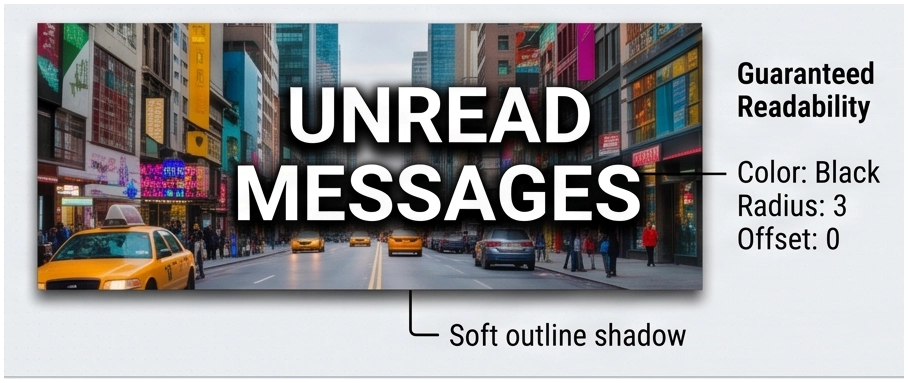
The Built-in Shadow Library
Total Launcher provides no core library of shadows, only the space to store user-created shadow effects.
Customizing and Editing Shadows
Shadows can be created at any time and added to 'Resource - Shadow' by navigating to
Main Menu>Launcher options>Resources>Shadow>Addicon
Shadows can be created “on-the-fly” when working with an object at
Object Design menu>Options>Background>Shadow
The Shadow dialog and the description of its elements are shown below:
| Shadow Add Dialog | Element Descriptions |
|---|---|
The Shadow Add dialog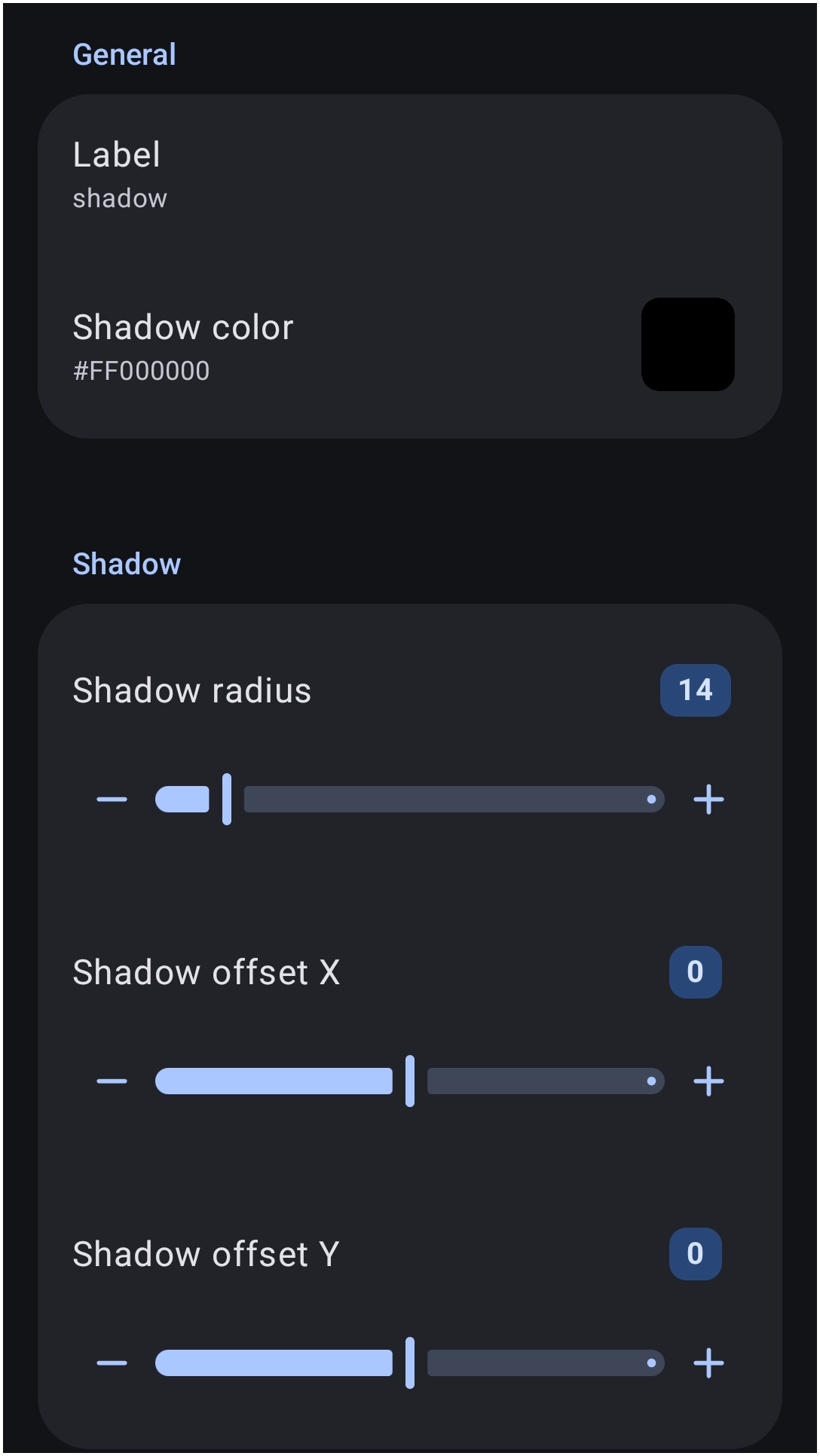 | • Label: - Enter a filename (no spaces/only underscore _ for separators) to ID when saved.• Shadow color: - See a full review of TL's Color Picker here. See also the discussion below for successful color selection for shadows on different backgrounds. • Shadow radius: - Controls the spread/softness of the shadow with a range of 0 to 100. “Radius” technically measures a distance (in pixels) the blur extends from the object's edge. (A technical review of “Radius” is here.) Visually, it determines how “fuzzy” the shadow appears.» Low values (1-5): Tight, hard-edged shadow mimicking a harsh light source. » High values (10+): Wide, soft-edged shadow mimicking a large, diffused light source. ⇒ Note: If Offset X/Y = 0, the shadow remains perfectly centered behind the object; a higher radius will make it “glow” out from all sides. • Shadow offset X: - Controls the horizontal position of the shadow relative to the object, with a range of -100 to +100 and default of 0 (no shadow). Positive values push the shadow to the right; negative values push the shadow to the left.• Shadow offset Y: - Controls the vertical position of the shadow relative to the object, with a range of -100 to +100 and a default of 0 (no shadow). Positive values push the shadow downwards; negative values push the shadow upwards. |
Procedure To Apply a Shadow: Sample
The following procedure outlines the standard method for applying a shadow resource to an object:
- Enter Edit On mode or long-press the desired graphic object on the screen to open the Object Design menu.
- Select the
Option icon to launch the Object Options dialog.
- Select
Imageand assign the primary foreground element (a specific shape or image). - Select
Backgroundto open its dialog.- Scroll to
Shadowthen select the required shadow preset (or tap the+icon to create a new one).
- Back out of this screen to return to the Object Options Edit dialog and select the
Margins- Increase the margins to accommodate the combined value of the shadow's radius and offset, ensuring the blur is not clipped by the bounding box as shown in this example. The example demonstrates the **margin rule** but actually utilized the
Suggestionicon to produce it.

Design Enhancements with Shadows
The following are common design methods utilizing shadows to enhance overall layout:
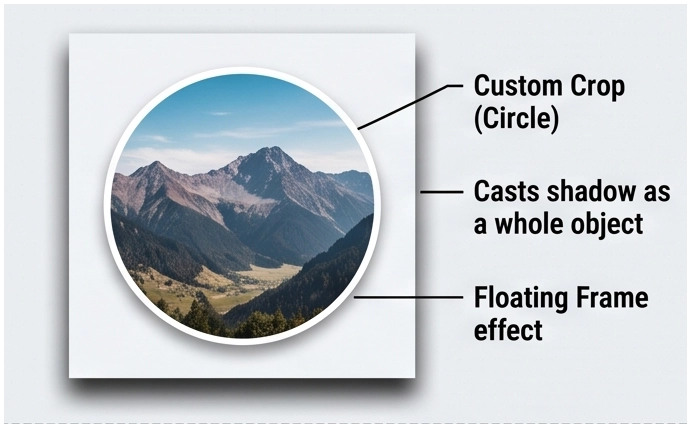
- Framed Image Layouts: - Creates the appearance of physical photos, Polaroid prints, or framed art floating above the wallpaper. Instead of displaying flat, standard rectangular photos, images are cropped into precise custom designs (such as circles or heavily rounded rectangles) and lifted off the screen with a distinct drop shadow.
- View framed image example here.
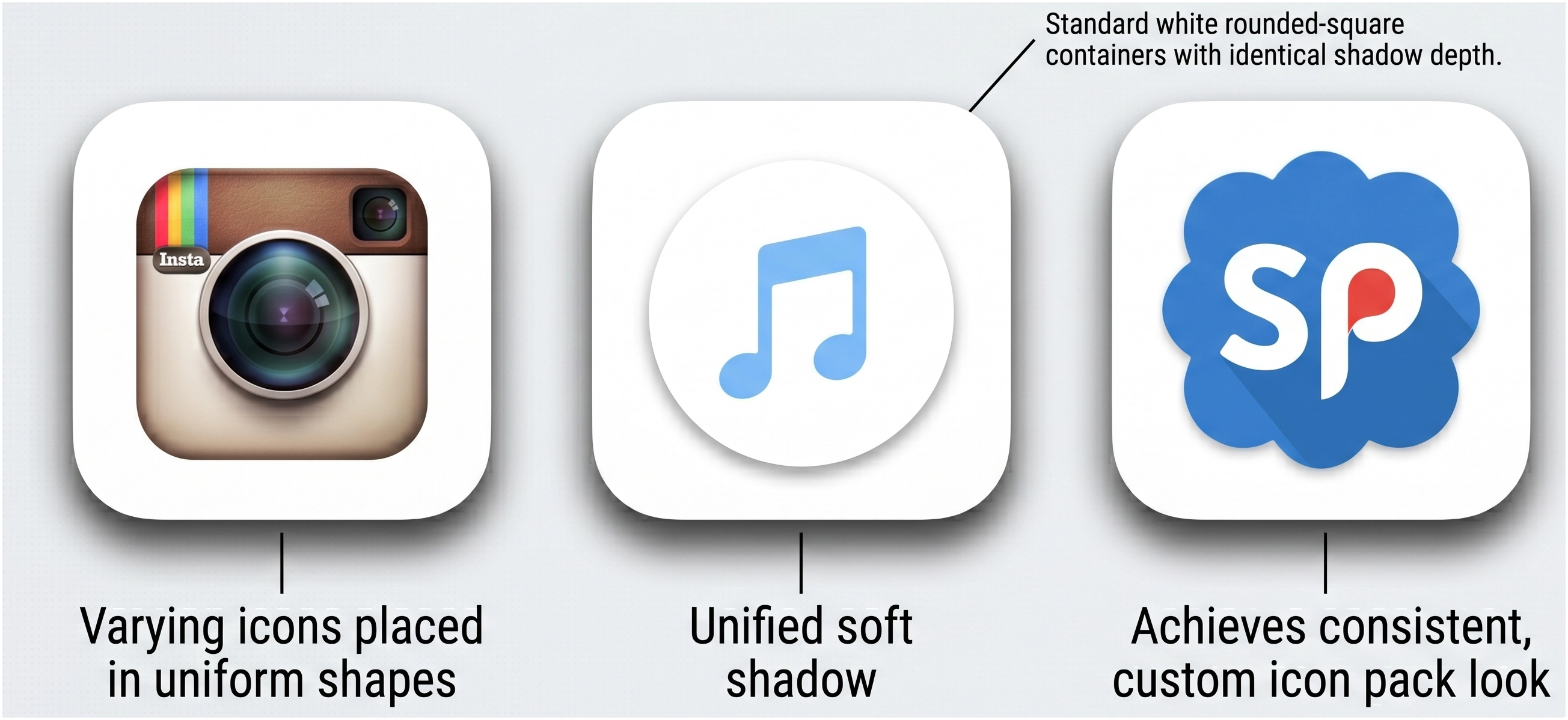
- Uniform App Icon Reshaping: - Standardizes the size and design of mismatched application icons. Older or varying app icons can be forced to conform to a specific, matching shape (like identical circles or rounded squares). By applying this uniform shape alongside a soft shadow to all shortcuts, a cohesive, modern interface will be achieved without downloading third-party icon packs.
- View uniform icon reshaping examples here.
Recommended Offsets and Radius for a Modern UI Design
In modern UI design, light is usually treated as coming from directly above or slightly “front-and-top.” This means the X offset is often 0 (centered horizontally), and the Y offset is positive (pushing the shadow down). Below are suggested settings for the X/Y Offsets and the Radius if this style is desired.
| Style | Offset X | Offset Y | Radius | Appearance |
|---|---|---|---|---|
| Subtle Lift | 0 | 2 | 4 | Clean, professional, slightly elevated |
| Floating Card | 0 | 8 | 12 | High elevation, like a physical card held over the screen |
| Retro / Pop | 4 | 4 | 2 | Distinct, “sticker-like” sharp edge |
| Soft Glow | 0 | 0 | 20 | High-end “aura” effect (only works if radius is high). |
Tips to Perfect Shadows and the Technical Reasoning Behind Each
- Increase margins: - Prevent clipping by increasing the object's margins to be greater than or equal to the shadow's radius and offset. See the technical discussion here.
- Avoid 0% Alpha: - Avoid an Alpha Fill opacity of exactly
00since this causes the rendering engine to skip the calculation and delete the shadow and border entirely to save processing power. See the technical discussion here.
- Use 1% Alpha for hollow shapes: - Trick the engine into rendering a shadow for a transparent shape by setting the Alpha Fill opacity to
01combined with a thick border. See the technical discussion here.
- Do not rely on gradient shadows: - Shadows ignore image or shape internal gradient fades and cast a uniform blur based solely on the mathematical outer boundary of the shape. The shadow is generated based on its options (color, radius, and offsets). See the technical discussion here.
- Use high opacity on dark themes: - Overcome the luminance floor and maintain visibility on dark wallpapers by utilizing high alpha values (80%+) or solid colors. See the technical discussion here.
- Utilize color wheel opposites: - Create visual separation on exceptionally dark backgrounds by applying a hue-shifted shadow from the opposite side of the color wheel. See the technical discussion here.
Technical Note: The Gaussian Safety Buffer
While Rule 1 states that Margin must be ≥ (Radius + Offset), high-radius shadows require a “Safety Buffer”.
- The Rule of Thumb: - For any Radius over
20, multiply the required margin by 1.2. - Example: - If the radius is
50and Offset is10, do not set the Margin to60. Set it to 72 to account for the “tail” of the Gaussian blur.
Design Tip: To test shadows effectively, always set the launcher wallpaper to the color recommended in the “Best Use On” column of the configuration tables. Testing a “Light Mode” shadow on a “Dark Mode” background will always result in a “Contrast Wall” failure.
UI Navigation Note: The Single Slot Background
When configuring a Graphic Object's Options (gear) menu, the Background property is a single-occupancy slot.
- A shape, an image, a color or a shadow can be assigned to this slot, but resources cannot be combined directly inside the same Background menu level.
- To apply a shadow based on a specific custom shape's properties, the Shape Resource must reside in the object's top
Image(foreground) slot, while the Shadow preset resides in theBackgroundslot.
Performance Hits from Radius/Blur Use
Total Launcher processes shadows using native drawing routines, which require dynamic graphic calculations.
- High GPU Demand: - Large shadow radii require significant Gaussian blur calculations during screen rendering.
- Frame Rate Drops: - Applying large shadow radii (e.g., above
25) to multiple overlapping objects or within scrolling containers causes noticeable stuttering or frame rate drops on older devices. - Mitigation Strategy: - Maintain performance by minimizing the number of heavily shadowed objects on a single page, keeping the
Shadow radiusvalue moderate, or utilizing pre-rendered PNG images with built-in shadows for static, complex graphics.
Comments & Feedback
Toby Lancer is ready to help! Look for the Quick Help form:
► Desktop: left sidebar located near the bottom for Private to Admin
► Mobile: 3-bar menu at page top.
► Use the Discussion section below to share any experiences and communications with other Total Launcher users.
► Any Registered User can directly update this and any wiki page if desired.
Moderation: To keep the manual clean, all comments are held for appropriateness review. Preview any comment before submitting it. It will not be displayed after submission until it is reviewed. So, please, do not resubmit.
Formatting: If using any code snippets, place them inside code tags (e.g., 'code') using double single quotes (') before and after to keep them readable.
Be Kind: This is a community effort. Please keep feedback constructive and on topic.
~~DISCUSSION~~