Table of Contents
Total Launcher Color Picker Guide: HSV & Hex Customization
Mastering the Total Launcher Color Picker utility is essential for advanced Android UI customization. This tool becomes available whenever modifying color properties for interface Graphic objects which include:
- Text
- Image
- Icon pack
- Shadow
- Shape
- Dynamic image
- Background
- Filter
The utility appears identical across these occurrences, ensuring a unified design workflow throughout the launcher.
► Color Picker Utility
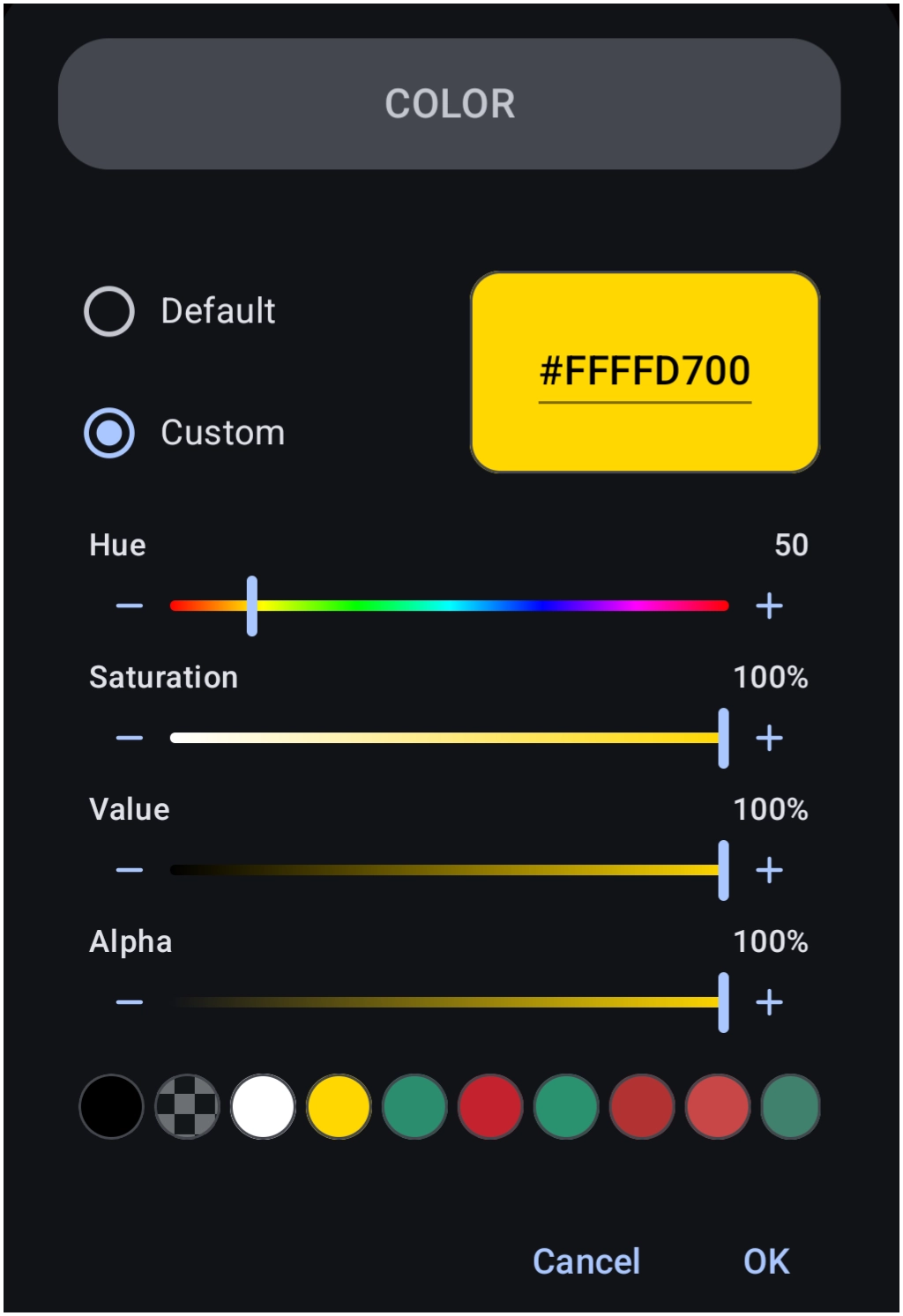
The Total Launcher Color Picker utility facilitates selecting and customizing hexadecimal codes for various elements, including graphics, text, images, shapes, and backgrounds. With the release of Total Launcher v4.0, the interface introduces a precise HSV (Hue, Saturation, Value) selector with Alpha transparency control, completely replacing the legacy ARGB wheel system. This guide covers basic use, hex breakdown, and color matching workflows.
Basic Use
Interact using the sliders or by entering a hexadecimal directly. Adjusting the HSV sliders automatically updates the displayed 8-character hex code in real time.
Interface Elements
- Mode Selection: - Radio buttons to choose between Default (standardized colors) and Custom (manual adjustments).
- Hexadecimal Display/Input: - A highlighted box displaying the current color code in an 8-character format (e.g.,
#FFFFD700). The first two characters represent the Alpha channel, while the remaining six represent the RGB values. This box allows for direct text input by tapping it. - Hue Slider: - A rainbow-gradient slider used to select the base color tone. Values range numerically.
- Saturation Slider: - Adjusts the intensity or purity of the color, ranging from 0% (grayscale with pigment stripped away) to 100% (full color).
- Value Slider: - Adjusts the brightness or luminance of the color, ranging from 0% (black) to 100% (full brightness).
- Alpha Slider: - Controls the transparency level, ranging from 0% (fully transparent) to 100% (fully solid and opaque).
- Recent Colors Palette: - A horizontal row of circular swatches displaying recently used colors. To copy a color from an existing element, open the Color Picker for that element and select
OK. The color will be added to the front of this palette for future access. - Checkerboard Swatches (Default Mode): - Swatches with a checkerboard pattern provide immediate visual confirmation that the selection is semi-transparent, guaranteeing that background layers will bleed through.
- Auto-Save (Custom Mode): - When a custom color is finalized by selecting OK, the utility automatically pushes that exact configuration into the recent row, eliminating the need to repeatedly copy and paste hex codes when matching elements.
- Cancel / OK: - Discard or confirm the selection.
Optimal Workflow for Real Use
- Step 1: Bypass the Hue slider entirely during initial adjustments.
- Step 2: Advance the Value slider to 100% to restore full illumination.
- Step 3: Advance the Saturation slider to 100% to restore full pigment intensity.
- Step 4: View the vivid color track before adjusting the Hue slider or reducing levels to achieve exact pastel, deep tone, or shaded variations.
For more explanation of alpha hex and percentages,


How to Pinpoint Specific Colors
There are many methods available to identify specific hex codes, but these two are the most practical for launcher customization:
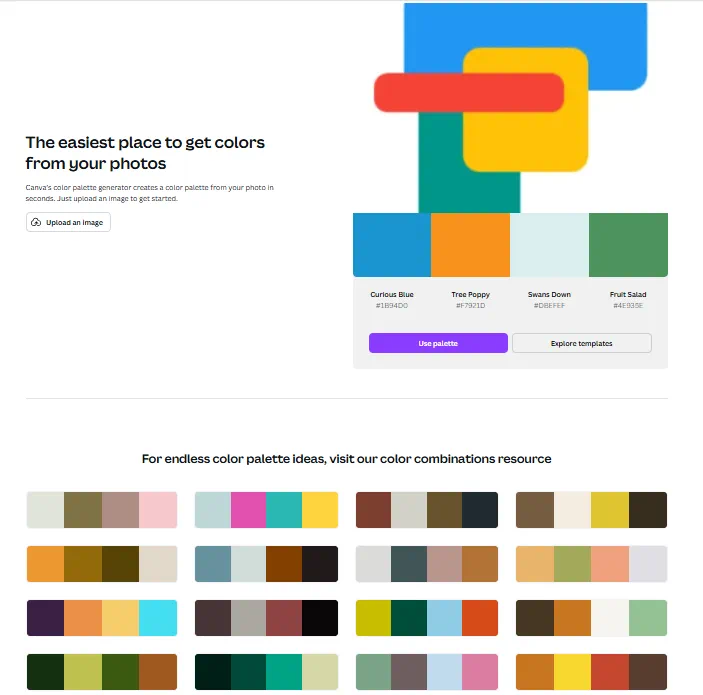
- Extracting from Device Screens: Utilize a dedicated Android application to extract hexadecimal codes directly from your display. Color Picker by Mikhail Gribanov is a highly recommended utility available on the Google Play Store.
Comments & Feedback
Toby Lancer is ready to help! Look for the Quick Help form:
► Desktop: left sidebar located near the bottom for Private to Admin
► Mobile: 3-bar menu at page top.
► Use the Discussion section below to share any experiences and communications with other Total Launcher users.
► Any Registered User can directly update this and any wiki page if desired.
Moderation: To keep the manual clean, all comments are held for appropriateness review. Preview any comment before submitting it. It will not be displayed after submission until it is reviewed. So, please, do not resubmit.
Formatting: If using any code snippets, place them inside code tags (e.g., 'code') using double single quotes (') before and after to keep them readable.
Be Kind: This is a community effort. Please keep feedback constructive and on topic.
~~DISCUSSION~~